Check out the conversation on Apple, Spotify and YouTube.
Brought to you by:
Jira Product Discovery: Plan with purpose, ship with confidence
Mobbin: Discover real-world design inspiration
Pendo: The #1 software experience management platform
Product Faculty: Get $550 off the AI PM Certification with code AAKASH550C7
Land PM job: My premier 12-week experience to master getting a PM job
Today’s Episode
I have an ongoing mission to find you the best AI tools to help you in your job.
So today, we explore AI browsers.
Should you use any of those browsers? Are they safe? Will they make you a more effective PM?
Today, we’re giving you all the answers with live demos.
Naman Pandey has tested ChatGPT Atlas, Arc Dia, and Perplexity Comet more than anyone. He has spent hundreds of hours finding the real use cases that actually work.
And he’s dropping which browser wins for each use case, where they fall over, and the exact workflows to use as a PM:
If you want access to my AI tool stack - Dovetail, Arize, Linear, Descript, Reforge Build, DeepSky, Relay.app, Magic Patterns, Speechify, and Mobbin - grab Aakash’s bundle.
Newsletter Deep Dive
As a thank you for having me in your inbox, I’ve written up a complete guide to AI agent browsers:
What AI agent browsers actually are and why they matter
When to use ChatGPT Atlas (and when not to)
When to use Perplexity Comet (and when not to)
When to use Arc Dia (and when not to)
The 8 best PM use cases with exact prompts
Tab context - the superpower you need to understand
Why they’re slow and what to do about it
The privacy concerns you need to know
1. What AI Agent Browsers Actually Are
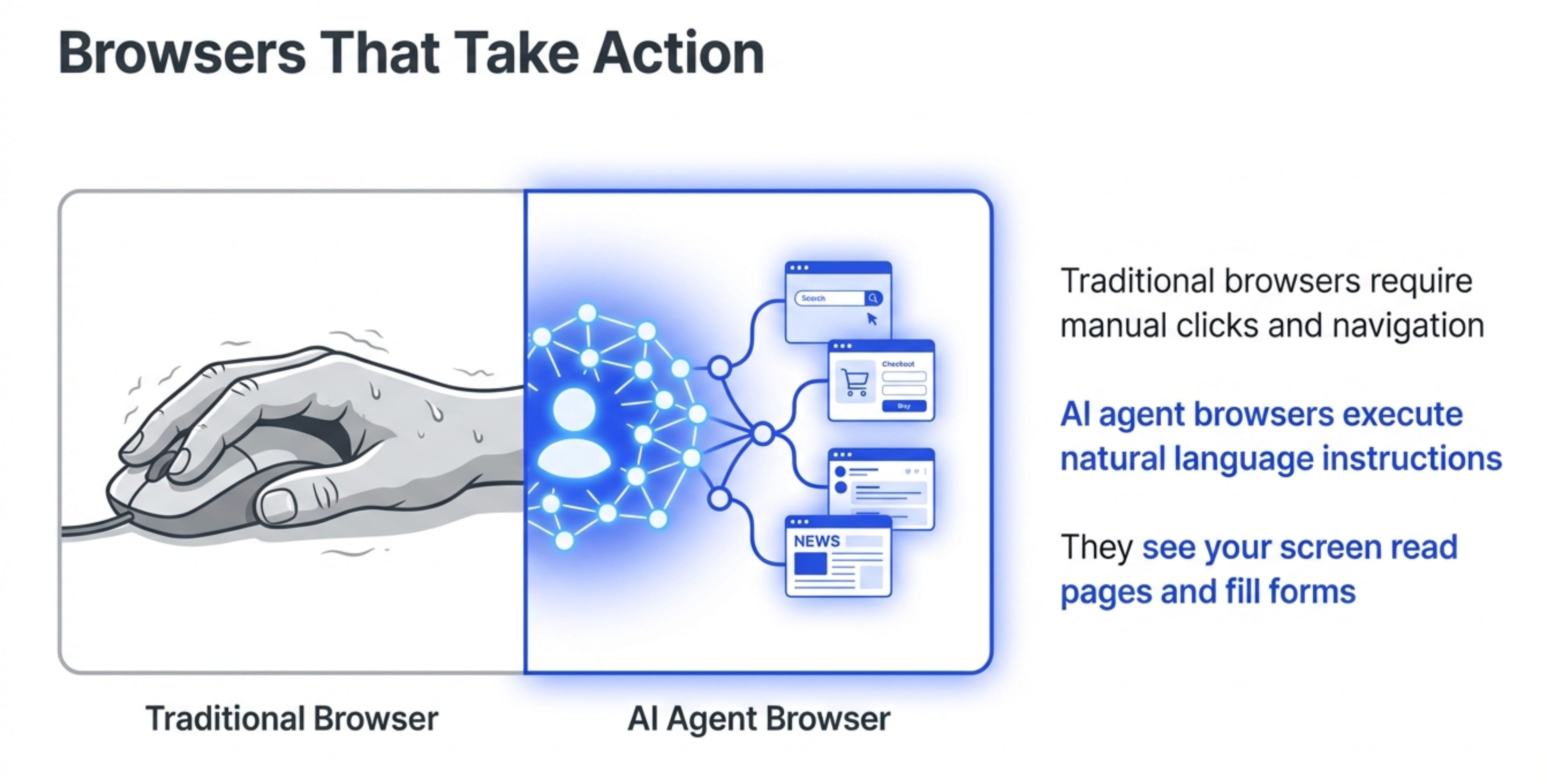
Traditional browsers like Chrome or Safari require you to do everything manually. Click here, type there, navigate somewhere else.
AI agent browsers can do all that for you based on natural language instructions.
You tell it what you want. It figures out how to do it.
The Three Types
There are three main AI agent browsers available right now:
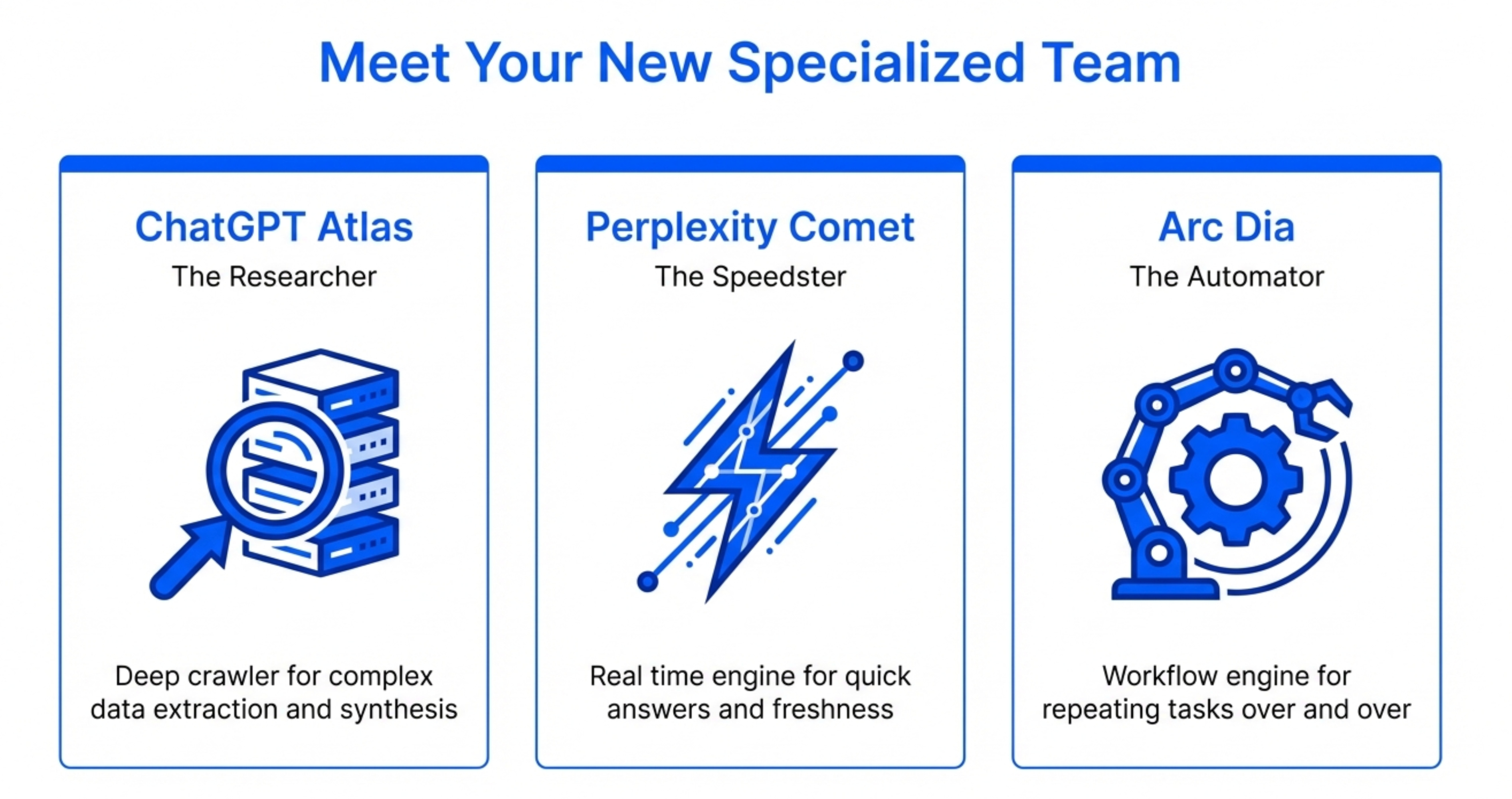
ChatGPT Atlas - Built by OpenAI, integrated directly with ChatGPT
Perplexity Comet - Built by Perplexity, standalone browser application
Arc/Atlassian Dia - Originally built by the same company behind Arc, now owned by Atlassian
Each works fundamentally differently. They’re not really competing head-to-head because they’re built for different purposes.
How They Actually Work
The magic happens through something called browser automation.
The AI can see your screen, read web pages, click buttons, fill forms, and navigate between pages.
It’s like having a really smart assistant who can use your computer for you.
They’re not all equally good at everything:
ChatGPT Atlas is best for complex research and data extraction across multiple pages.
Perplexity Comet is best for real-time information gathering and quick lookups.
Arc Dia is best for workflow automation and repeated tasks.
Understanding this distinction is key to using them effectively.
2. ChatGPT Atlas - The Research Powerhouse
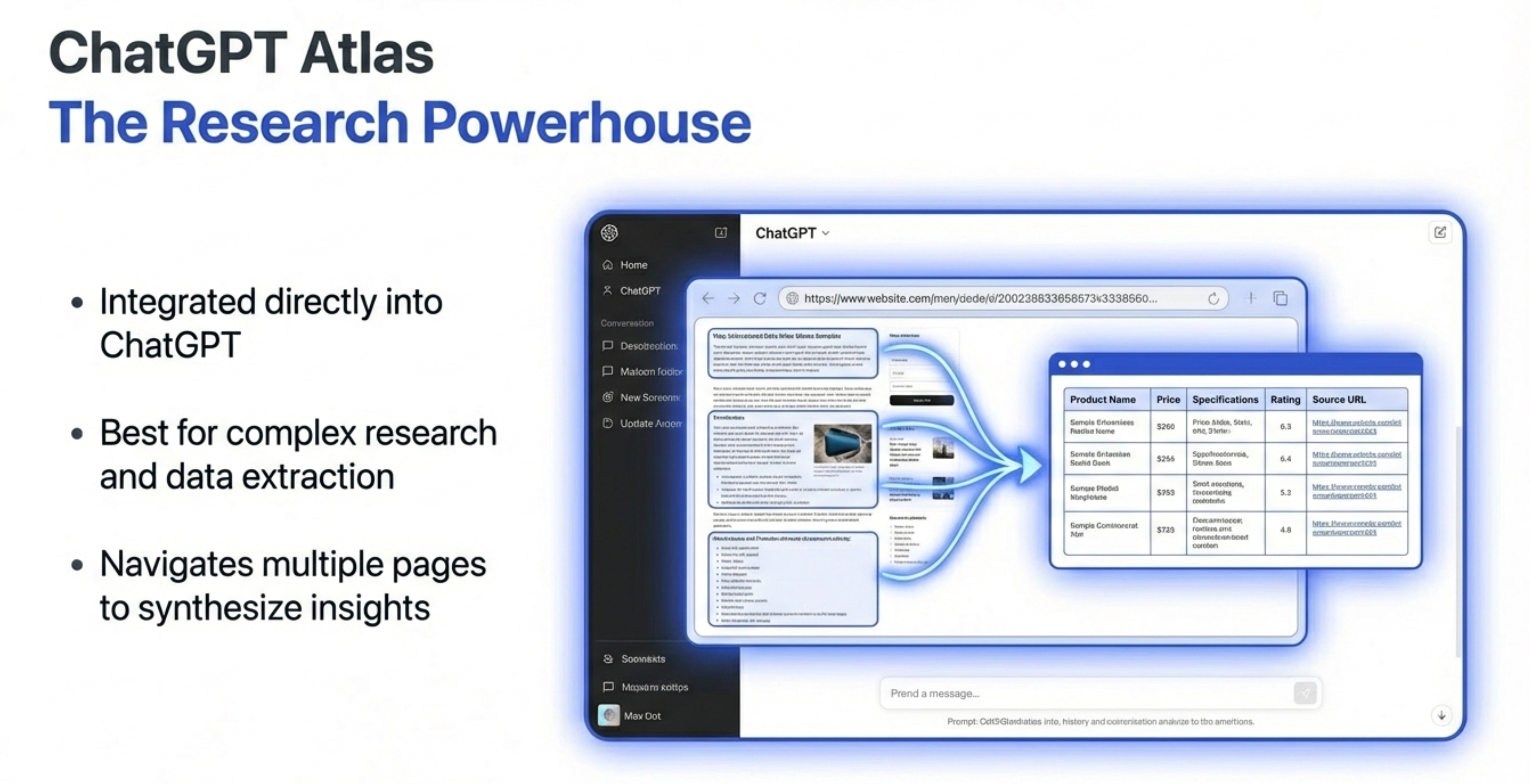
ChatGPT Atlas is the newest entry. It launched in October 2025.
When to Use ChatGPT Atlas
Use ChatGPT Atlas when you need to:
Extract structured data from multiple web pages
This is where Atlas absolutely dominates. You can ask it to:
Find all YC companies in a specific category
Get contact information for 50 recruiters at target companies
Build a list of competitors with their pricing pages
Scrape product features from 20 different SaaS tools
Research competitors systematically
Atlas can navigate through entire competitor websites, capture screenshots, document user flows, and summarize positioning.
This used to take hours. Now it takes minutes.
Analyze multiple sources at once
Give Atlas 10 different research papers, blog posts, or reports. It will read all of them, synthesize the key insights, and give you a structured summary.
This is incredibly valuable for AI product strategy work.
Build comparison tables
Atlas can create detailed feature comparison tables by actually visiting competitor products, documenting what they see, and organizing it into structured formats.
The Atlas Workflow
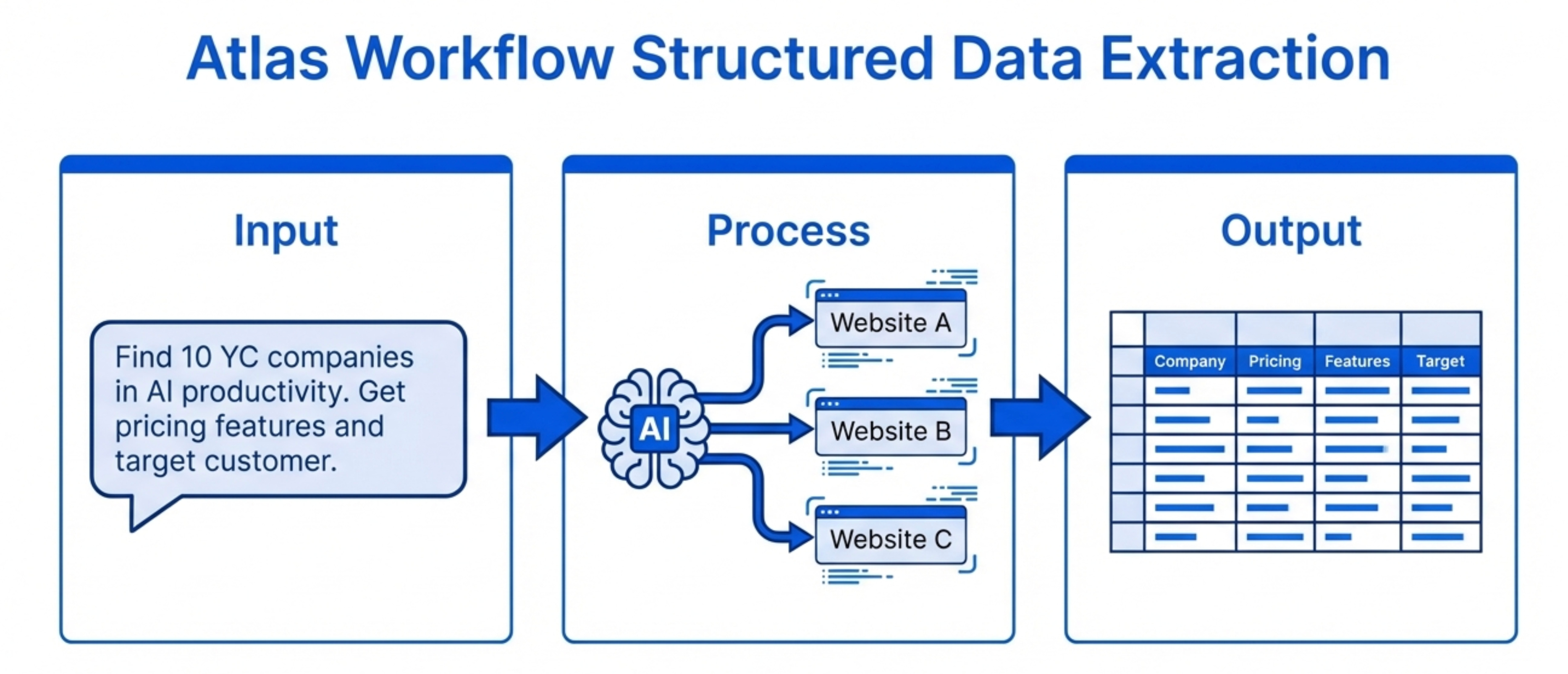
Here’s the exact workflow Naman demonstrated:
Step 1 - Give it a clear objective
Don’t just say “research competitors.” Say:
“Find 10 YC-backed companies in the AI productivity space, get their pricing, main features, and target customer from their websites.”Specificity matters.
Step 2 - Let it work through the pages
Atlas will navigate to each site, scroll through relevant pages, and extract information.
You’ll see it working in real-time. You can watch it click links, read content, and move between pages.
Step 3 - Review and refine
It will present findings in a structured format. Often a table or bullet list.
If something’s missing or wrong, you can ask it to go back and get more specific information.
Step 4 - Export the results
Copy the data into whatever tool you need - Google Sheets, Notion, your PRD template, wherever.
Example - Job Seeker Use Case
Naman showed a powerful job seeker workflow:
“Go to LinkedIn, find all recruiters at Google working in product management, get their names and profile links, and draft personalized DMs to each one based on their background.”Atlas did this in about 10 minutes.
Before Atlas, this would take 2-3 hours of manual work. You’d have to:
Search LinkedIn manually
Click through dozens of profiles
Copy names and links
Write individual messages
Now it’s one prompt away.
For PMs, this same workflow applies to:
Finding potential design partners
Identifying beta testers
Researching user interview candidates
Building lists of industry experts to interview
When NOT to Use ChatGPT Atlas
Atlas struggles with:
Real-time information that changes by the second
Stock prices, live sports scores, breaking news - anything that updates faster than Atlas can load pages.
Tasks requiring login to sensitive accounts
More on privacy concerns later, but you shouldn’t use Atlas to log into your bank account, email, or other sensitive systems.
Very simple lookups
If you just need to know “What’s the weather?” or “What’s 25% of 400?”, Atlas is overkill. Use regular ChatGPT or Perplexity.
Creative writing or analysis
Atlas is for browsing the web. If you need Claude to write something or analyze data you already have, regular ChatGPT is faster.
The Critical Limitation: Speed
Atlas is slow.
Each page load takes 5-10 seconds. If it needs to visit 20 pages, that’s 2-3 minutes just waiting for pages to load.
For research tasks where you’d otherwise spend hours, this is fine. You save massive time overall.
But for quick lookups or simple tasks, the slowness is painful.
The key is knowing when the time trade-off makes sense.
3. Perplexity Comet - The Real-Time Speed Demon
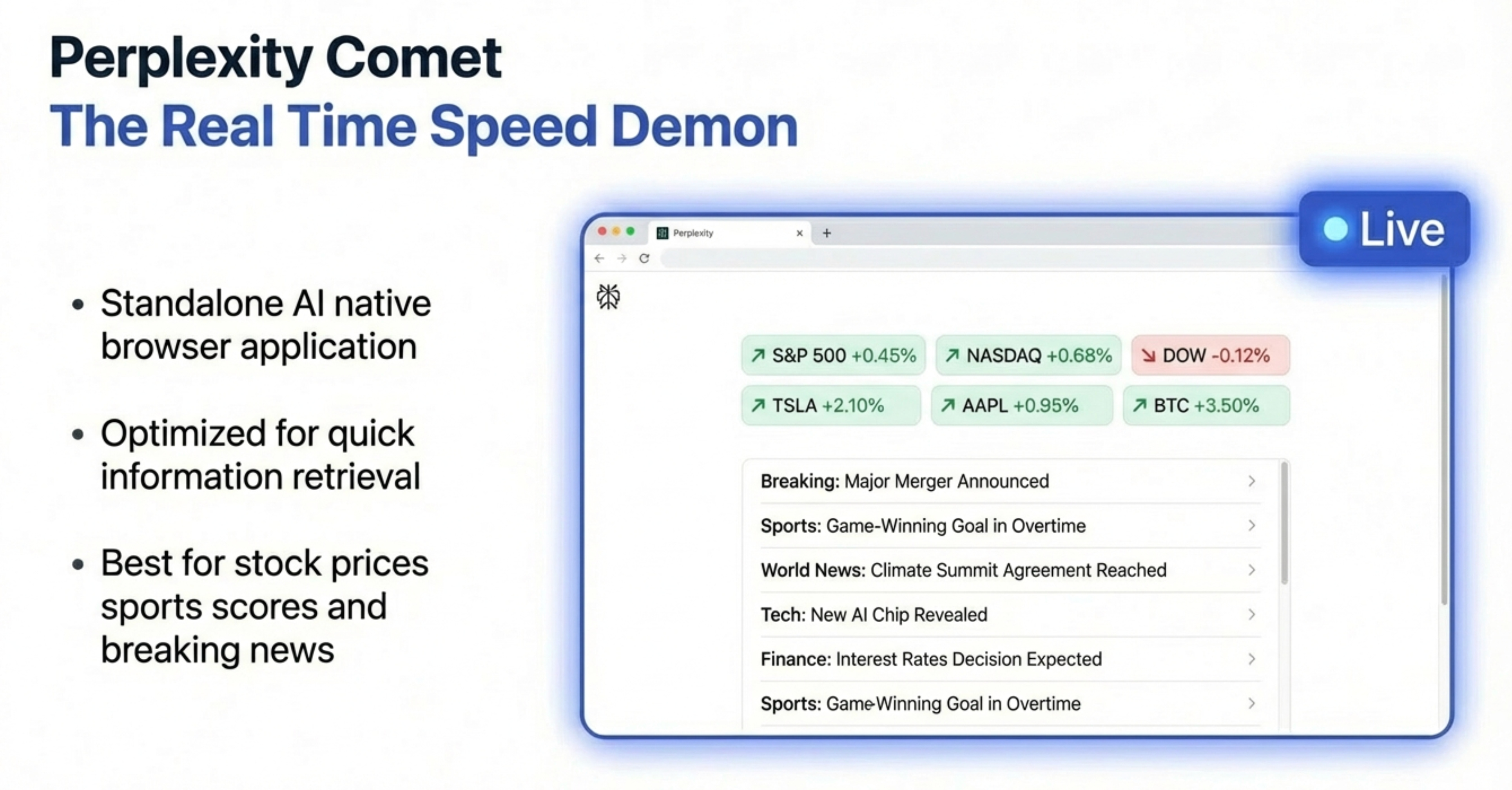
Perplexity Comet takes a completely different approach.
It’s a standalone browser built from the ground up as an AI-native experience.
When to Use Perplexity Comet
Use Comet when you need:
Real-time information that updates frequently
Comet is the fastest of the three browsers by far. It’s optimized for quick information retrieval.
Stock prices, sports scores, weather, current events - anything where freshness matters.
Quick research sprints
When you need to answer 5-10 questions quickly without deep analysis, Comet is your tool.
“What’s the current market size for AI coding tools?” “Who are the top 3 competitors in the vertical SaaS space for dentists?” “What’s the latest news about OpenAI’s new model?”
Comet answers these in seconds.
Multi-step reasoning with citations
Comet is excellent at showing its work.
It will give you the answer and show exactly which sources it used, with direct links.
This is valuable when you need to verify information or dig deeper into specific sources.
The Comet Workflow
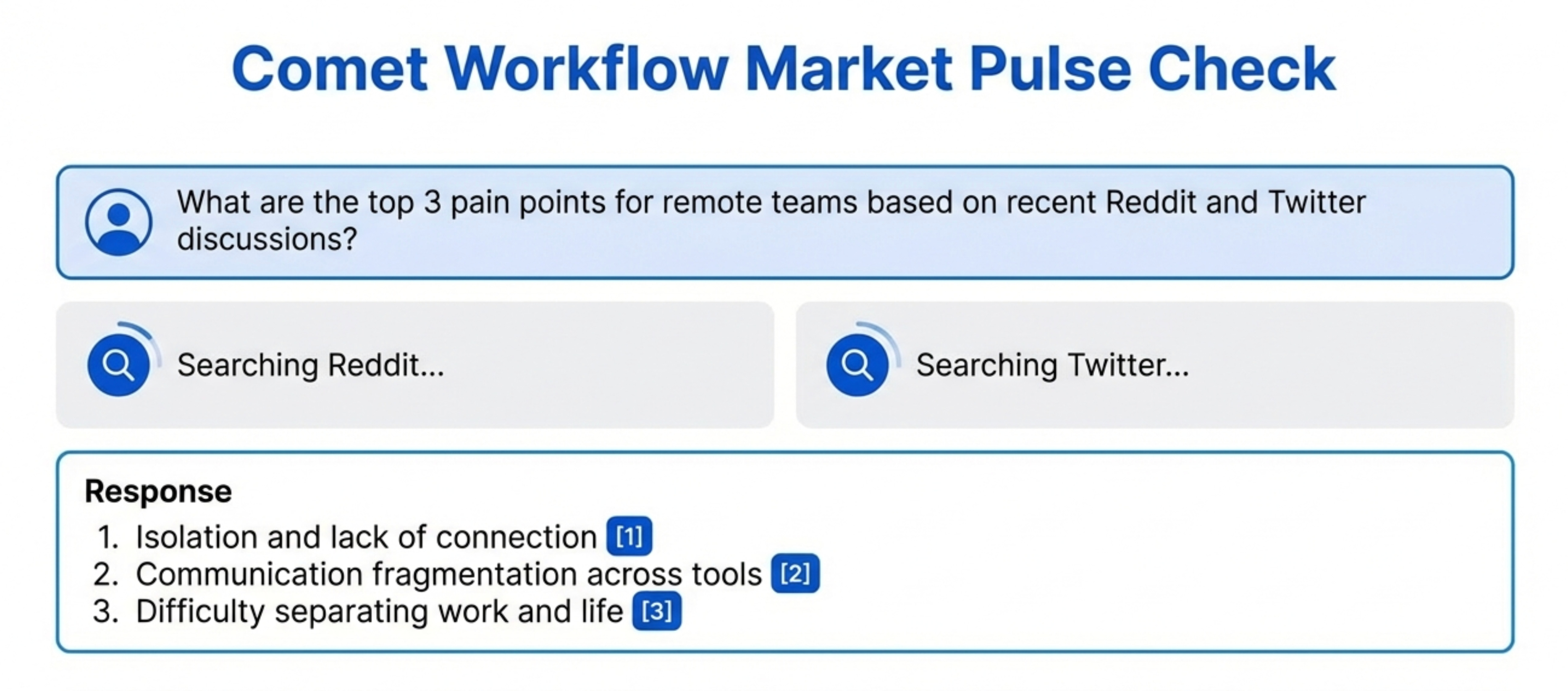
Step 1 - Ask your question naturally
Comet handles conversational queries well. You don’t need to be as structured as with Atlas.
“What are people saying about the new Notion AI features on Twitter?”
Step 2 - Review the cited sources
Comet will show cards with information from different sources.
Click through to read the full articles if needed.
Step 3 - Ask follow-up questions
Comet maintains context across questions.
“Which feature is getting the most positive feedback?” “Are there any common complaints?” “How does this compare to what competitors released?”
Step 4 - Use tab context for related research
If you have multiple tabs open with relevant information, Comet can reference them all in its answers.
This is powerful for AI product management workflows where you’re synthesizing information from multiple sources.
Example: Market Research Use Case
Naman demonstrated this workflow:
“I’m building a productivity tool for remote teams. What are the top 3 pain points remote teams face based on recent discussions on Reddit and Twitter?”Comet searched both platforms, found relevant threads and tweets, synthesized the common themes, and presented them with links to the original sources.
Total time: About 2 minutes.
This kind of qualitative research used to require:
Manual searching across platforms
Reading through dozens of threads
Taking notes
Synthesizing themes
Now it’s one prompt.
When NOT to Use Perplexity Comet
Comet struggles with:
Complex multi-page workflows
If you need to navigate through 10+ pages and extract structured data from each, Atlas is better.
Comet can search and summarize, but it’s not built for deep crawling.
Tasks requiring precise navigation
Comet doesn’t give you the same level of control over exactly which pages to visit and how to interact with them.
Offline or local file analysis
Comet is built for web search. If you need to analyze files on your computer, use regular ChatGPT or Claude.
The Tab Context Superpower
This is one of the most underrated features.
You can open multiple tabs with relevant information - competitor websites, research papers, PRDs, whatever.
Then ask Comet questions that reference all of them.
“Based on these three competitor landing pages I have open, what messaging themes are common?”
Comet will read all three tabs and synthesize the answer.
This is incredibly powerful for competitive analysis.
4. Arc Dia - The Workflow Automation Beast
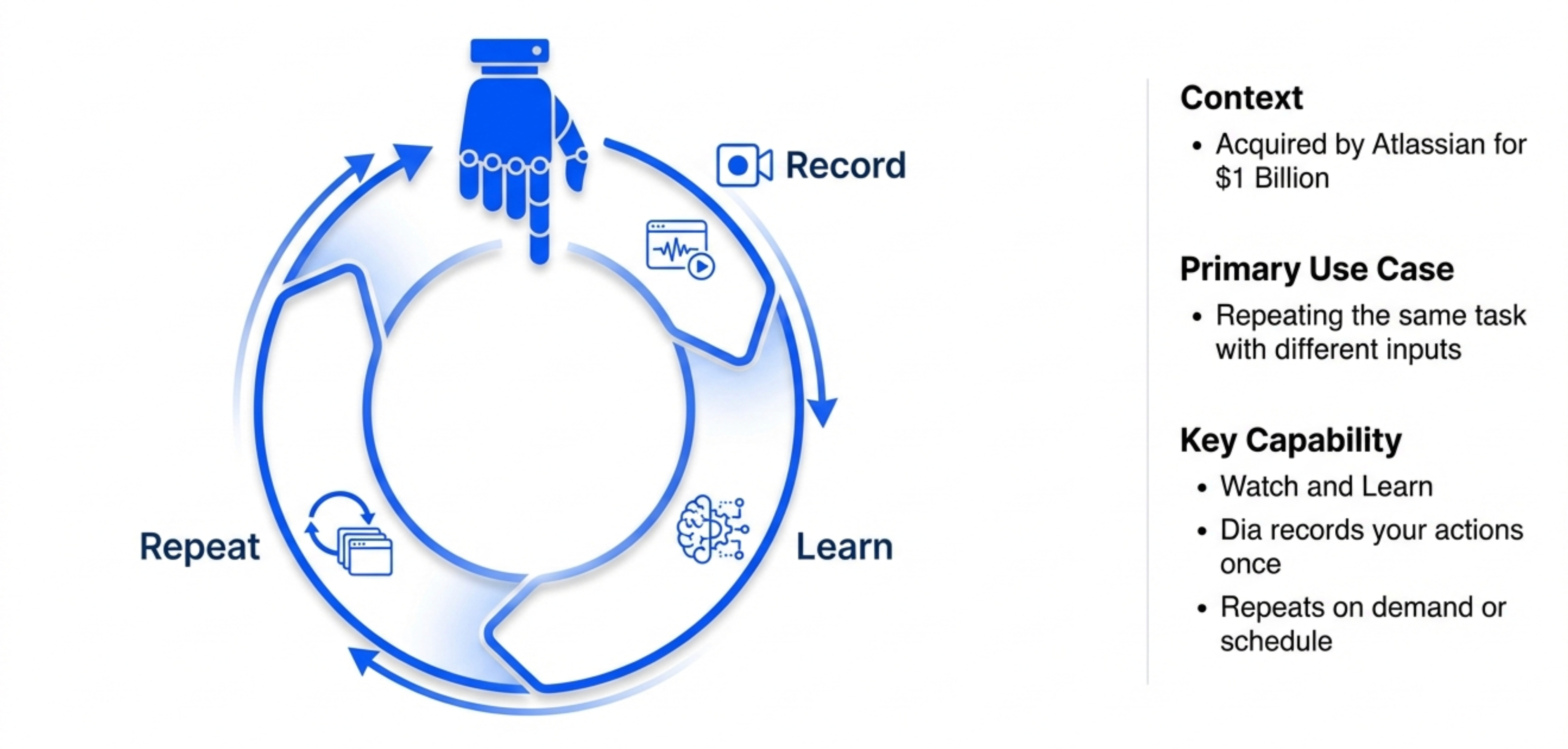
Arc Dia is different from both Atlas and Comet.
It’s designed specifically for workflow automation - repeating the same tasks over and over.
Atlassian bought Dia for $1 billion, which tells you how valuable they think workflow automation is.
When to Use Arc Dia
Use Dia when you need to automate repeated workflows
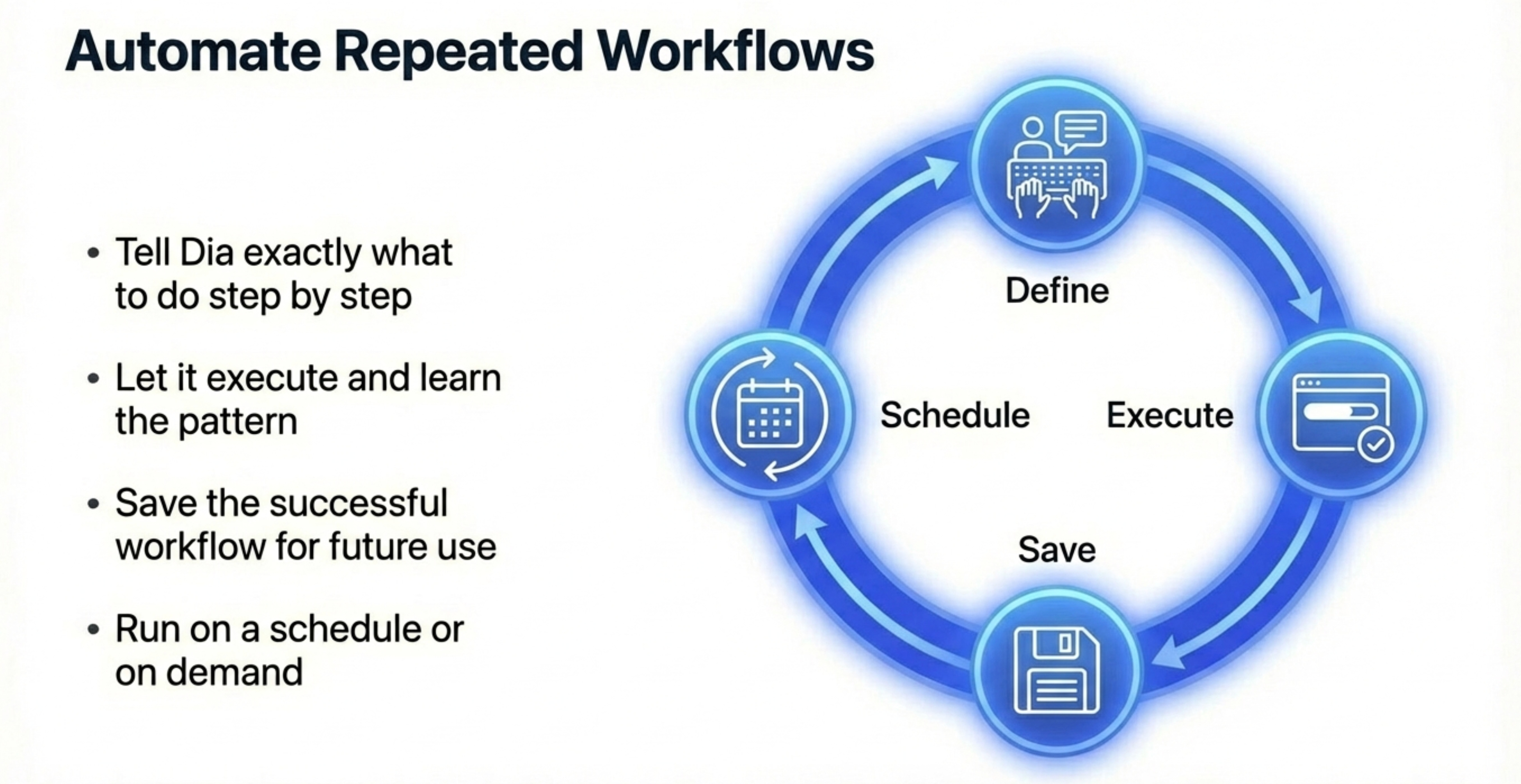
This is Dia’s killer feature.
You can record a workflow once, and Dia will repeat it with different inputs.
For PMs, this is valuable for:
Monitoring competitors weekly and documenting changes
Checking analytics dashboards and creating reports
Onboarding analysis for multiple products
Generating recurring reports from web data
Document user flows systematically
Dia can navigate through an entire user flow, capture screenshots at each step, and create documentation automatically.
This is perfect for onboarding analysis.
“Go through the Notion onboarding flow and document every screen with screenshots and the key actions users need to take.”Monitor specific information over time
Set up Dia to check competitor pricing pages weekly and alert you when something changes.
Or monitor a specific metric on a dashboard and notify you when it crosses a threshold.
Extract structured data repeatedly
If you need to extract the same type of information from different sources on a regular basis, Dia can automate that.
For example:
“Every Monday, get the top 10 posts from r/productmanagement and summarize the key themes.”The Dia Workflow
Step 1 - Define the workflow
Tell Dia exactly what you want it to do, step by step.
“Navigate to Notion’s pricing page, screenshot it, then go to their features page and list all features under the Pro plan.”Step 2 - Let Dia execute and learn
Dia will go through the workflow. As it does, it learns the pattern.
You can watch it work and correct it if it makes mistakes.
Step 3 - Save the workflow
Once it’s working correctly, save it as a reusable workflow.
Step 4 - Run it on schedule or on-demand
You can run the workflow manually whenever you want, or set it to run automatically on a schedule.
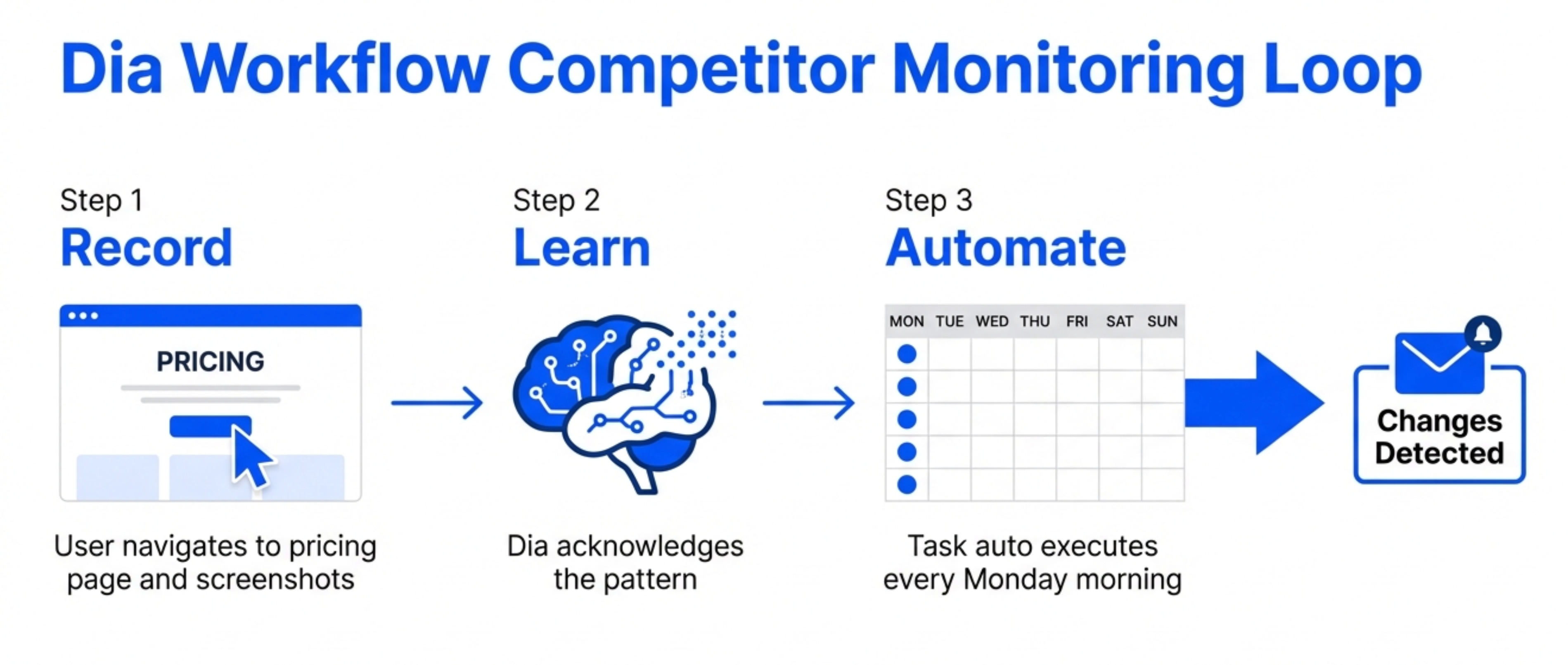
Example - Competitor Monitoring
Naman showed this workflow:
“Every Friday, visit the pricing pages of Notion, Coda, and Airtable. Take screenshots and note if anything has changed from last week.”Dia can do this automatically and send you a summary email.
This kind of regular competitor monitoring is valuable but tedious to do manually.
Automating it means you never miss a competitor change.
When NOT to Use Arc Dia
Dia struggles with:
One-off research tasks
If you’re doing something just once, Atlas or Comet are faster.
Dia’s value is in repetition.
Tasks requiring complex reasoning
Dia is great at doing the same thing over and over, but it’s not as good at adapting to new situations or answering complex questions.
Real-time information needs
Like Atlas, Dia is slower than Comet. If you need quick information, use Comet.
5. The 8 Best PM Use Cases
Here are the most valuable use cases for PMs, with exact prompts you can use.
Use Case 1 - Competitive Research
Best Tool: ChatGPT Atlas
Prompt:
“Visit the websites of [competitor 1], [competitor 2], and [competitor 3]. For each, document their pricing, key features, target customer (based on their homepage copy), and unique positioning. Create a comparison table.”Why it works: Atlas can systematically visit each site, extract structured information, and organize it cleanly.
Time saved: What used to take 2-3 hours now takes 10-15 minutes.
Use Case 2 - User Onboarding Analysis
Best Tool: Arc Dia
Prompt:
“Go through the onboarding flow for [product name]. Starting from the signup page, capture screenshots of each step, note what actions the user needs to take, and document what happens if you skip optional steps.”Why it works: Dia excels at navigating through multi-step flows and capturing everything systematically.
Time saved: What used to take 30-60 minutes per product now takes 5-10 minutes.
This is especially valuable for product onboarding strategy work.
Use Case 3 - Market Research from Social Media
Best Tool: Perplexity Comet
Prompt:
“Search Reddit and Twitter for discussions about [pain point] in the past month. What are the top 3 complaints people mention? Include links to relevant threads.”Why it works: Comet is fast at searching across platforms and synthesizing themes.
Time saved: What used to take 1-2 hours now takes 5 minutes.
Use Case 4 - Job Seeker Outreach
Best Tool: ChatGPT Atlas
Prompt:
“Go to LinkedIn and find 20 product managers at [company name]. For each person, get their name, current title, and profile URL. Then draft a personalized cold DM mentioning something specific from their profile.”Why it works: Atlas can navigate LinkedIn, extract information, and generate personalized content based on what it finds.
Time saved: What used to take 2-3 hours now takes 15 minutes.
Use Case 5 - Feature Comparison
Best Tool: ChatGPT Atlas
Prompt:
“Visit [competitor 1] and [competitor 2]. For each, create a list of features in their [specific category] and note which plan each feature is available in. Compare them side-by-side.”Why it works: Atlas can navigate through feature pages, documentation, and pricing tables to build comprehensive comparisons.
Time saved: What used to take 1-2 hours now takes 10 minutes.
Use Case 6 - Content Synthesis
Best Tool: Perplexity Comet with Tab Context
Prompt:
“I have three YouTube videos open about [topic]. Create one infographic-style cheat sheet covering the key points from all three videos. Focus on actionable takeaways for product managers.”Why it works: Comet can access video transcripts and synthesize information across multiple sources.
Time saved: What used to take 3-4 hours (watching all videos and taking notes) now takes 10 minutes.
Use Case 7 - Recurring Competitor Monitoring
Best Tool: Arc Dia
Prompt:
“Every Monday morning, visit the pricing pages of [competitor 1], [competitor 2], and [competitor 3]. Screenshot each page and note any changes from the previous week. Email me a summary.”Why it works: Dia can automate repetitive monitoring tasks.
Time saved: What used to take 30 minutes every week now runs automatically.
Use Case 8 - Research Paper Synthesis
Best Tool: ChatGPT Atlas
Prompt:
“Read these 5 research papers about [specific AI technique]. Create a summary document covering: what the technique is, how it works, what results researchers are seeing, and what the limitations are. Include citations.”Why it works: Atlas can read PDFs and long documents, then synthesize information across sources.
Time saved: What used to take 4-5 hours now takes 20 minutes.
6. Understanding Tab Context - The Hidden Superpower
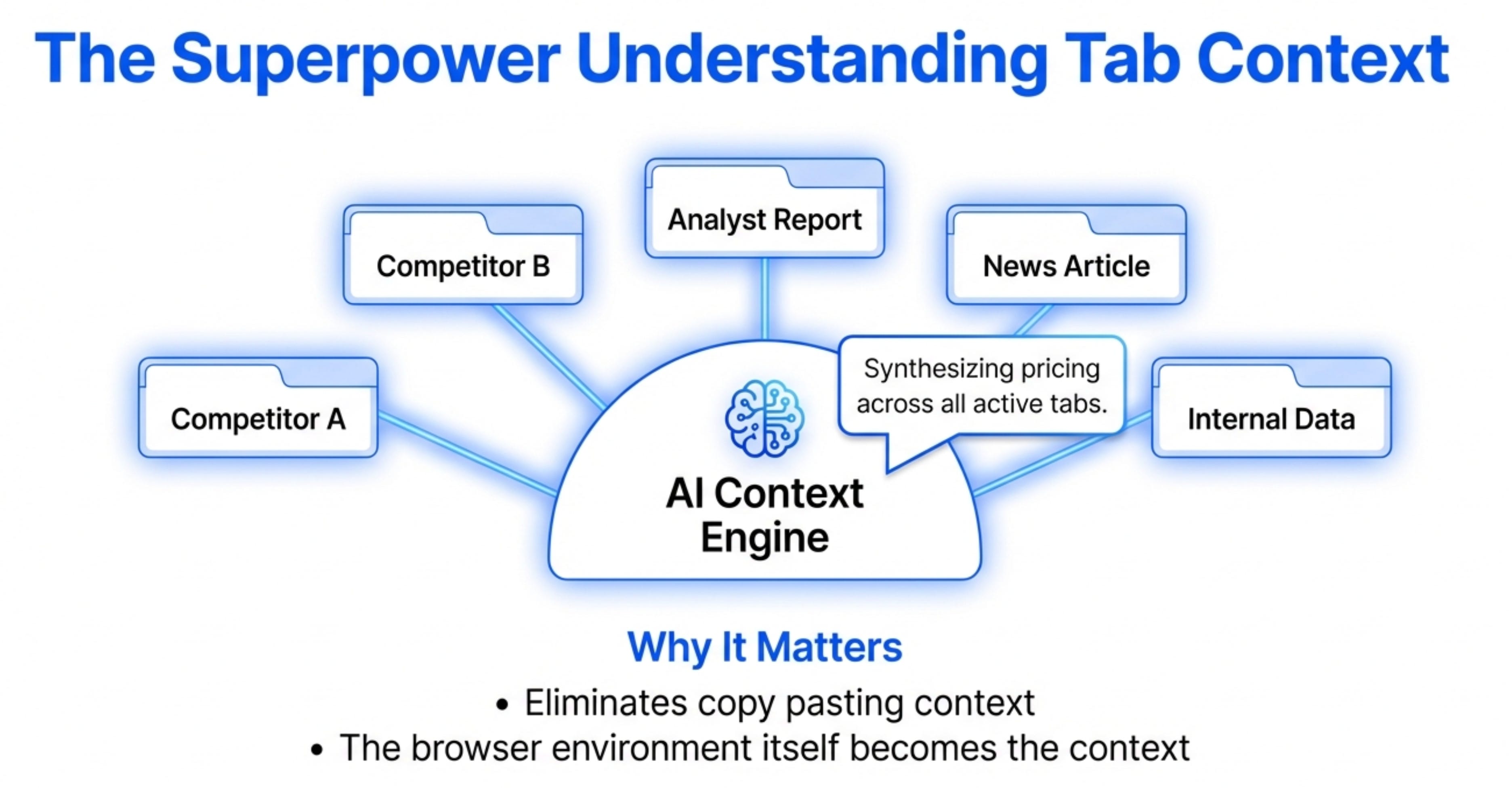
Tab context is one of the most powerful features of AI browsers, but most people don’t know how to use it.
Here’s what it is and why it matters.
What Is Tab Context?
Tab context means the AI can see and reference all the tabs you have open in your browser.
Not just the current tab. All of them.
This is different from traditional chatbots, which can only see what you explicitly paste into them.
Why It Matters
Imagine you’re doing competitive research.
You have 5 competitor websites open in different tabs. Their pricing pages, feature pages, about pages.
With tab context, you can ask:
“Based on all these competitor sites I have open, what’s the common pricing strategy?”
The AI looks at all 5 tabs and synthesizes an answer.
Without tab context, you’d need to:
Manually copy information from each tab
Paste it all into the chat
Ask your question
Tab context eliminates that friction.
How to Use Tab Context Effectively
Step 1 - Open relevant tabs first
Before asking your question, open all the tabs with information you want the AI to reference.
Competitor sites, research papers, documentation, whatever is relevant.
Step 2 - Ask questions that reference multiple sources
“What are the differences between these three approaches?”
“Which of these products has the best onboarding flow?”
“Synthesize the key points from all these articles.”
Step 3 - Let the AI connect the dots
The AI will read all the tabs and find patterns, differences, and insights across them.
This is incredibly powerful for synthesis work.
Example Workflow
Let’s say you’re researching how competitors position their AI features.
Open tabs for:
Competitor 1 homepage
Competitor 2 homepage
Competitor 3 homepage
Industry analyst report
Recent article about AI trends in your space
Then ask:
“Based on these competitor homepages and the industry context from the analyst report and article, how is each competitor positioning their AI capabilities? What messaging angles are they using?”
The AI will analyze all sources and give you a comprehensive answer.
This kind of analysis used to require:
Opening each tab manually
Reading carefully
Taking notes
Synthesizing insights yourself
Now it’s one prompt.
When Tab Context Doesn’t Help
Tab context is powerful, but it’s not magic.
It doesn’t help with:
Too many tabs - If you have 50 tabs open, the AI can’t effectively process all of them. Close irrelevant tabs before using tab context.
Tabs with paywalled content - If the content isn’t visible on the page, the AI can’t see it either.
Tabs requiring login - Same issue. The AI can only see what’s publicly visible.
Very complex or long documents - While the AI can handle multiple tabs, each individual tab still has limits on how much content it can process.
7. Why AI Browsers Are Slow - And What to Do About It
Let’s address the elephant in the room.
AI browsers are slow.
Really slow compared to normal browsing.
Why They’re Slow
Reason 1 - They’re actually loading pages
Unlike a language model just generating text, these browsers are actually navigating real websites.
Every page load takes 3-5 seconds. If the task requires visiting 10 pages, that’s 30-50 seconds just on page loads.
Reason 2 - They’re processing visual information
The AI needs to:
Render the page
Analyze what’s on the screen
Decide what to click or where to navigate
Execute the action
Wait for the result
This processing takes time.
Reason 3 - They’re being cautious
To avoid breaking websites or getting blocked, these browsers add delays between actions.
If they clicked too fast, they’d look like bots and get blocked.
Reason 4 - They’re thinking
For complex tasks, the AI needs to reason about what to do next.
“Should I click this button or that one?” “Is this the information I’m looking for?” “Do I need to navigate to another page?”
This reasoning takes compute time.
When the Slowness Matters
The slowness matters when:
You need quick answers - If you just want to know “What’s the weather?”, waiting 15 seconds for an AI browser is painful.
Use regular ChatGPT or Perplexity instead.
You’re doing simple tasks - For basic lookups or straightforward questions, the overhead isn’t worth it.
You’re in a time-sensitive situation - If you need information immediately (during a meeting, for example), AI browsers are too slow.
When the Slowness Doesn’t Matter
The slowness doesn’t matter when:
The alternative is manual work - If the task would take you 2 hours manually, spending 10 minutes with a slow AI browser is still a huge win.
You’re doing research - Research is rarely time-sensitive to the second. Waiting a few minutes for comprehensive results is fine.
You can start it and walk away - If you can kick off a task and come back later, the speed doesn’t matter at all.
How to Work With the Slowness
Strategy 1 - Batch your requests
Don’t ask one question at a time and wait for each answer.
Instead, give the AI a list of tasks to complete and let it work through them.
“Research these 5 companies, extract their pricing, and create a comparison table.”
Then go do something else while it works.
Strategy 2 - Use the right tool for the job
Don’t use Atlas for quick lookups. Use Comet.
Don’t use Comet for deep research. Use Atlas.
Match the tool to the task.
Strategy 3 - Combine with human work
While the AI browser works on time-consuming tasks like data extraction, you work on tasks that require human judgment.
Parallel processing.
Strategy 4 - Set realistic expectations
If you expect AI browsers to be as fast as Google search, you’ll be disappointed.
If you expect them to be faster than manual research, you’ll be thrilled.
The key is framing.
8. Privacy and Safety Concerns
Let’s talk about the hard questions.
Are AI browsers safe? Should you trust them with sensitive information?
The Honest Answer
No, you should not log into sensitive accounts through AI browsers.
Here’s why.
What Data These Companies Collect
All three browsers collect:
Your browsing history - They see every page you visit
Your interactions - They log what you click, what you type, what you search for
Your prompts - Obviously they see what you ask them to do
Page content - They read the content of pages you visit
This data is used to:
Improve the AI models
Train future versions
Potentially for advertising (depending on the company’s business model)
What You Should NOT Do
Don’t log into:
Banking websites
Email accounts (personal or work)
Social media accounts with private information
Password managers
Any account with sensitive personal or financial data
Don’t share:
Credit card numbers
Social security numbers
Passwords
Private company information
HIPAA-protected health information
The risk isn’t necessarily that these companies will misuse your data.
The risk is:
Data breaches happen
AI models can sometimes leak training data
Third-party plugins or extensions might not be secure
You don’t know exactly how the data is stored or who has access
What You Can Do Safely
You can:
Browse public websites
Research competitors
Read documentation
Search for information
Create summaries of public content
Analyze publicly available data
The rule: If you’d be comfortable with the information appearing in a chatbot’s training data, it’s probably safe for an AI browser.
How to Use Them Safely
Strategy 1 - Use separate browsers for different purposes
Keep your regular browser (Chrome, Safari) for logging into accounts and handling sensitive information.
Use AI browsers only for research and public browsing.
Strategy 2 - Use incognito/private mode
This limits tracking and doesn’t save browsing history locally.
It doesn’t protect your data from the AI company, but it helps with local privacy.
Strategy 3 - Read the privacy policies
Boring, but important.
Understand what data each company collects and how they use it.
OpenAI, Perplexity, and Atlassian all have different policies.
Strategy 4 - Wait for enterprise versions
Companies are starting to release enterprise versions with better security and privacy controls.
If you work at a company with sensitive data, push for official enterprise adoption rather than using consumer versions.
Final Words
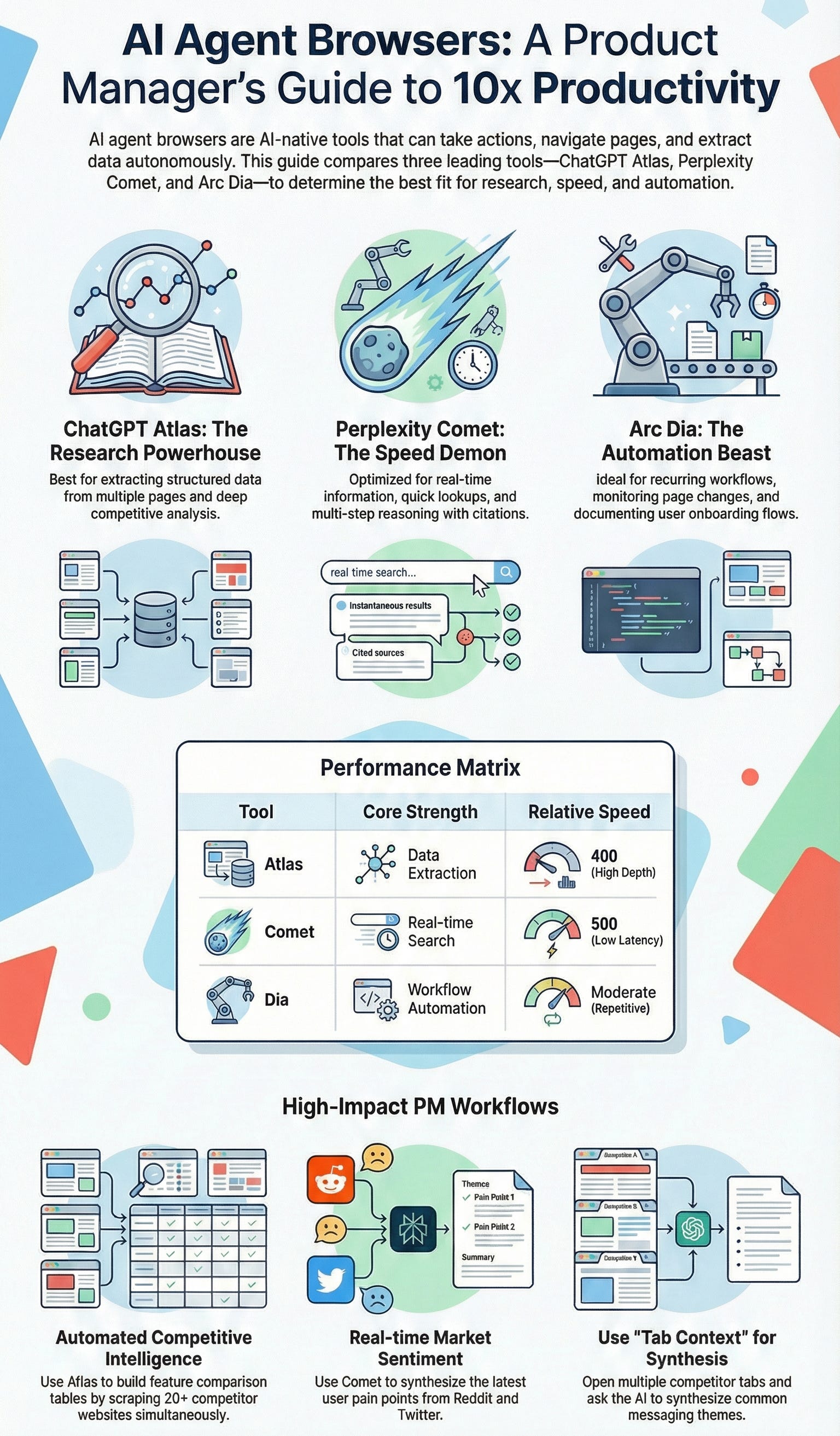
AI agent browsers aren’t perfect.
They’re slow. They have privacy concerns. They don’t work for every use case.
But they’re also genuinely useful for PMs.
The key is understanding:
When to use which tool:
ChatGPT Atlas for deep research and data extraction
Perplexity Comet for quick lookups and real-time info
Arc Dia for workflow automation and repeated tasks
What they’re good at:
Saving time on manual research
Extracting structured data from multiple sources
Synthesizing information across pages
Documenting user flows
Monitoring competitors
What they’re not good at:
Real-time speed-critical tasks
Handling sensitive login information
Complex reasoning requiring human judgment
Replacing human creativity or strategy
If you haven’t tried an AI browser yet, start with ChatGPT Atlas.
It’s free (if you already have ChatGPT), easy to use, and has the most versatile use cases.
Try the job seeker workflow or competitive research workflow from this guide.
You’ll immediately see how much time it saves.
Then explore Comet for speed and Dia for automation based on your specific needs.
The PMs who figure out how to integrate these tools into their workflows will have a significant productivity advantage.
The PMs who don’t will wonder why they’re working 10x harder for the same results.
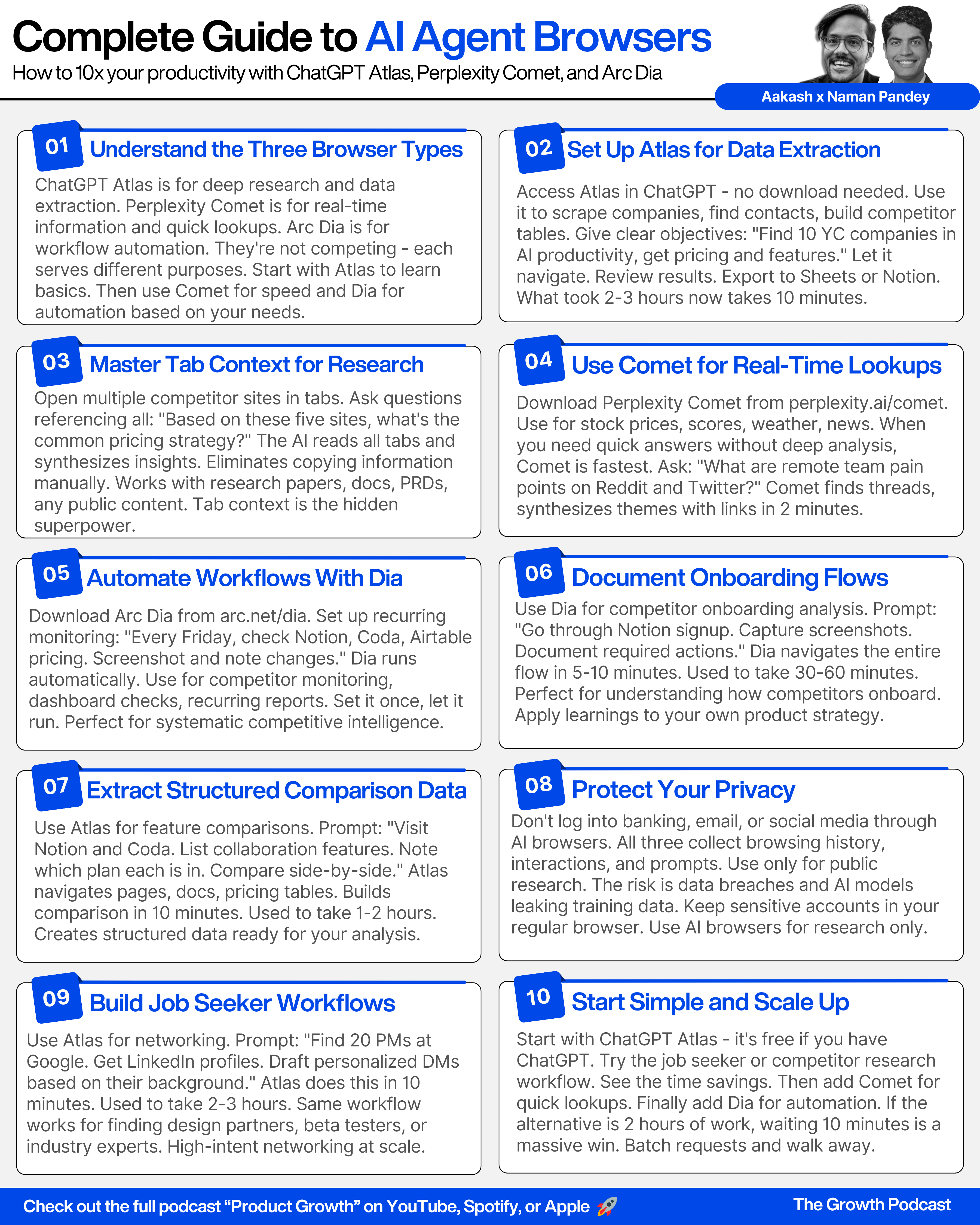
Key Takeaways
Where to Find Naman
Related Content
Newsletters:
Podcasts:
Are you searching for a PM job? Join me + 29 others for an intensive 12-week experience to master getting a PM job. Only 2 seats left!
PS. Please subscribe on YouTube and follow on Apple & Spotify. It helps!