Check out the conversation on Apple, Spotify, and YouTube.
Brought to you by: Arize

Trace, evaluate, and fix your AI agents before broken behavior ships to users.
Today’s Episode
Meng To is one of the world’s leading AI design thought leaders, with 170K+ followers on X and 16K+ on Instagram. He told me something wild:
I barely use Claude anymore.
What does he find is more powerful? Codex. So today’s episode is a masterclass in designing with Codex.
I’ve covered the Codex harness, PM use cases, and design basics already. Today’s episode goes the next layer deeper:
How to generate AI designs that aren’t slop.
I hope you enjoy the episode as much as I did.
Want My Coaching?
You should know the story of Sourav Yadav from my Land a PM Job course. He closed 5 offers in 2 months and became Head of Product at Times of India.
I’m starting my next cohort next month. We’re teaching three courses:
AI PM ($3000 value)
PM fundamentals ($2000 value)
How to get a PM Job ($6000 value)
Here’s the syllabus:
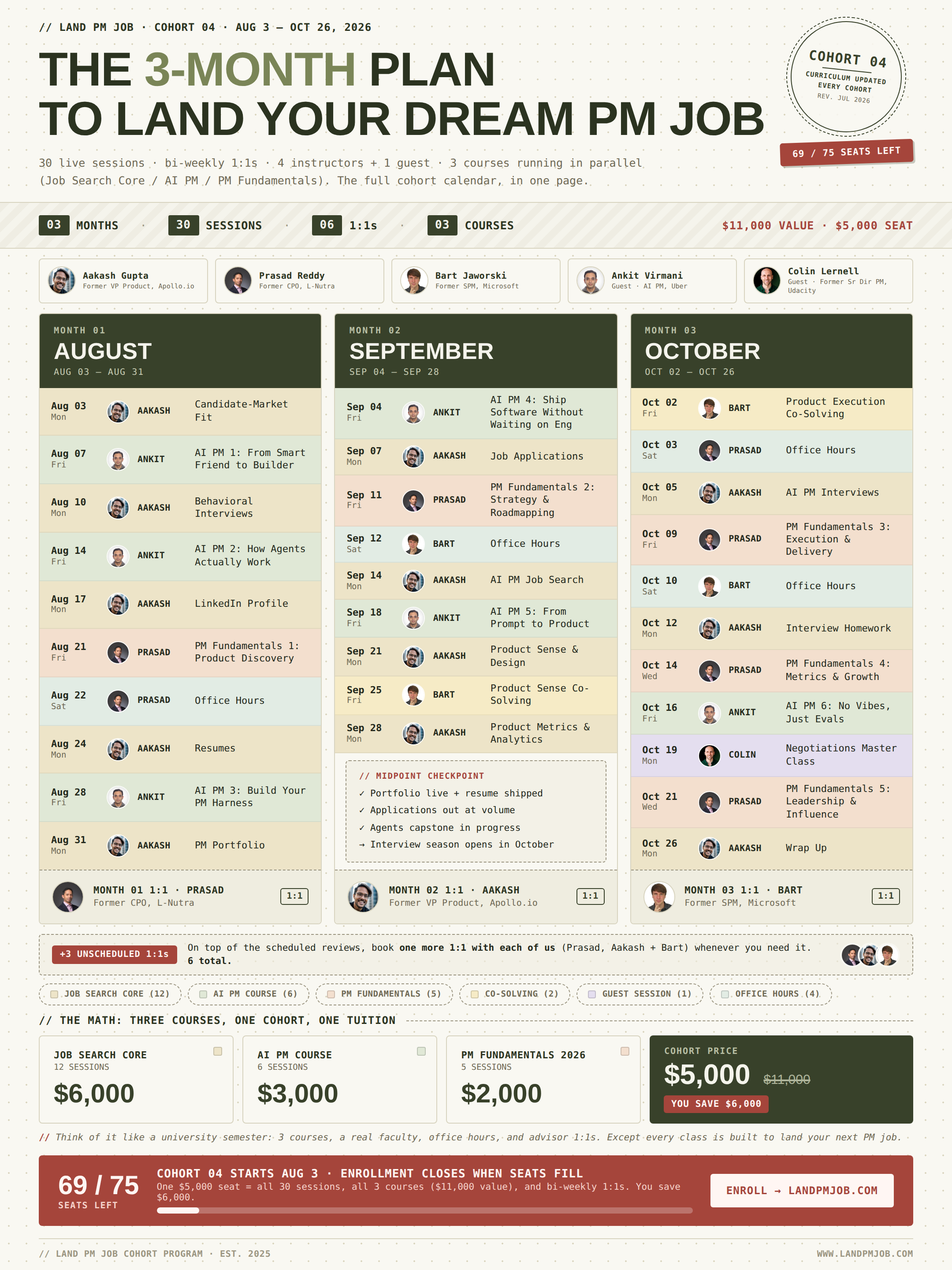
This cohort features two 1:1s with me (first time ever).
So, what’s stopping you?
Want a taste of the course? I’m putting on a free webinar on behavioral & AI PM interview mastery next Thursday. Sign up.
Newsletter Deep Dive
Now, thanks for having. me in your inbox. Here’s a complete guide to AI Design for PMs.
How to Setup Codex for AI Design
The AI Design workflow that works
If you don’t have time for the full deep dive, here’s the most important takeaways.
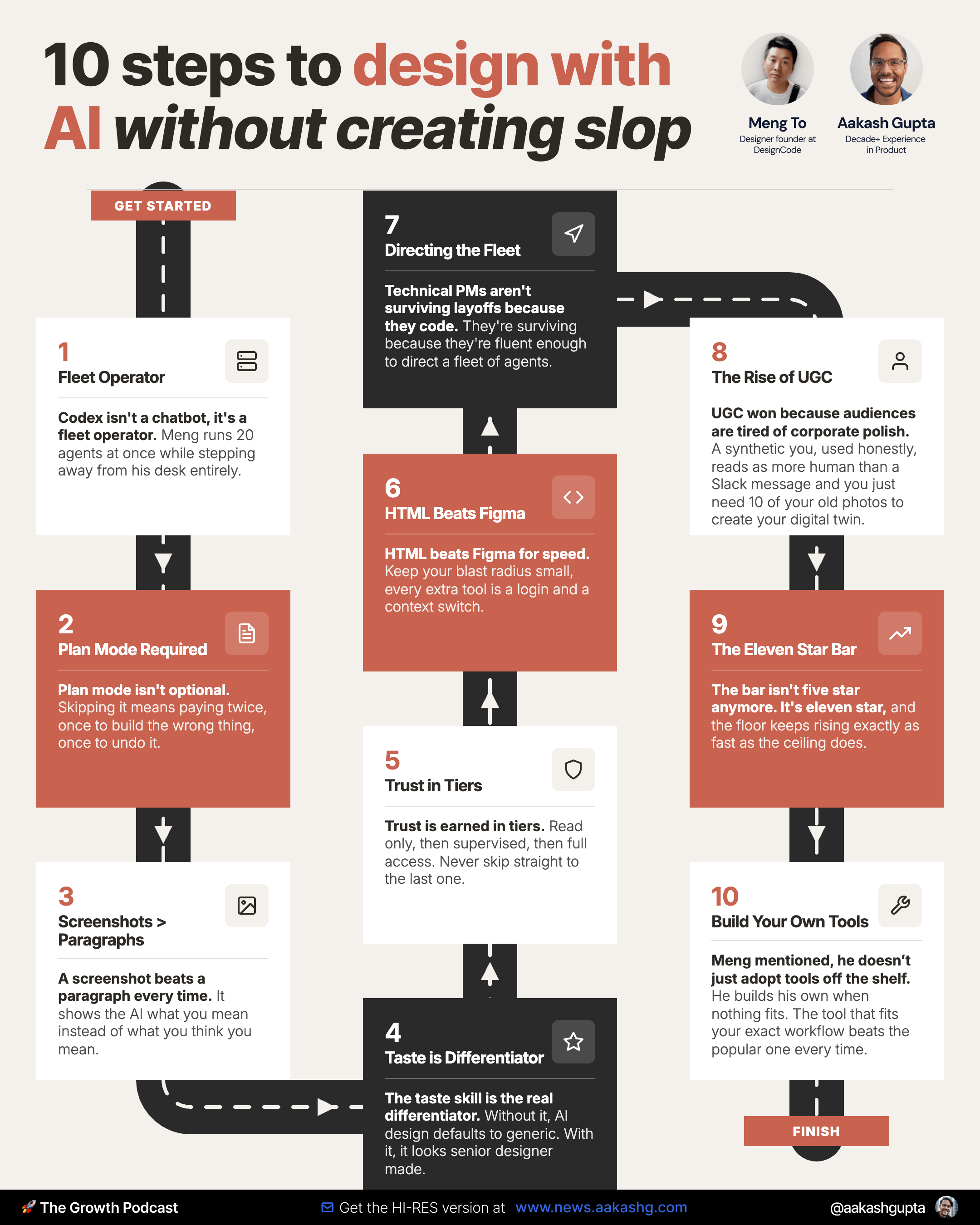
1. How to Set up Codex for Great Design
Codex is ChatGPT on Steroids
What makes Codex ChatGPT on steroids? Three things:
a. Context
b. Skills
c. Connectors
If you cover these correctly, you get a much more powerful harness for AI. So let’s briefly cover each.
1a. You need to build out great context
If you’re using my PM OS, you know this already. If you don’t, here’s what you need to do:
Build a folder structure of cascading context.
We recommend 1 folder per project, grouped under a single parent directory:
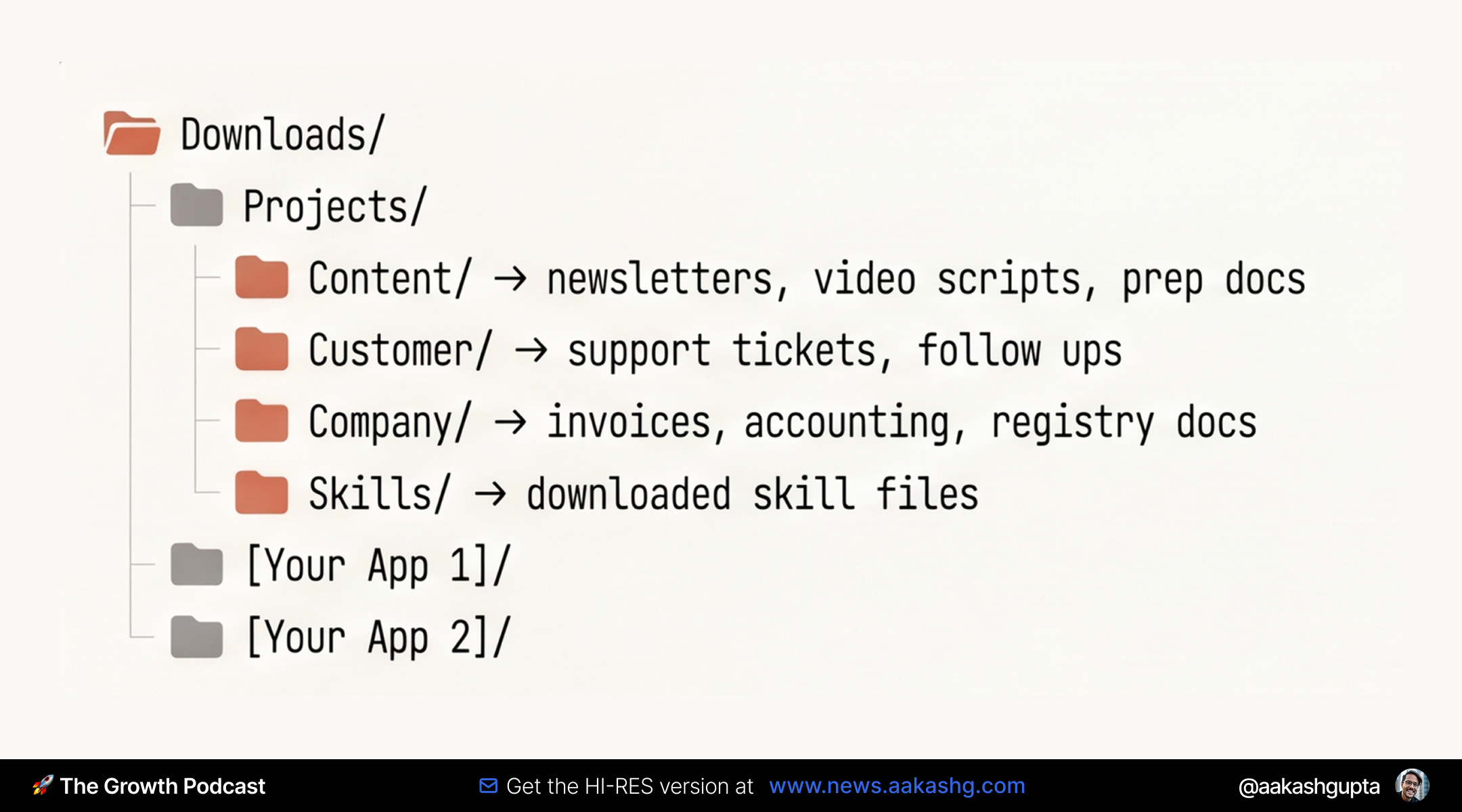
This works because you don’t have to re-explain yourself to AI all the time: what you do, what your company is going after, what your team’s product strategy is.
It all loads in for free.
Now here’s the trick: it’s a Goldilocks problem.
Too much undifferentiated context and the AI burns tokens figuring out what matters before it even starts the task you asked for.
Too little context and you spend forever iterating on the output when a bit more upfront context could’ve one-shotted what you want.
So get really good at managing that context. Even ask Codex:
Analyze our last week of chats.
How can I organize the context I have provided with you better? What additional context should I be adding, and what should I remove to reduce token waste?
1b. You need to enable it with the right skills
I’ve been talking about skills a lot. So you probably already know they are a lightweight MD of instructions. And you should have them for everything.
To design AI that’s not slop, you should know about this taste skill that has 60K+ stars on Github:
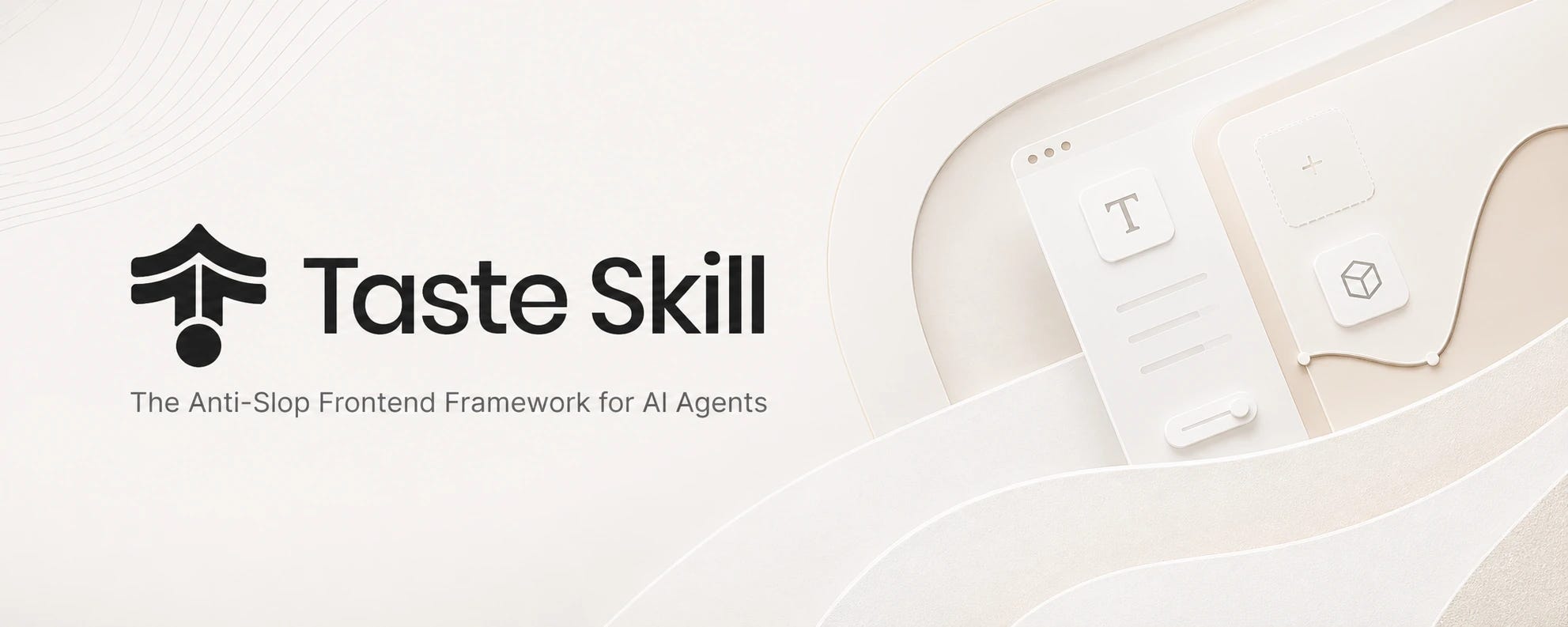
If there’s only one thing you takeaway from this email, it should be installing this.
Also install the Playwright skill to take screenshots of UI for GPT to iterate on itself.
1c. You need to connect it to the right tools
You’ve heard about MCPs for the last year. Use all of the MCPs! PostHog, Linear, etc.
Designing for AI with Codex has two nuances when it comes to connectors:
You want to use plugins (not MCPs) to connect to Figma and Slack.
You also want to install ChatGPT Atlas so Codex can use computer use on websites for tasks that don’t have an API (eg browse LinkedIn).
How these three features come together
Context + Skills + Tools suddenly transforms your LLM into an agent harness that is much more powerful.
And two new Codex features make this more powerful than ever:
Codex Mobile sits inside your ChatGPT app and connects to whatever is running on your desktop, so you can check in on a build from a taxi or a coffee line.
The screenshot shortcut (cmd + cmd) lets you select any window and drop it straight into your current chat as visual context, no separate upload step required.
The screenshot command is a favorite of Meng’s.
2. The AI Design Workflow to Avoid Slop
So now that you have the setup, here’s the workflow:
Plan with context
Build with the taste skill
Iterate with a human touch
It sounds simple but the power is in the nuance.
Step 1 - Plan with context
You’ve probably heard of plan mode. Use it!
The fastest way to lose an afternoon with Codex is to skip straight to building, since it commits to a direction within seconds and rarely doubles back on its own.
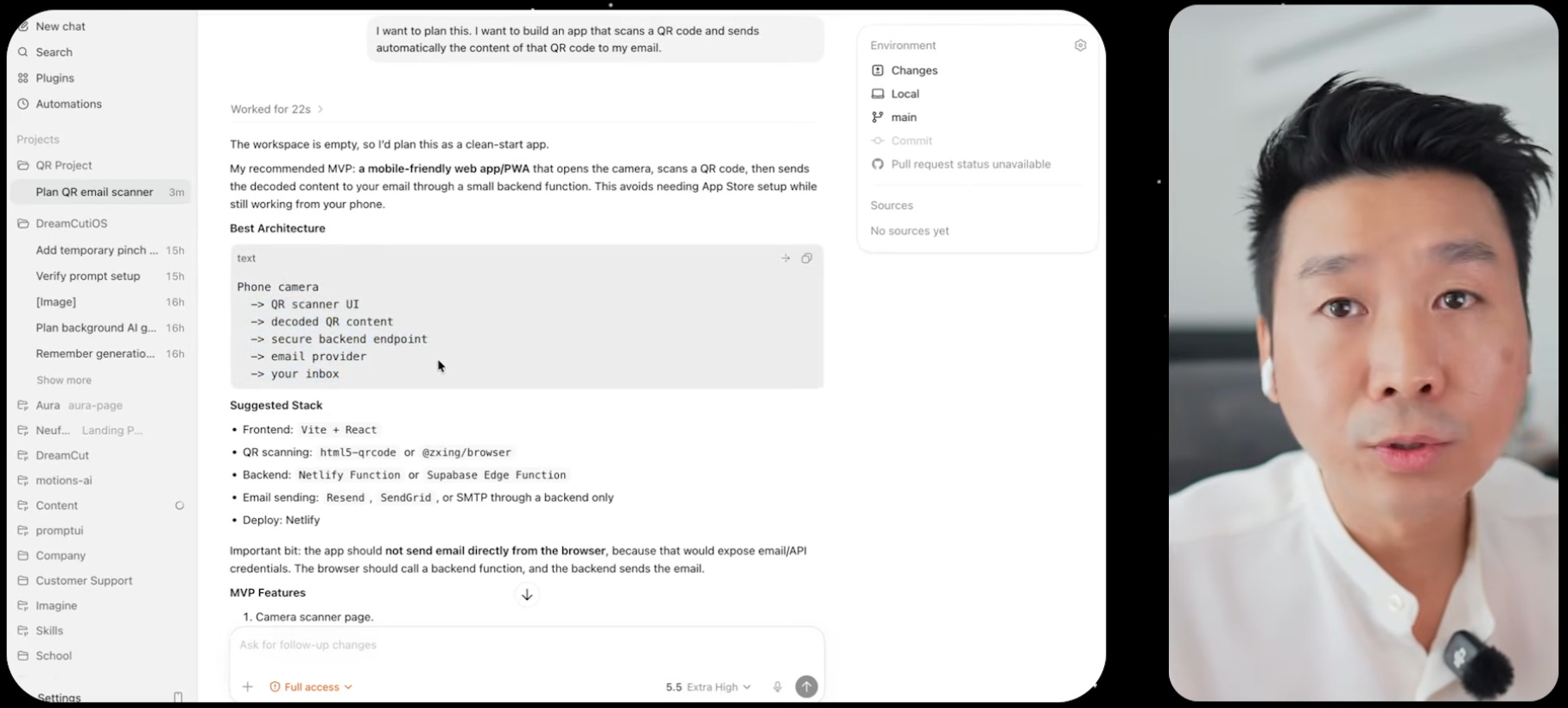
Plan mode forces a pause between your request and the AI’s first action.
Read that plan the way you’d read a junior PM’s spec before a kickoff. If something is missing, ask before approving. “Can we expand on this part” or “what if we add this constraint” costs you thirty seconds.
Give it the right context
Screenshots are the highest leverage form of context you can give the AI, more useful than a paragraph of typed description.
Two things are worth knowing here.
Simply select a window, hit the screenshot shortcut (Press both Command keys at the same time), and the image drops straight into your chat as the thing to fix or match.
If you have an app on different devices, run the app in a simulator, capture every screen in the flow, sign in, payment, editor, and hand the AI the full set so it can validate the design end to end instead of one screen at a time.
A screenshot tells the AI what you mean in one shot. A paragraph of description tells it what you think you mean, and those are not always the same thing.
Step 2 - Invoke the taste skill
The model matters less than the taste layer you give it. Use the taste skill from 1b and then look at the outputs.
Usually the skill will give you several - soft, brutalist, etc. If it doesn’t for whatever reason, prompt it:
Create several divergent designs so I can compare them.
Once you have a design you like, the next decision is output format:
HTML is the fastest and most controlled option, the default unless you have a specific reason not to.
Figma takes longer and assumes Figma fluency, but it’s the right call when a designer needs to pick up your file and keep iterating.
Keynote or PowerPoint only makes sense when the final deliverable has to literally be a slide file someone opens in that app.
The rule of thumb is to keep your blast radius small. Every extra tool you add is a subscription, a login, and a context switch the AI cannot do for you.
Step 3 - Steer it mid-flow and iterate
One of the coolest features of Codex vs ChatGPT is once the build is running, you are not locked out!
You can steer mid-task, queue a follow up command while the current one finishes, or interrupt with new direction the moment you see it heading somewhere you didn’t intend.
So do that. And then iterate more on the AI output. The difference between slop and tasteful design is typically found in this final 20% of iterations.
And that’s it - now you’ve got design that isn’t slop!
In the full episode, we also cover some spicy topics like how to avoid getting fired/laid off as a PM, and the PM-to-founder transition. Check it out if interested.
Downloadables to Take Away
Taste Skill - The Anti Slop Frontend Framework for Al Agents (60k+ stars)
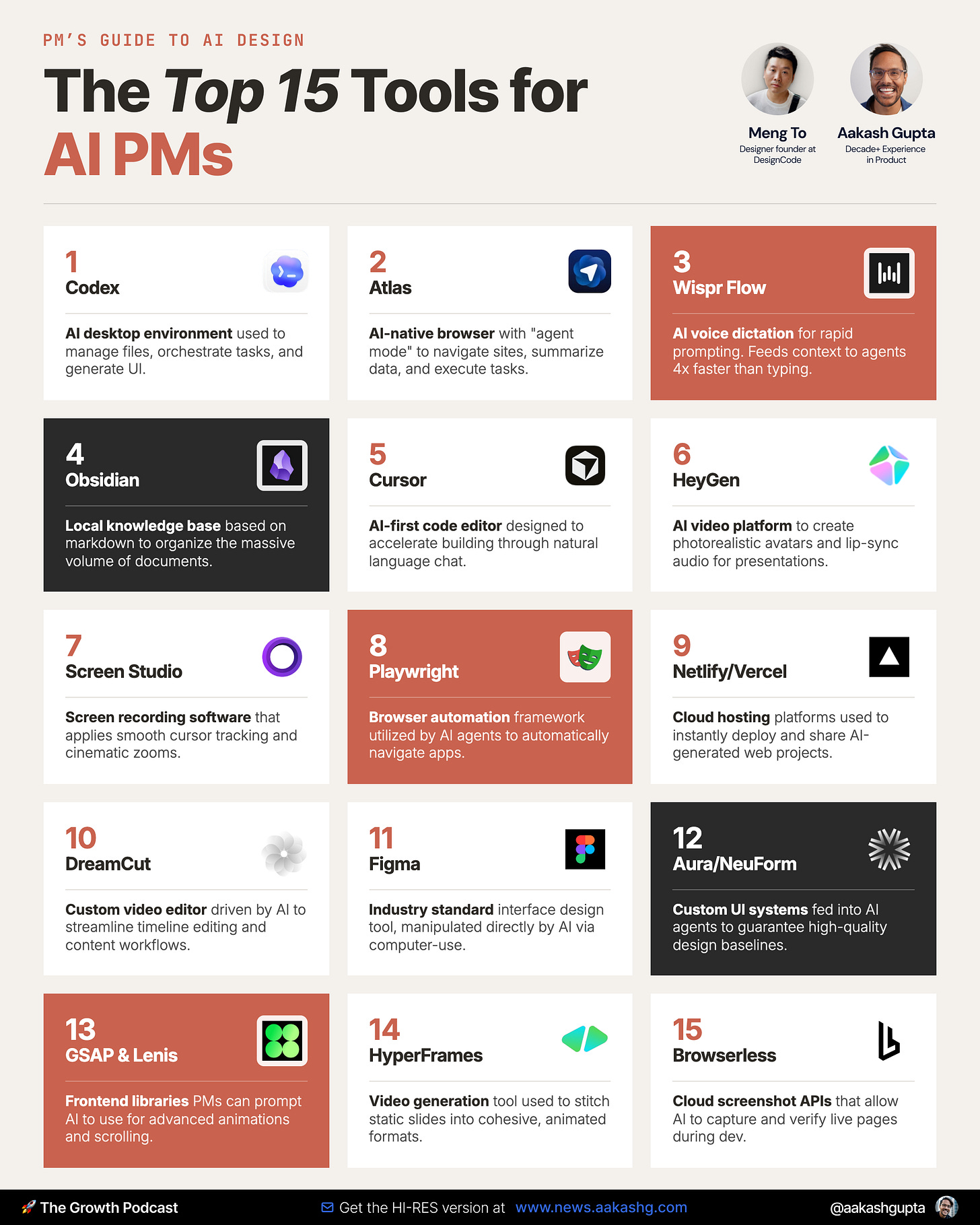
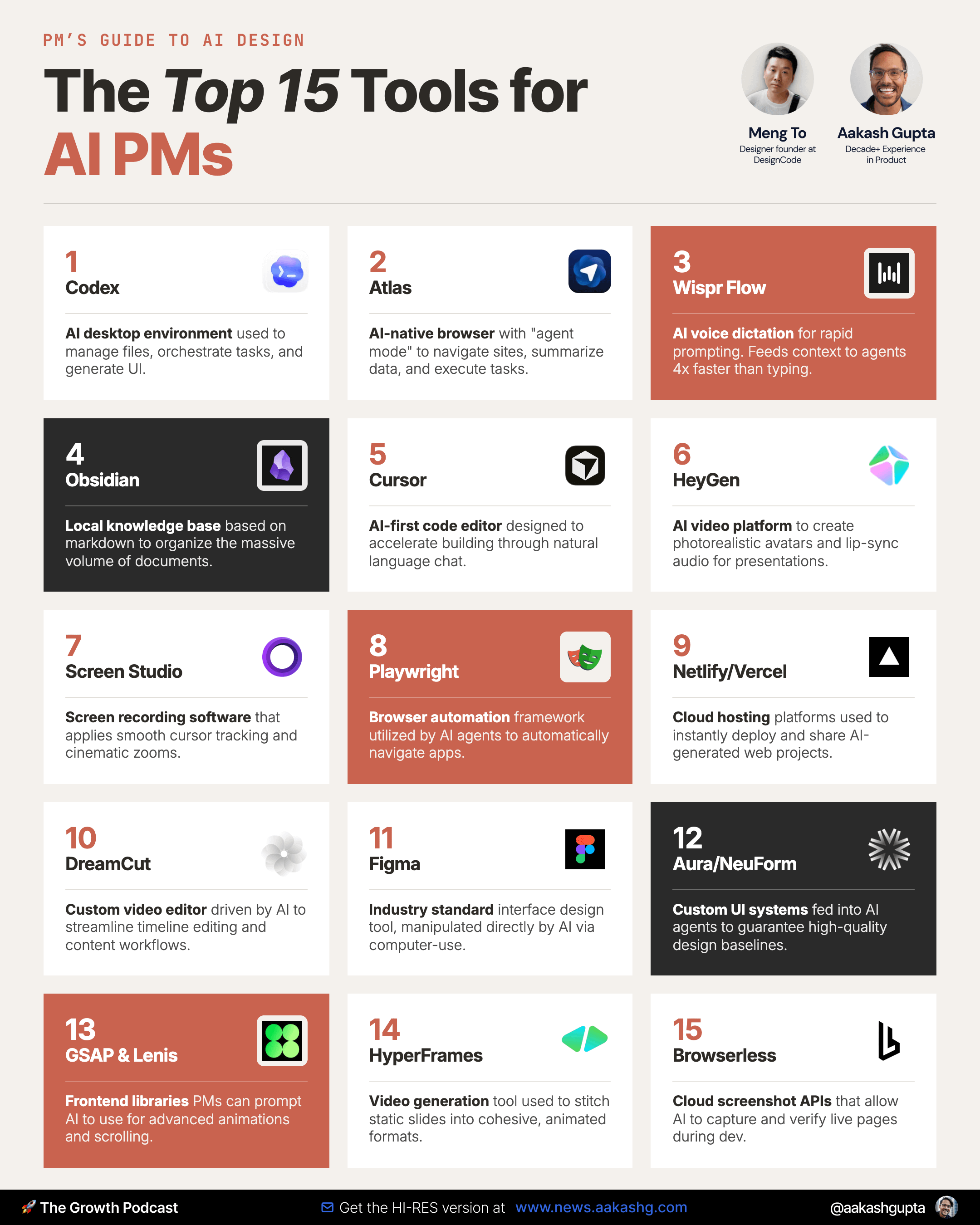
The 15 tools running Meng To’s Al Workflow
Follow Meng Online
Go Deeper
Tools:
To get access to my AI tool stack - Airtable, Dovetail, Arize, Linear, Descript, Reforge Build, Relay.app, Magic Patterns, Speechify, Bolt.new and Mobbin - become an annual subscriber ($150), and grab Aakash’s bundle.
To get access to my AI PM customizations - PM OS, Job Search OS, and Prompt Library - become a founding subscriber ($250).
Podcasts:
How to Use Codex Like an OpenAI PM - YouTube | Spotify | Apple
The Ultimate Guide to ChatGPT Codex - YouTube | Spotify | Apple
Newsletters:
PS. Please subscribe on YouTube and follow on Apple & Spotify. It helps!