Check out the conversation on Apple, Spotify and YouTube.
Brought to you by:
Amplitude: The market-leader in product analytics
Pendo: the #1 Software Experience Management Platform
Jira Product Discovery: Move discovery and roadmapping out of spreadsheets
Today’s Episode
Claude Code with Opus-4.5 is basically AGI.
So I’m back with a deep dive on how to use Claude Code.
And we’re back with Carl Vellotti, whose first episode on Claude Code hit 30k on YouTube. So, we’re going the next layer deeper today.
Carl has been building with Claude Code every single day. He’s made all the mistakes. He’s learned all the expert workflows and tips.
In today’s episode, he shares everything.
If you’ve been wondering how Claude Code became the fastest product ever to reach $1 billion ARR (under 6 months), today’s episode will answer.
If you want access to my AI tool stack - Dovetail, Arize, Linear, Descript, Reforge Build, DeepSky, Relay.app, Magic Patterns, and Mobbin - for free, grab Aakash’s bundle.
Are you searching for a PM job? Join me + 29 others for an intensive 12-week experience to master getting a PM job. Only 23 seats left.
Newsletter Deep Dive
For paid subscribers, I’ve written up a text guide to Claude Code (that summarizes + goes beyond the pod). It’s the Ultimate Claude Code Masterclass for PMs:
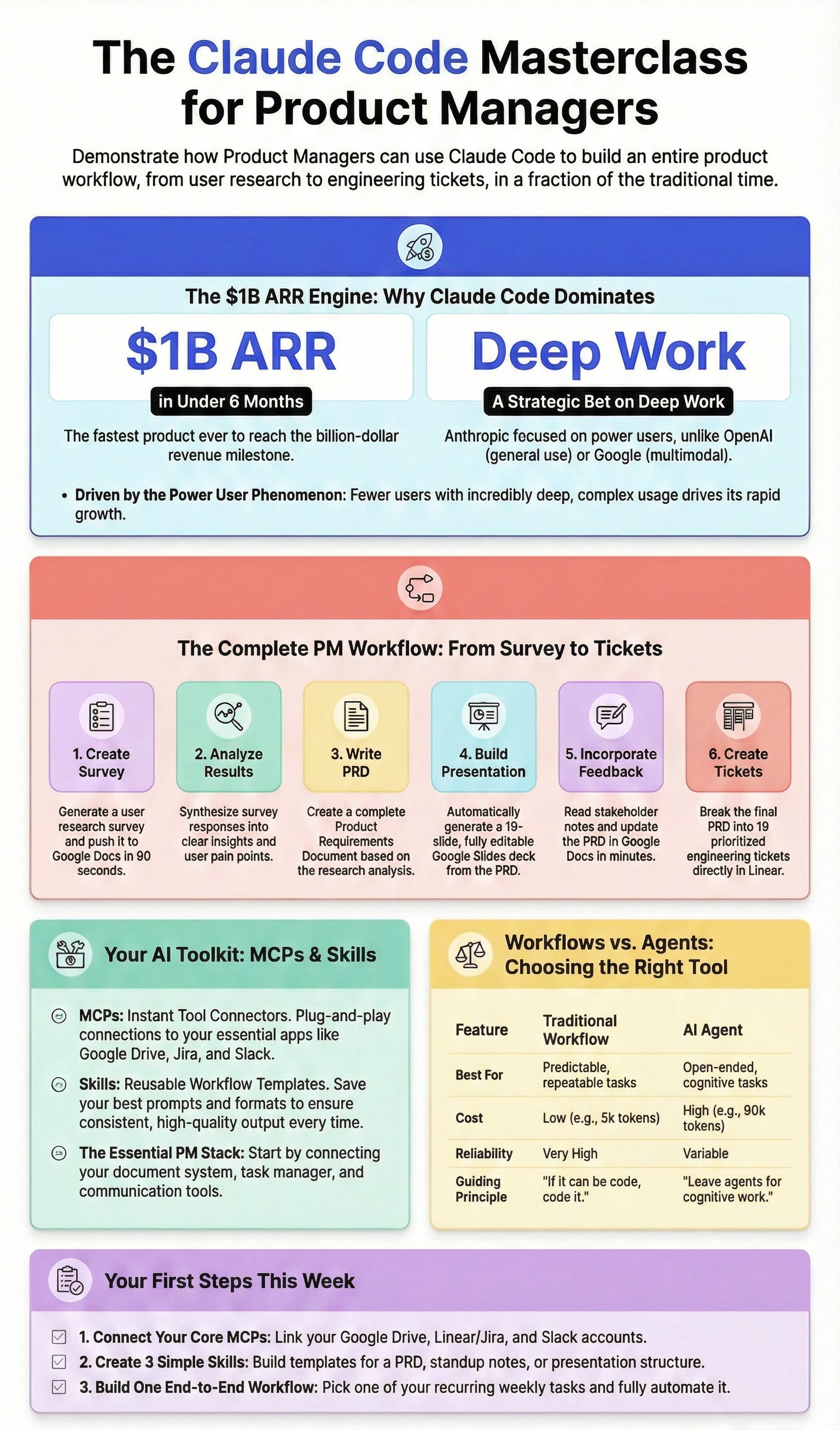
Why Claude Code beat OpenAI and Google
Step-by-step setup of your first MCP
How to build the PM workflow
Skills that actually work
GitHub integration for remote work
When you should use workflows vs agents
1. Why Claude Code Hit $1B ARR in 6 Months
Claude Code reached $1 billion ARR on December 2nd, 2024.
It had been available for 6 months.
That makes it the fastest product ever to reach $1 billion ARR. Faster than ChatGPT. Faster than anything we’ve seen.
The question is: why?
Reason 1 - Anthropic Bet on Work, Not General Use
Three frontier labs made three different bets:
OpenAI went general. ChatGPT for everyone. Casual users, search, images. Good at everything, great at nothing specific.
Google bet on multimodal. Gemini watches videos, understands images. Best image generation. But they didn’t start with deep coding workflows.
Anthropic bet on work. Specifically building AI products and deep coding. They optimized for power users doing real work.
Carl on this point:
“I spend all day in Claude Code because it can do more and more parts of my workflow. It gets to the point where you never really have to leave.”
That’s the difference.
Reason 2 - Power User Phenomenon
Claude Code doesn’t have the most users.
But the users it has go deeper than any other tool.
After Carl’s first episode, I upgraded to the $100/month plan. Then I hit the limits and went to $200/month.
Why? Because Claude Code is limitless.
I asked it to download all 90 of my newsletter articles from this year. Analyze how my writing style changed.
Normal Claude gave up.
Claude Code said “let’s do it.” Downloaded everything. Hit a rate limit on Substack. Retried automatically. Finished the job.
That’s how you hit $1B ARR in 6 months.
Reason 3 - The Industry is Copying Anthropic
Opus 4.5 dropped in late 2025. People started calling it AGI.
“You can give it a task and walk away from your computer. It will just keep going. If it hits a block, it finds a way forward.”
The rest of the industry is copying Anthropic now.
MCPs? Anthropic invented them. Open-sourced them. Now everyone uses the MCP standard.
Skills? Same thing. Anthropic created it. Now it’s becoming the standard.
They’re so far ahead that competitors just copy to keep up.
2. Setting Up Your First MCP (2 Minutes)
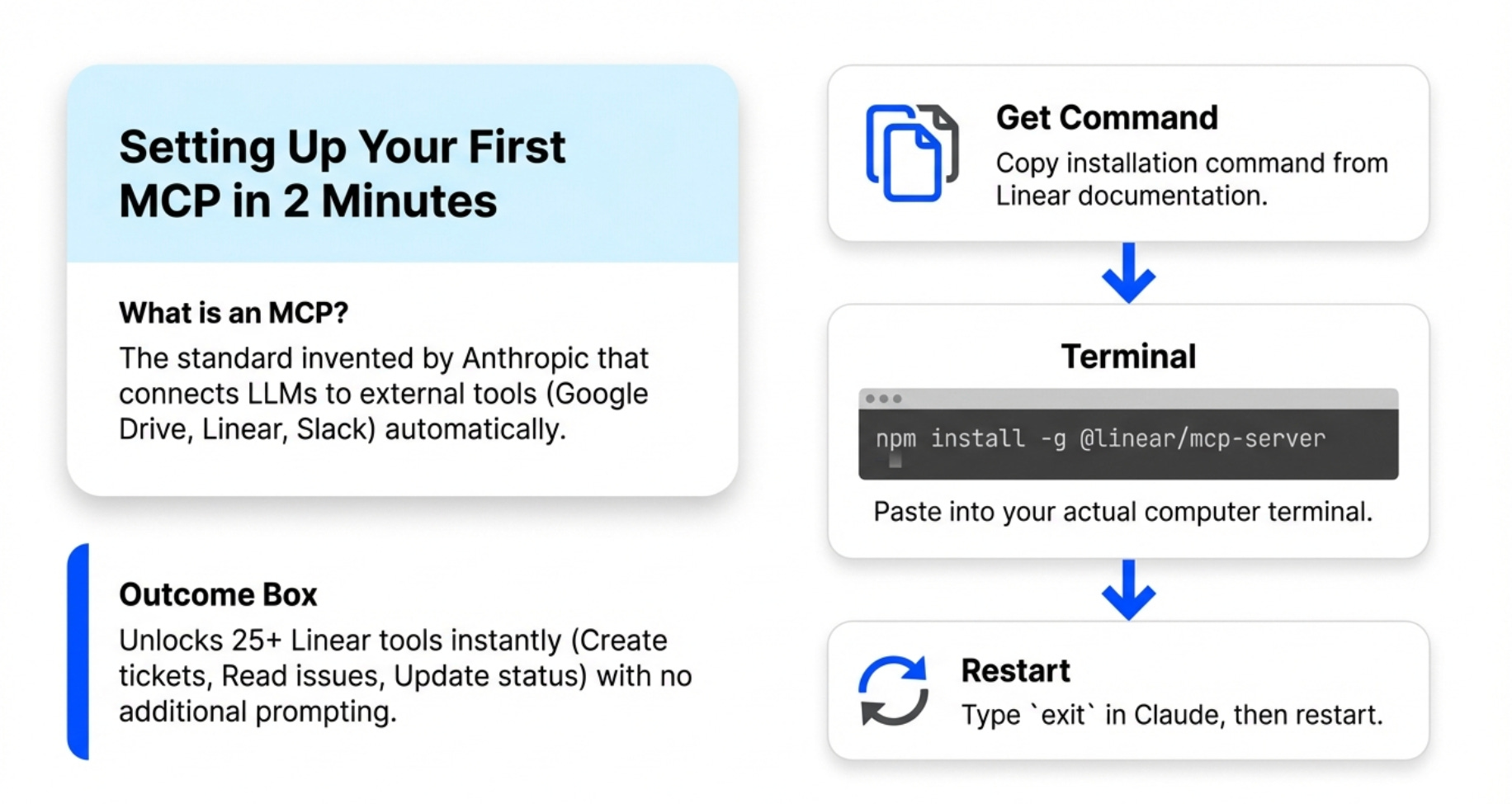
MCPs are Model Context Protocol. Anthropic invented it. It’s how LLMs connect to services.
The first question PMs ask: “I’m working in Claude Code on my computer. How do I get stuff into Google Docs? Into Linear? How do people see my work?”
The answer: MCPs.
Let’s set up your first MCP together. We’ll use Linear.
Step 1 - Get the Installation Command
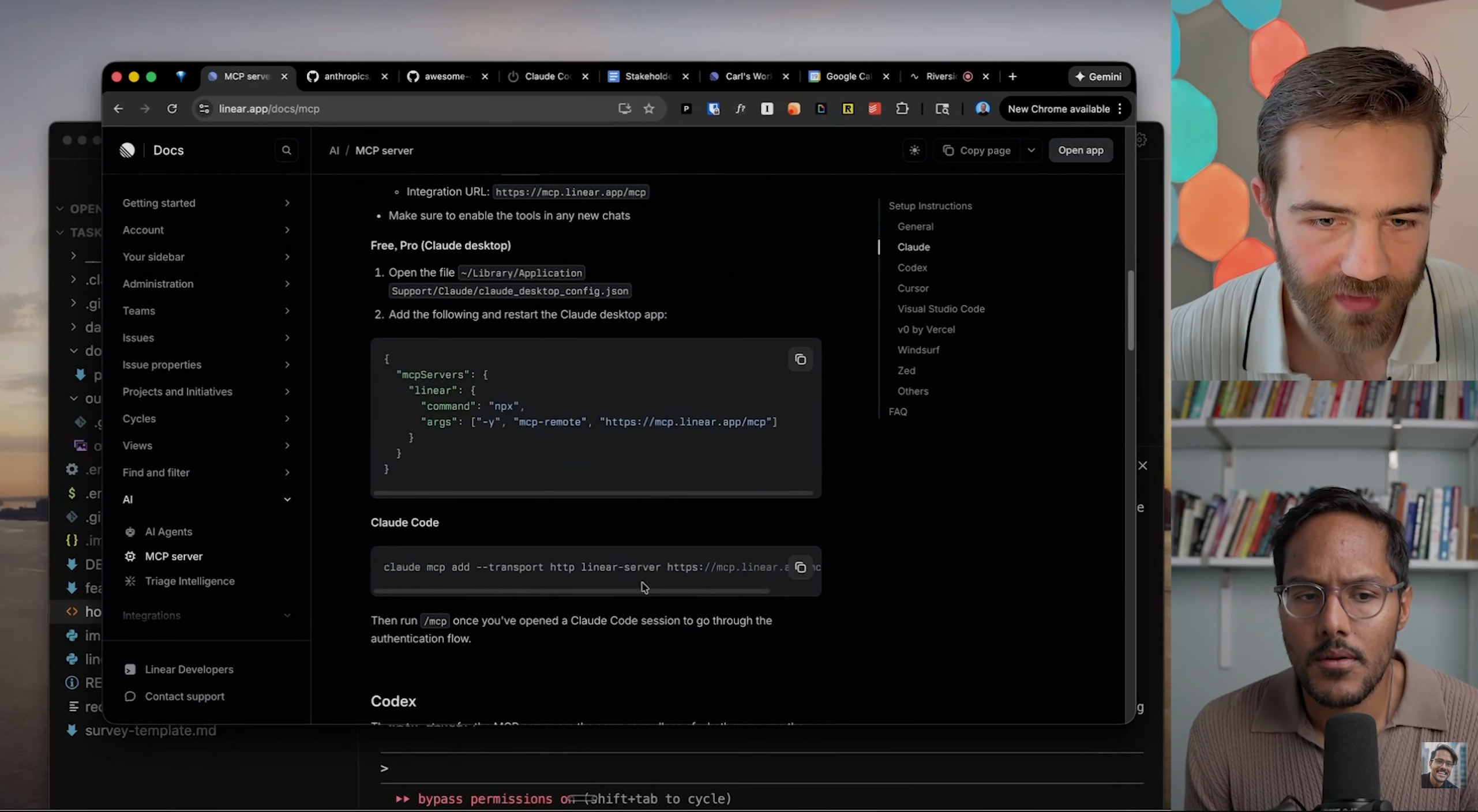
Go to Linear’s documentation. Find the MCP setup page.
Copy the installation command. It’s one line.
claude mcp add --transport http linear-server https://mcp.linear.app/mcpStep 2 - Run the Command in Your Terminal
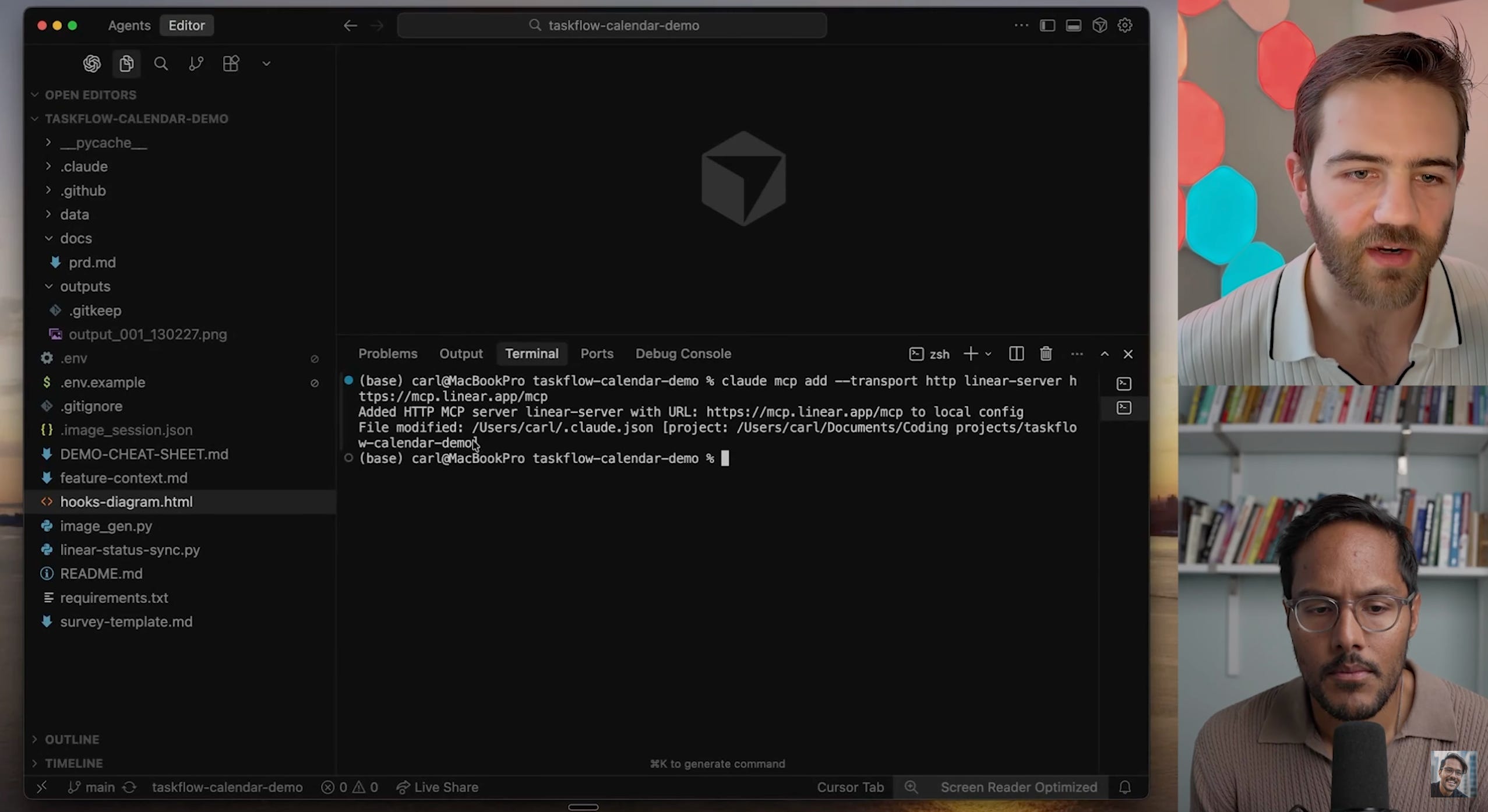
Open your terminal. Not Claude Code. Your actual terminal application.
Paste the command. Hit enter.
Done.
Step 3 - Restart Claude Code
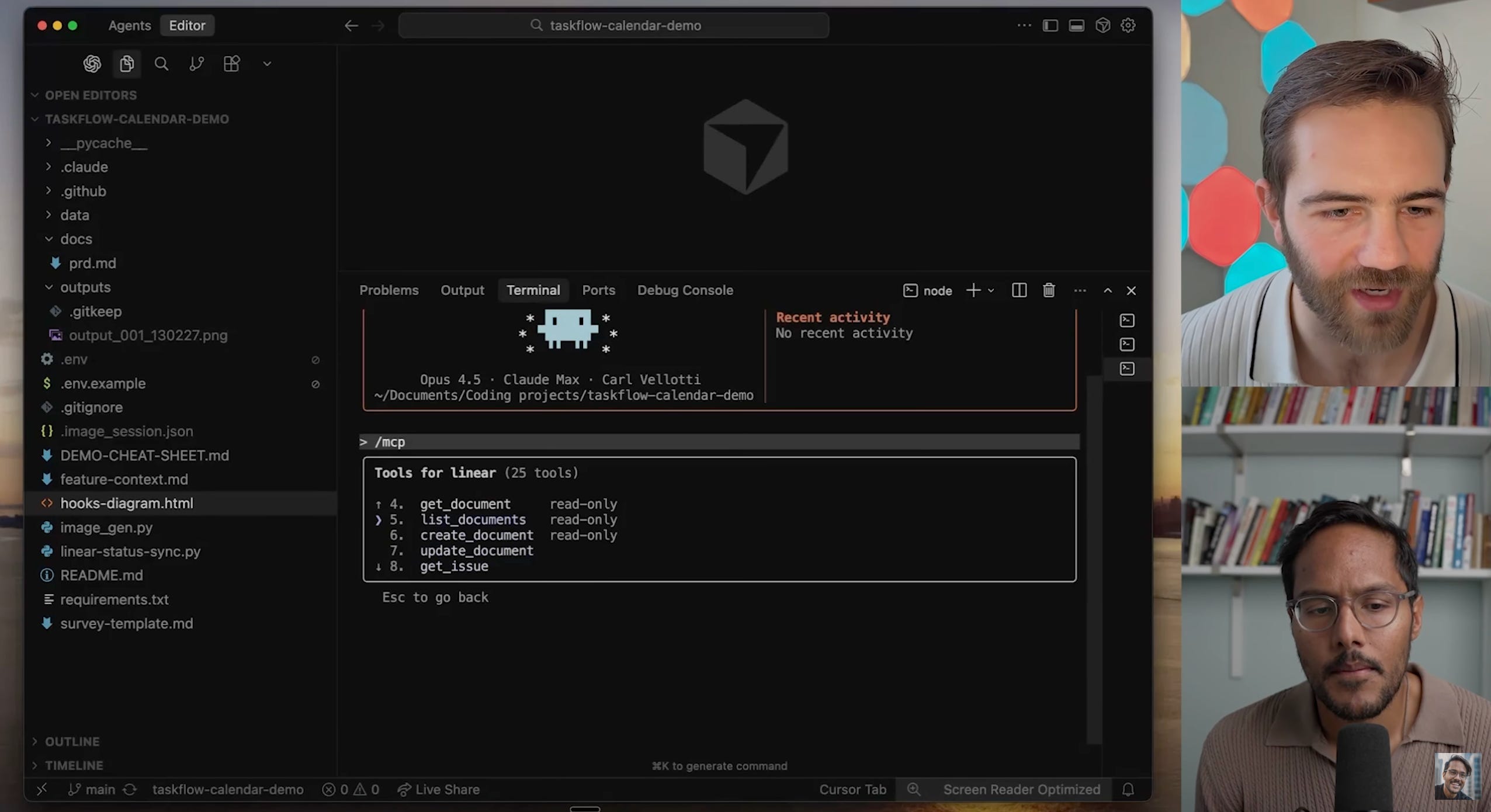
Type “exit” in Claude Code to close it.
Run your Claude Code command again to restart.
Now Claude Code has 25 Linear tools automatically:
Create tickets
Read issues
Get project info
Update ticket status
Add comments
Assign tickets
No additional prompting needed.
Total time: Under 2 minutes.
The Essential MCP Stack
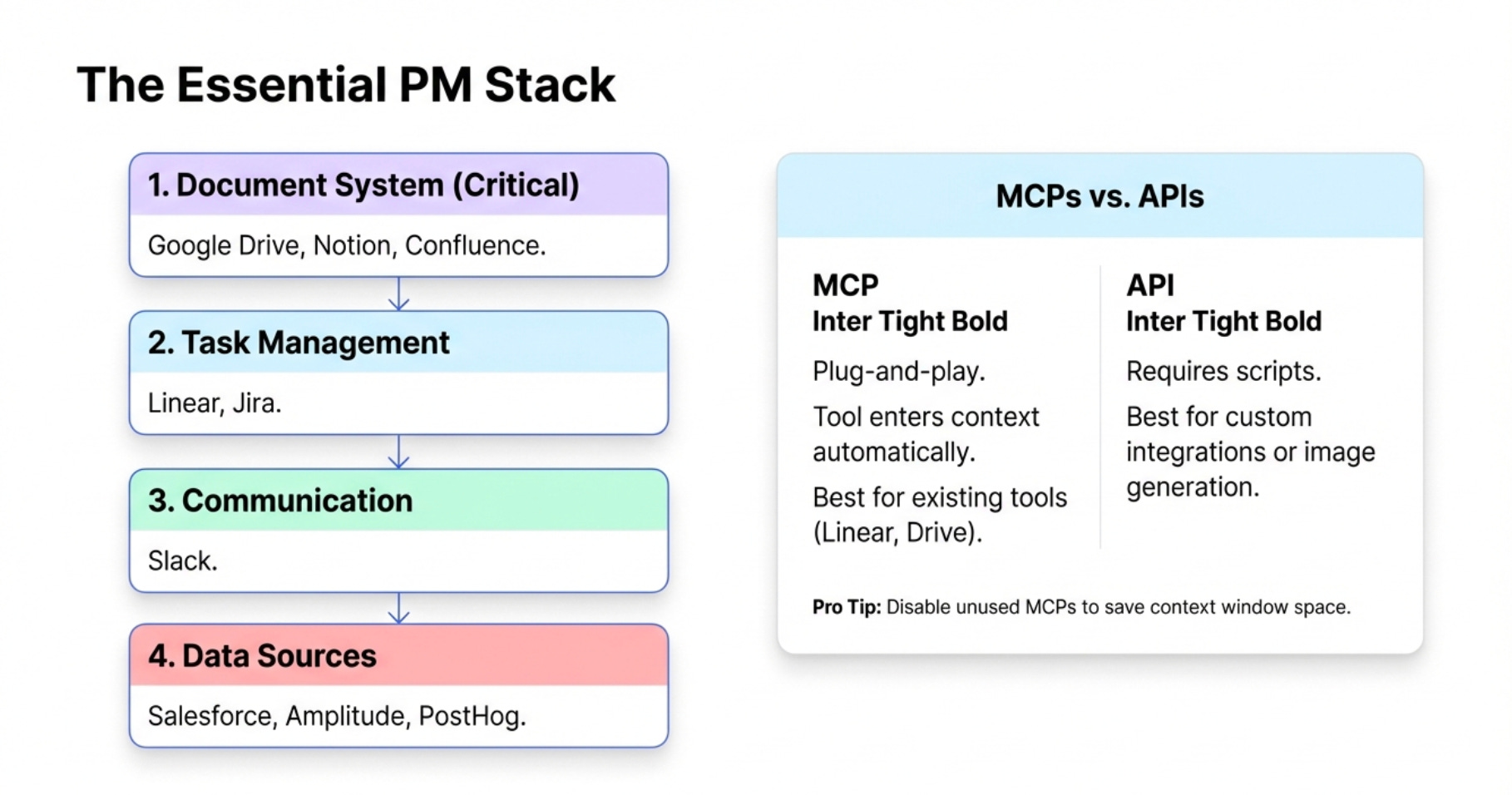
Carl’s priority order for PMs:
First: Your document system. Google Drive, Notion, Confluence. Most PM work happens here. Set this up immediately.
Second: Task management. Linear, Jira. Creating and reading tickets.
Third: Communication. Slack for updates and notifications.
Fourth: Data sources. Salesforce, analytics tools, product analytics, support desk. Any source of user insight.
Carl’s actual setup: Google Workspace, Linear, Slack.
He keeps Reddit MCP installed but turned off. Why? MCPs take up context window. Only enable what you’re actively using.
Pro tip from Carl: Claude Code knows what MCPs you have. If you ask it to do something with Reddit and Reddit MCP is off, it’ll ask you to enable it.
MCP vs API
MCPs give you tools automatically. Claude knows how to use Linear the moment you connect it. No prompting needed.
APIs require instructions. You need to tell Claude how to use that API with scripts.
Use MCPs when: Tools already exist and you want plug-and-play.
Use APIs when: You’re doing custom integrations or the service doesn’t have an MCP yet.
The demo used both. MCPs for Linear and Google Workspace. APIs for Gemini’s Nano Banana Pro to generate images inside Claude Code.
3. Building the Complete PM Workflow
Now let's build a complete calendar integration feature from scratch. Our goal is to go from initial user research to engineering tickets ready for sprint planning.
Let’s break down each step.
Step 1 - Create User Research Survey (60 Seconds)
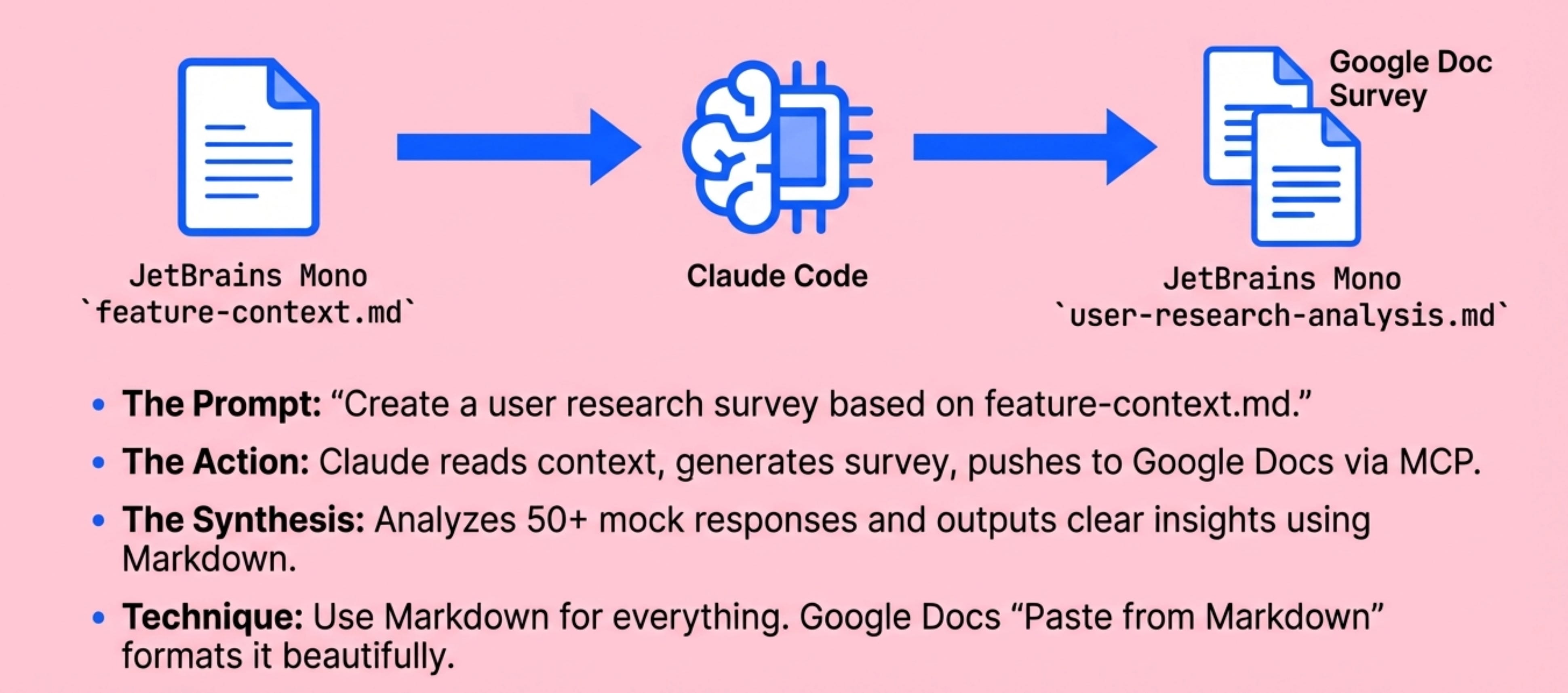
Carl had two files ready:
A feature context document: this should include the feature name, target users, problem statement, and any constraints or requirements you already know
A survey template: this should have your standard question categories (current behavior, pain points, feature preferences, demographic info) and formatting guidelines
Tell Claude: "Create a user research survey for calendar integration based on feature-context.md and survey-template.md"
Claude reads both files. Creates the survey. Saves it locally as markdown. Pushes it to Google Docs using the Google MCP.60 seconds total.
Pro move: Google Docs imports markdown as plain text. Right-click → "Paste from markdown" and it formats beautifully.Step 2 - Analyze Survey Results
Once you have responses (or mock data for testing), tell Claude:
“Pull in the responses from survey-responses.md. Don’t analyze yet, just pull them in.”Claude uses the Google MCP. Fetches all responses. Displays them in a table.
Then the synthesis:
“Synthesize the user research survey responses and put it in user-research-analysis.md”Output: Clear insights. Top feature requests. User pain points. No fluff.
Step 3 - Create the PRD

Now you have analyzed research. Time to write the PRD.
Tell Claude:
“Create a PRD based on the survey analysis. Also push to Google Docs using my email.”Claude reads the analysis. Writes a complete PRD with user research synthesis, feature requirements, success metrics, technical considerations.
Pushed to Google Docs. Ready to share.
You don’t even need to give it a PRD template. Opus 4.5 is that good now. But if you want consistency across PRDs, create a PRD writing skill with your template baked in.
Step 4 - Create Stakeholder Presentation

Tell Claude:
“Create a presentation using your presentation skill for calendar-integration-prd.md in Google Docs. Use my email.”Claude finds the PRD. Uses the PowerPoint Skill from Anthropic’s official Skills plugin.
Creates a complete Google Slides deck with:
Problem statement
User research highlights
Feature overview
Success metrics
Next steps
These are real Google Slides. Not images. Fully editable.
19 slides. From a PRD. Automatically.
It takes a few minutes because Claude creates each slide in parallel using sub-agents.
You used to spend entire afternoons turning PRDs into decks. This workflow is dead.
Step 5 - Incorporate Stakeholder Feedback

After presenting, you get feedback. Security requirements. SSO mandatory. Compliance concerns. Save your stakeholder meeting notes as a markdown file.
Tell Claude:
“Update the PRD with stakeholder-meeting-notes.md. Push changes to Google Docs.”Claude reads the notes. Updates the PRD. Adds new requirements. Pushes to Google Docs.
The feedback loop that used to take a day takes 2 minutes.
Step 6 - Create Engineering Tickets
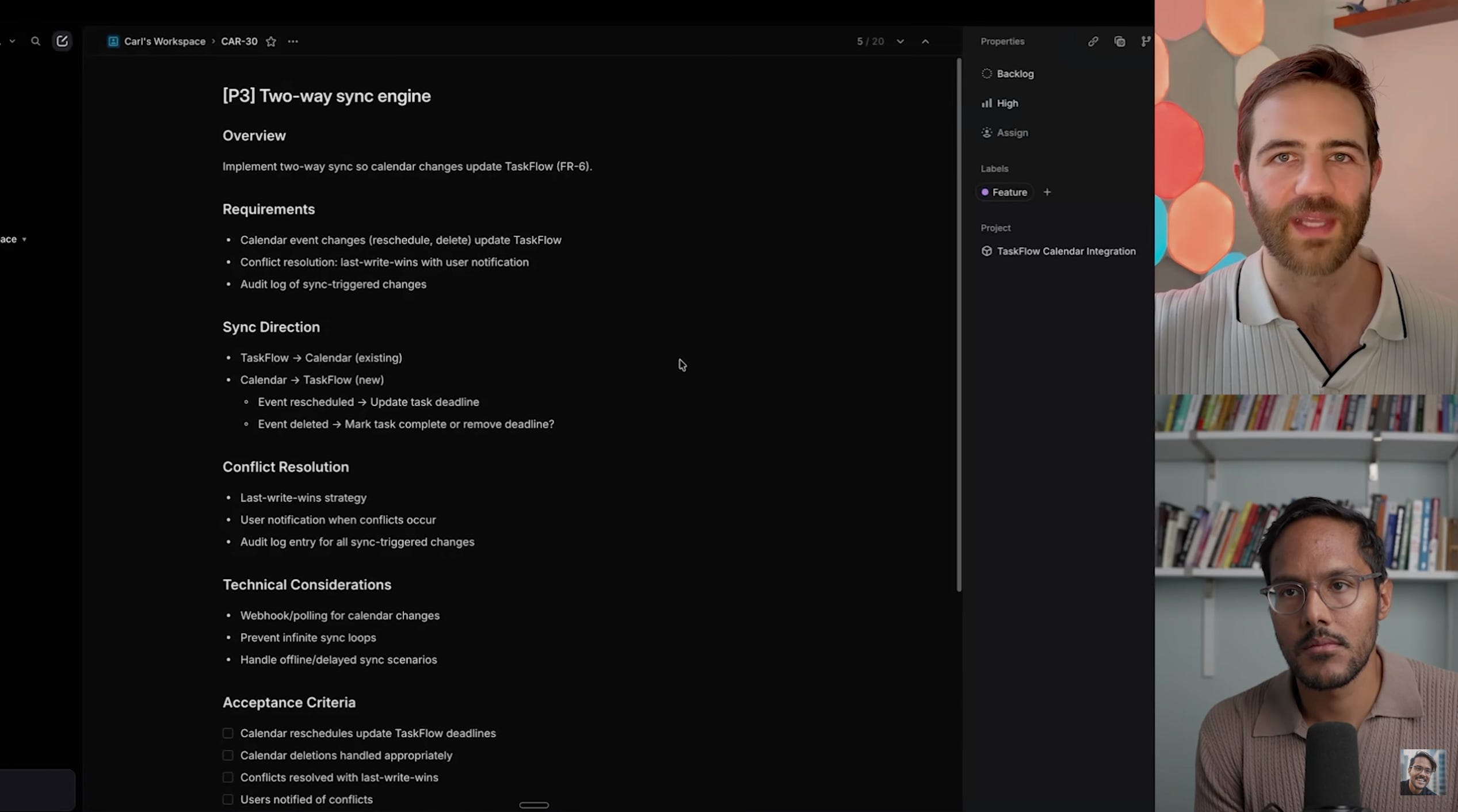
Now the PRD is locked. Time for tickets.
Tell Claude:
“Create engineering tickets for this PRD in the Taskflow Calendar Integration project.”Claude uses the Linear MCP. Breaks the PRD into engineering tickets:
P1 for critical path features
P2 for nice-to-haves
Clear descriptions
Acceptance criteria
Technical considerations
Each ticket links back to the PRD requirements.
Open Linear. All tickets are there. Organized. Prioritized. Ready for sprint planning.
Because you have workflows for all these things already built, you can do it all in one shot.
That’s the power of building reusable AI workflows.
4. Skills That Actually Save Hours
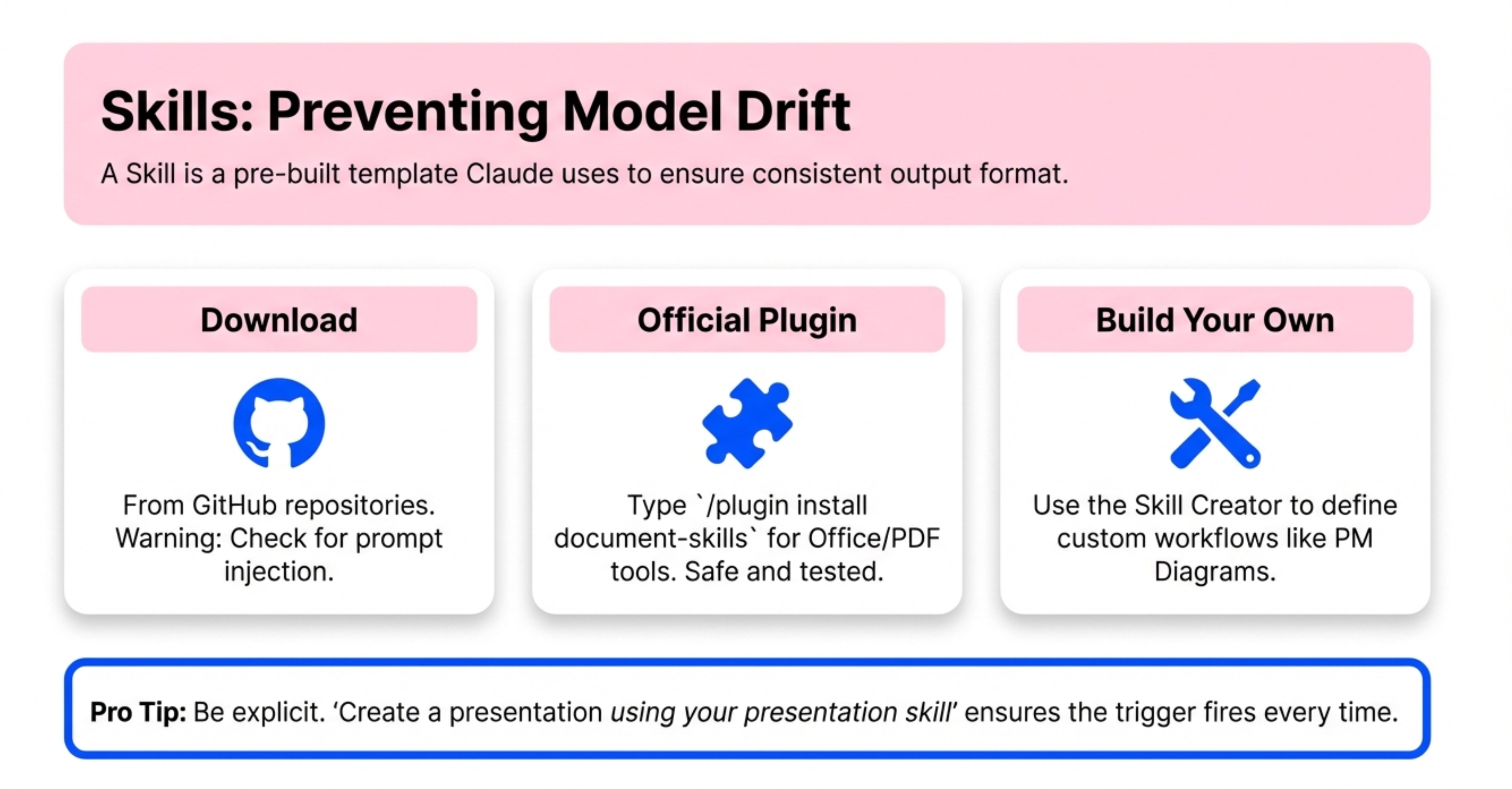
4. Skills That Actually Save Hours
Skills are the most powerful Claude Code feature most people don’t understand.
A Skill is a pre-built template that Claude automatically applies when relevant.
Without Skill: “Claude, analyze this user research using best practices for synthesis”
With Skill: “Analyze this user research” → Skill triggers → Claude uses your exact template
Skills save you from remembering exact prompts, copying templates, explaining your format every time.
Where to Get Skills
Option 1 - Download from GitHub repos
There are massive repos with hundreds of Skills. Document builders, iOS simulators, MCP builders.
Warning: Be careful about prompt injection attacks. If you’re using dangerously skipped permissions (YOLO mode), a malicious Skill could do damage. Consider building a skill investigator skill that checks new skills before you run them.
Option 2 - Use Anthropic’s Official Skills Plugin
Type /plugin install document-skills
This gives you PowerPoint, Word, Excel, PDF skills. Plus a Skill creator for building your own.
These are heavily tested by Anthropic. Safe to use.
Option 3 - Build Your Own
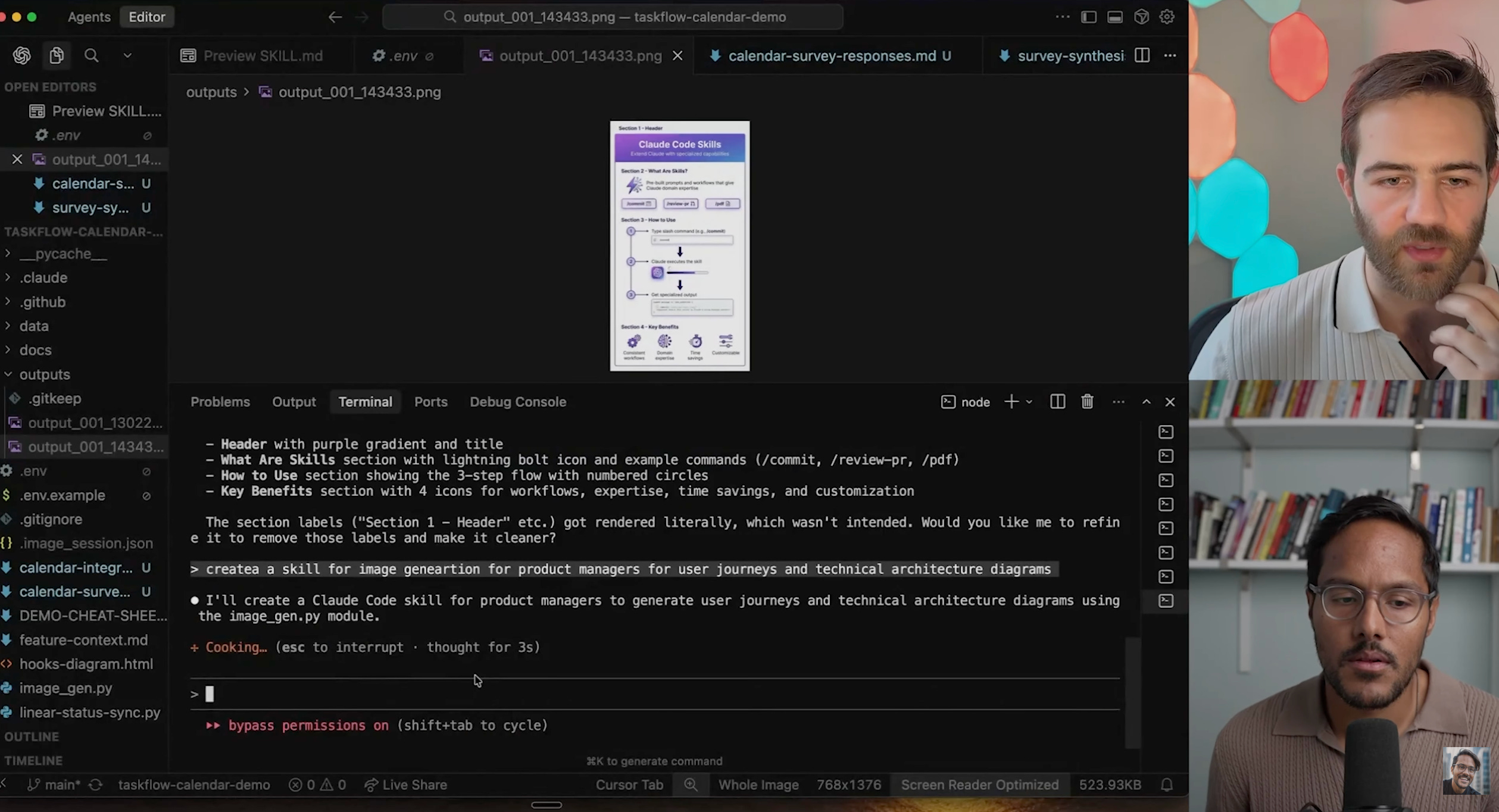
Use the Skill Creator Skill to make your own.
The process:
Tell Claude what you want the skill to do
It creates the skill definition file
Test it a few times
Adjust as needed
I’ve created Skills for editing my newsletters, writing Twitter posts, creating podcast production guides, analyzing transcripts, generating newsletter topics.
Build Skills for anything you do more than twice. Give it 2-3 examples of before and after versions. Run vibe checks 2-3 times. Edit the skill 2-3 times. It’s good to go after that.
How to Make Skills Actually Trigger
Skills have trigger descriptions. When Claude detects that trigger, it uses the Skill.
But triggers don’t always work reliably yet.
The solution: Specify the Skill explicitly in your prompt.
Instead of: “Create a presentation”
Say: “Create a presentation using your presentation skill”
This forces Claude to use that Skill every time.
As future models improve, auto-triggering should get better. For now, be explicit.
Why Skills Matter for Long Tasks
Skills keep the LLM on a narrow path. As soon as it starts to drift, it drifts more and more.
For long-running tasks, Skills prevent drift.
Without Skills: Claude might format your PRD differently each section. Or forget your brand voice halfway through.
With Skills: Consistent output every time.
This is critical for AI product management workflows that run for minutes or hours.
5. GitHub Integration (Turning Claude into a Remote Worker)
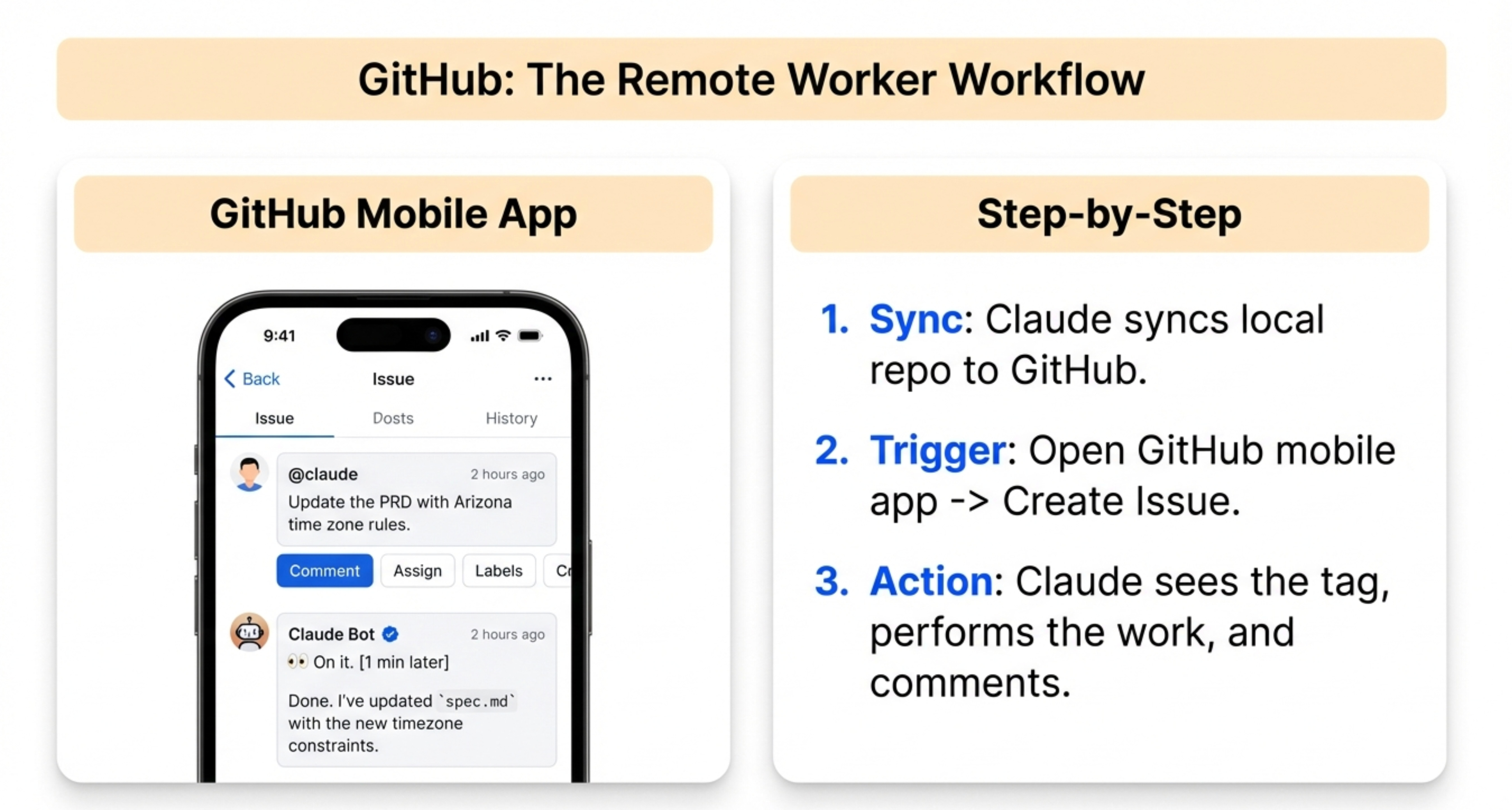
Here’s how to turn Claude into a remote worker that completes tasks while you’re away from your computer.
The Problem
You’re at lunch with your engineer. You realize: “Oh crap, did we account for Arizona not having daylight savings?”
Old way: Remember to update the PRD when you get back to your desk. Or start a Slack thread that gets lost.
New way: Create a GitHub issue on your phone. @ mention Claude. By the time you’re back at your desk, it’s done.
Step 1 - Sync Your Local Repo to GitHub
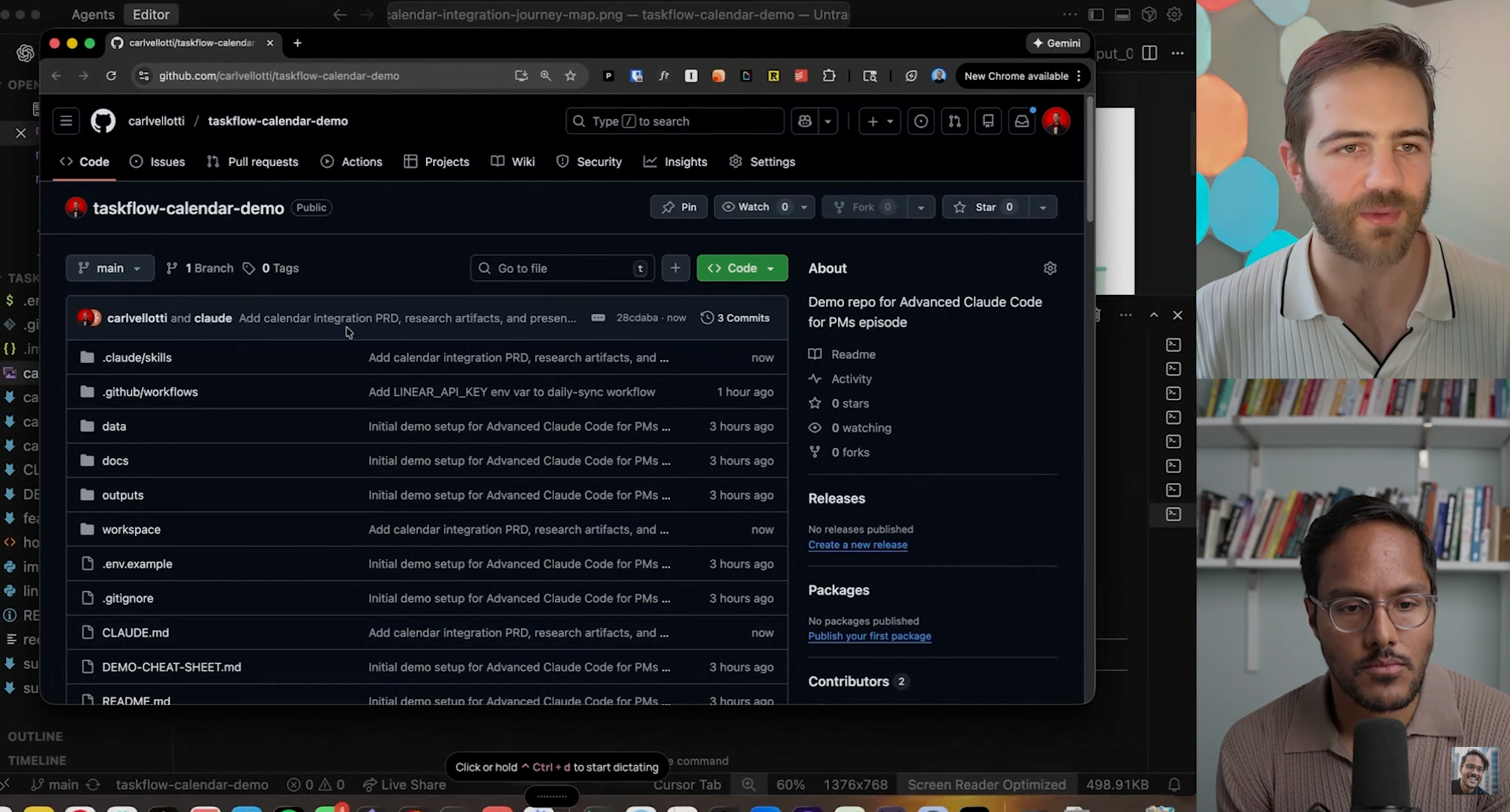
Tell Claude:
“Please sync this repo to GitHub”Claude handles all the Git commands. Pushes everything up.
Step 2 - Add Claude as a GitHub App
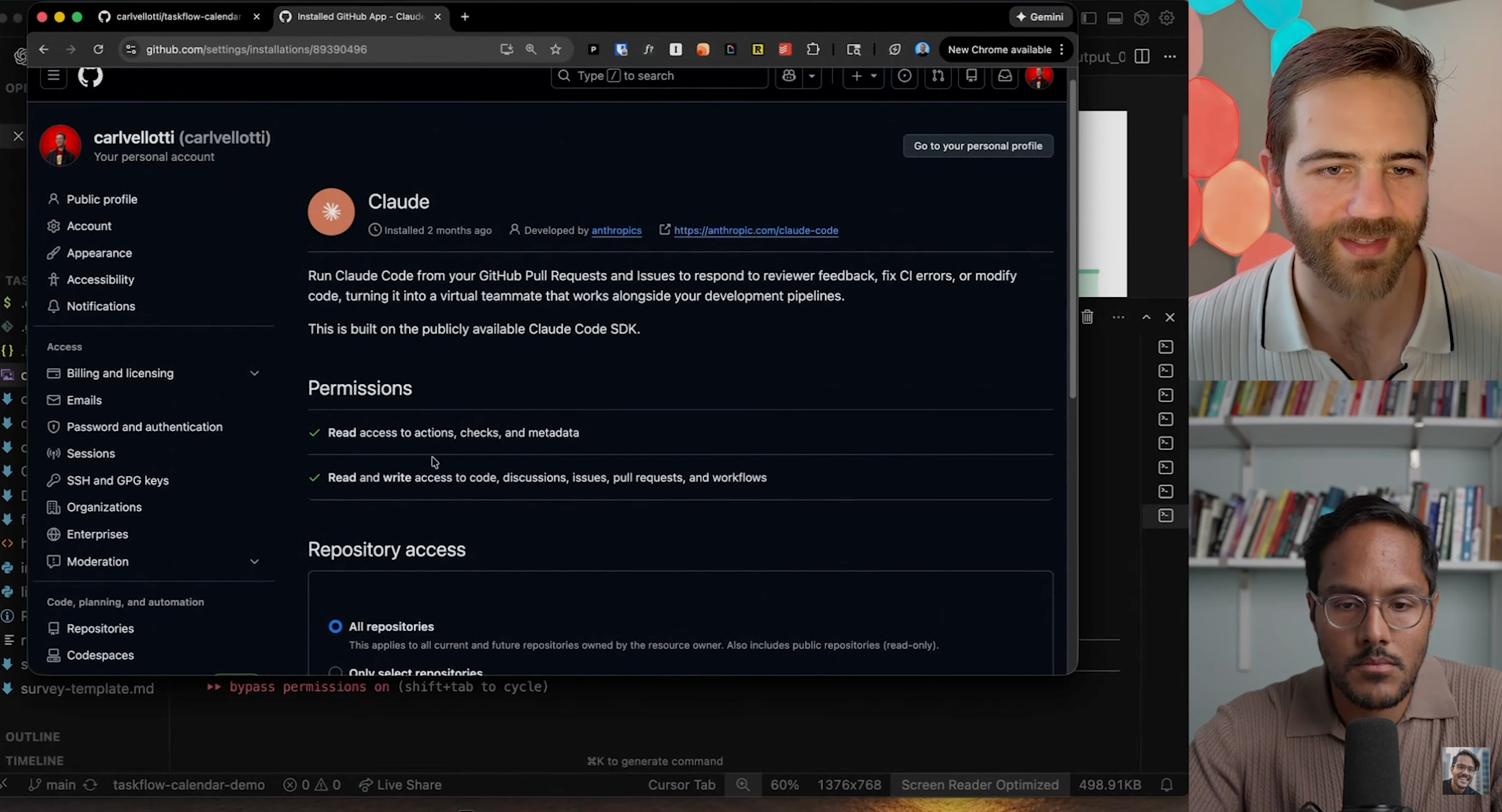
Go to github.com/apps/claude
Configure it. Give it access to your repos.
Step 3 - Add Your Anthropic API Key to the Repo
Go to repo Settings → Secrets → Add your Claude API key
Now Claude can work on issues automatically.
Using Claude as a Remote Worker
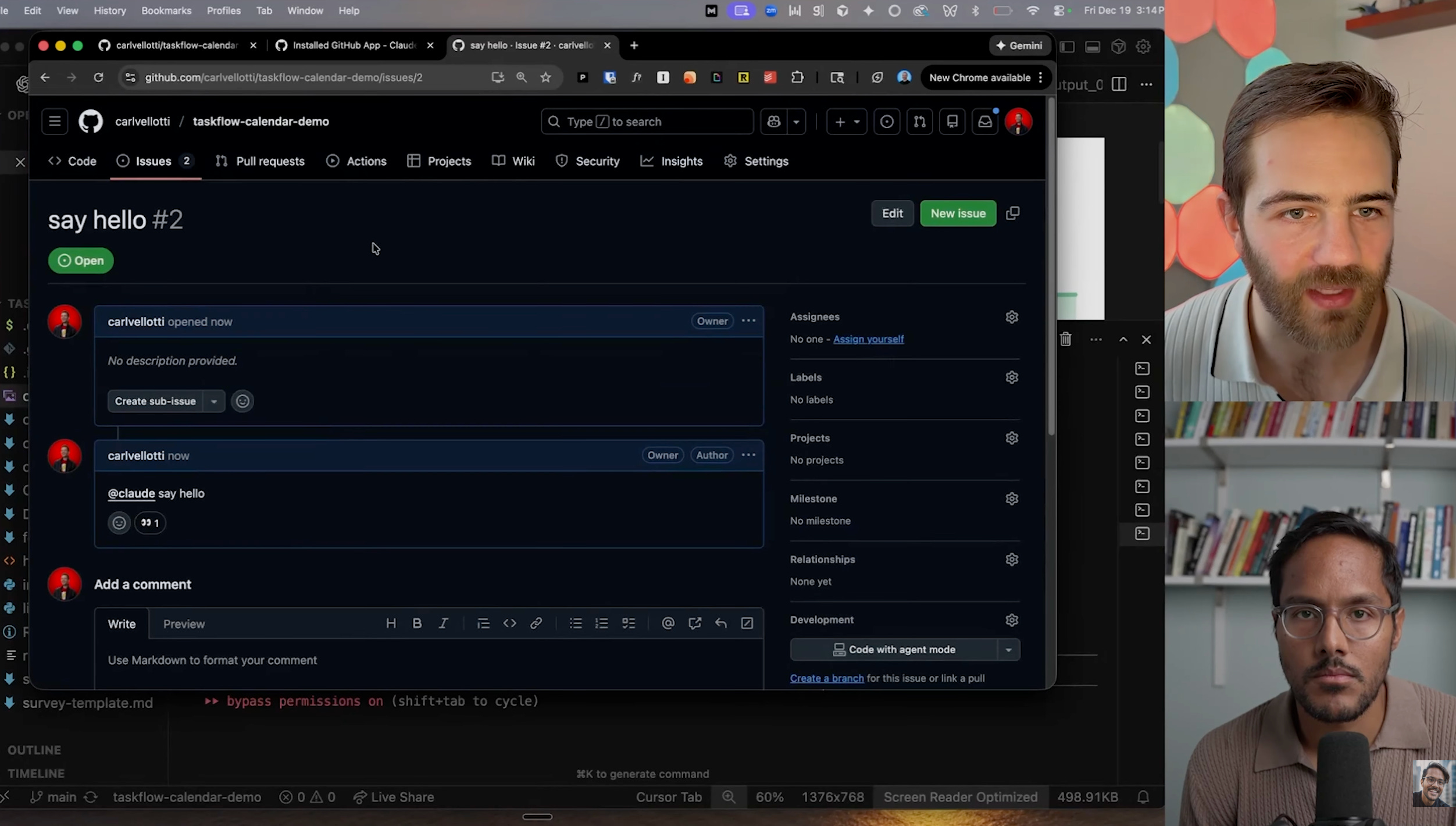
Create a new GitHub issue. Type your request:
@claude Say helloClaude sees it immediately. Adds an emoji reaction (👀). Works the issue. Adds a comment with the result.
You can do this from:
Your phone
iPad
Any computer with GitHub access
The GitHub mobile app
Carl’s Personal Use Case
Carl’s entire journal is a private GitHub repo.
He creates issues with voice transcriptions of his day. @ mentions Claude. Claude adds it to his journal markdown file.
By the time he opens his computer, his journal is updated.
GitHub Basics for PMs
Most PMs don’t know Git. Here’s all you need:
Pull: Download files from GitHub to your computer
Push: Upload your changes from computer to GitHub
Branch: A copy of your code for testing changes before merging
Main: The primary version of your repo
Merge: Combine a branch back into Main
That’s it. Claude handles the actual Git commands.
If you need to do anything with Git, just ask Claude. It’s fiercely competent with Git.
6. Traditional Workflow vs AI Agent (and When to Use Each)
There are three different levels to building the same workflow. Each has different trade-offs in cost, reliability, and complexity.

Level 1 - Traditional Workflow
You define every step explicitly. Node-by-node predetermined path.
Characteristics:
Most efficient
Saves tokens
Very reliable (little room to hallucinate)
Best approach for production
Cost: 5,000 tokens, 40 seconds
This is what we built in the demo. Survey → Analysis → PRD → Slides → Tickets.
This is the most efficient. It saves the most tokens and will work the most reliable. There is very little space to hallucinate.
Use this for:
Predictable tasks with clear steps
When you need maximum reliability
When cost optimization matters
Production workflows serving customers
Level 2 - AI Agent with Limited Agency
You give the agent an LLM brain, tools, and a system prompt that maps out reasoning steps.
“Coding in English.”
The agent decides some things (like what prompt to send to Perplexity) but you’ve still mapped out the overall process.
Cost: 12,000 tokens, 90 seconds
That’s 2x tokens and 2x time.
Why? The agent is thinking about which tools to use, generating prompts dynamically, and making decisions.
When to use this approach:
When you need some flexibility in execution
When the exact prompt might vary based on context
As a middle ground between full control and full autonomy
Level 3 - True AI Agent
You give it a goal and tools. That’s it.
The entire system prompt: “Research these 6 competitors and email me a report.”
No defined steps. Just the objective.
The agent figures out everything:
It needs to read data sources first
It should research each competitor
It needs to compress responses
It should format everything before sending
Cost: 90,000 tokens, 90 seconds
That’s 18x more tokens than the traditional workflow.
But the output quality might be best.
When to use this approach:
Open-ended tasks that need decision-making
When you can’t predict all possible paths
Research or exploration tasks
When you can afford the token cost
The Decision Framework
Wrong approach: “Agents are cool, let’s use them everywhere”
Right approach: Use workflows when you know the steps, use agents when tasks need decision-making
The rule: If something can be expressed as code, code it. Leave agents for cognitive work.
For any process you run regularly, convert it into a workflow.
7. Advanced Claude Code Topics

We’re going deep now. This is the stuff that separates hobbyists from power users.
Topic 1 - Hooks Feature
Hooks are automated actions at lifecycle points:
Session start/end
Before/after tool use
Before compaction
Use cases:
Auto-pull tickets when session starts
Run tests after code changes
Export conversation before compaction
Mac notification + sound when task finishes.
Advanced feature. Mostly for coding but creative PM applications possible.
Topic 2 - Image Generation with APIs
You can use APIs like Gemini Nano Banana Pro API via Python script to generate images.
Advantages:
Apply brand guidelines automatically
Generate multiple variations in parallel
Better than UI for systematic, repeatable image creation
He created a PM diagrams skill for user journey generation.
Topic 3 - Terminal Shortcuts
Essential shortcuts Carl uses:
Control+C: Kill command
Exit: Close Claude session
Resume: Return to previous conversation
Option key: Jump words for editing
Command key: Jump entire lines
Up arrow: Cycle previous commands
Rename sessions for searchability.
Topic 4 - Context Window Management
MCPs consume context when enabled.
Be strategic about active MCPs. Claude knows available MCPs even when disabled.
Can prompt to enable specific MCP when needed.
Topic 5 - Deficiencies vs UI
Claude Code limitations:
Cannot select/edit text mid-prompt (only backspace from end)
No visual chat history like web UI
Must use keyboard shortcuts for navigation
These are trade-offs for the power and automation capabilities.
What We Covered Today
Let me be direct about what we covered today.
Claude Code hit $1B ARR in 6 months because Anthropic bet on work, not general use. They optimized for power users doing deep work.
Three things I want you to take away:
1. Start with traditional workflows, not agents
The coolest demos use AI agents. But the most reliable, cost-effective solutions use traditional workflows with LLMs as steps.
Use workflows when you know the process. Use agents only when you need autonomous decision-making.
2. MCPs are your competitive advantage
Setting up MCPs takes 2 minutes. Connecting your entire tool stack takes 30 minutes.
This unlocks Claude Code’s full power. Every PM should have at minimum: Google Drive, Linear/Jira, and Slack connected.
3. Build to learn, not just to automate
Every workflow you build teaches you something about AI, prompting, and system design.
Workflows that used to take a week now take a morning.
The PMs winning with AI aren’t the ones with the most AI knowledge. They’re the ones building systems and learning through iteration.
Now go build something.

To receive all complete podcast write-ups, join the paid newsletter:
Where to Find Carl Vellotti
Related Content
Newsletters:
Podcasts:
The Ultimate Guide to n8n for PMs last episode, with Pawel Huryn
This is what a Google AI PM’s Tool Stack Looks Like, with Marily Nika
PS. Please subscribe on YouTube and follow on Apple & Spotify. It helps!