Check out the conversation on Apple, Spotify and YouTube.
Brought to you by:
Jira Product Discovery: Plan with purpose, ship with confidence
Vanta: Automate compliance, manage risk, and prove trust
Mobbin: Discover real-world design inspiration
The AI Evals Course for PMs & Engineers: You get $1250 with my link
Product Faculty: Get $550 off their #1 AI PM Certification with my link
Today’s Episode
OpenClaw is the hottest new AI tool that no one is helping you with. There’s zero real content on OpenClaw for PMs.
I covered what OpenClaw is and why it matters when it first went viral. But the rest of the web has been oddly quiet.
That is a big mistake. OpenClaw as software is as important as ChatGPT in 2023 or Claude Code in 2025.
It’s the software soon every PM will be using.
What I’ve found is that setup is the hardest part. So in today’s episode, I’m giving you a complete, step-by-step installation.
Plus, we cover five of the top PM use cases:
If you want access to my AI tool stack - Dovetail, Arize, Linear, Descript, Reforge Build, DeepSky, Relay.app, Magic Patterns, Speechify, and Mobbin - grab Aakash’s bundle.
If you want my PM Operating System in Claude Code, click here.
Newsletter Deep Dive
As a thank you for having me in your inbox, here is the complete guide to setting up OpenClaw and building PM automations with it.
Why PMs should care about OpenClaw
How to Set Up OpenClaw
How to connect OpenClaw to Slack
The workspace file system
5 of the Top PM Use Cases
Slack knowledge base
Automated stand-up summaries
Competitive intelligence on autopilot
Voice of customer reports
Smart bug routing by customer tier
Security and deployment
1. Why PMs should care about OpenClaw
Go open Claude or ChatGPT right now. Ask it to check your Slack for blockers, scan your competitor’s pricing page, and post a summary to your team channel at 9 a.m. tomorrow.
It can’t do any of that.
Every LLM you use today is reactive. You ask, it answers. You close the tab, it dies. No access to your files, your tools, or your team’s communication.
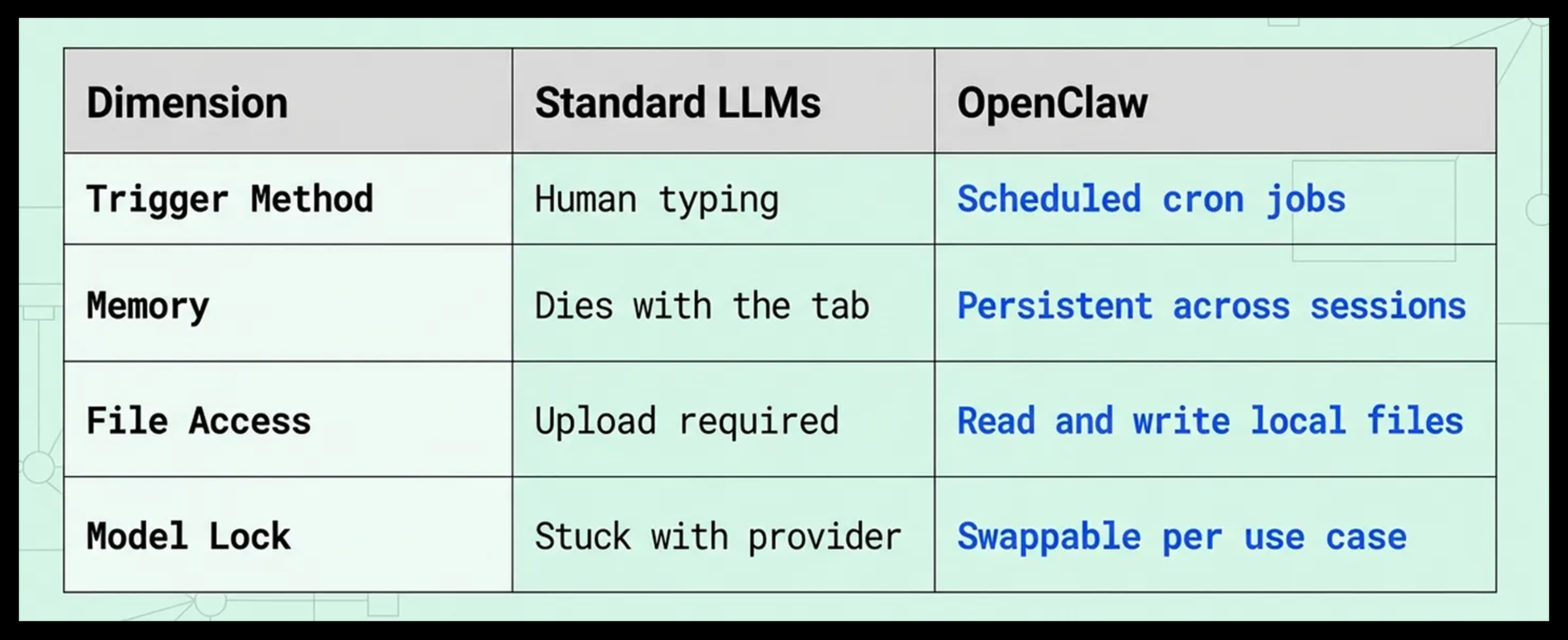
OpenClaw is different in three ways.
It is proactive, not reactive. Set up a cron job and walk away. It executes at 3 a.m. when you are asleep. Scans channels, monitors websites, generates reports, posts them to Slack. No fingers lifted.
It is model agnostic. Not locked into one provider. Deep research? Plug in Claude Opus. Fast customer responses? Gemini Flash. Budget? Qwen 3.5 at 1/10th the cost. You control the model per use case.
It runs locally. Your data stays on your machine. No cloud lock-in. It reads and writes local files, which means you build a living repository of product docs, customer feedback, and competitive intelligence that grows over time.
Peter Steinberger described the difference between skills and tools perfectly. Tools are organs. Can the agent do it? Skills are textbooks. Does the agent know how to do it? OpenClaw has both.
The difference between OpenClaw and every other AI tool you use is simple. It acts. Everything else just answers.
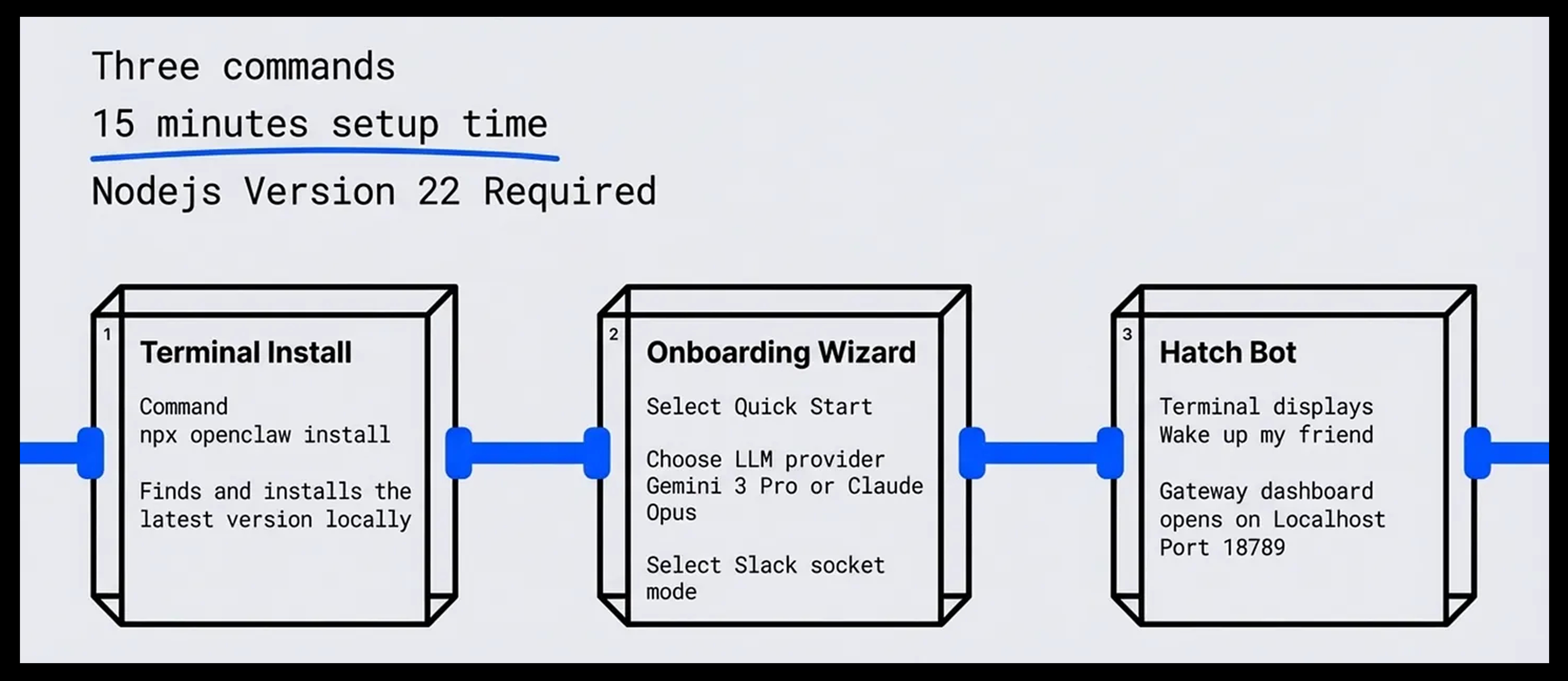
The three-command installation of OpenClaw
Most people who quit OpenClaw quit during setup. Not because it is hard. Because terminal commands feel unfamiliar.
The truth is, if you are not seeing red text, you are good. Yellow warnings are normal.
Two paths.
The one-click path (training wheels). Go to emergent.sh. They have a bot feature that pastes the install command for you. Replace your LLM key, hit enter, done. The limitation: no full control. You cannot use your own RAM, run a local model, or customize the workspace.
The terminal path (what most PMs should do). Three commands.
Step 1 - Install OpenClaw
Open your terminal. Paste:
npm install -g openclaw@latestFinds the latest version. Installs it. If it fails, you probably do not have Node.js 22+ installed. Go to nodejs.org, install it, re-run.
Step 2 - Run the onboarding wizard
openclaw onboardThe wizard walks you through:
Accept the security warning (hit yes)
Choose Quick Start over Manual
Pick your LLM provider
Paste your API key
Choose your messaging channel
For the LLM provider, you have every option. Google, Anthropic, OpenAI, and more. If you want the best dollar-per-quality ratio, Gemini is strong. To create a key, Google “Gemini key create,” click Create, name it OpenClaw, copy, paste it into a note you won't lose.
After the provider, choose the specific model. Gemini 3 Pro for deep work. Any Flash model for speed.
Then choose a messaging channel. For PMs, pick Slack socket mode.
Step 3 - Hatch the bot
The wizard installs the gateway and hatches your bot. You see “Wake up, my friend.” You are live.
During onboarding, OpenClaw generates a soul.md file. This forces you to give your bot a name, a personality, interaction rules. Peter Steinberger designed it this way. He wanted a companion, not a disposable chatbot.
Skip skills and tools selection during setup. Easier to add later by editing the markdown files directly, or by asking the bot.
Three commands. 15 minutes. If you can install a Chrome extension, you can install OpenClaw.
How to connect OpenClaw to Slack
This is the highest-leverage setup. It puts your AI agent inside the tool you already use all day.
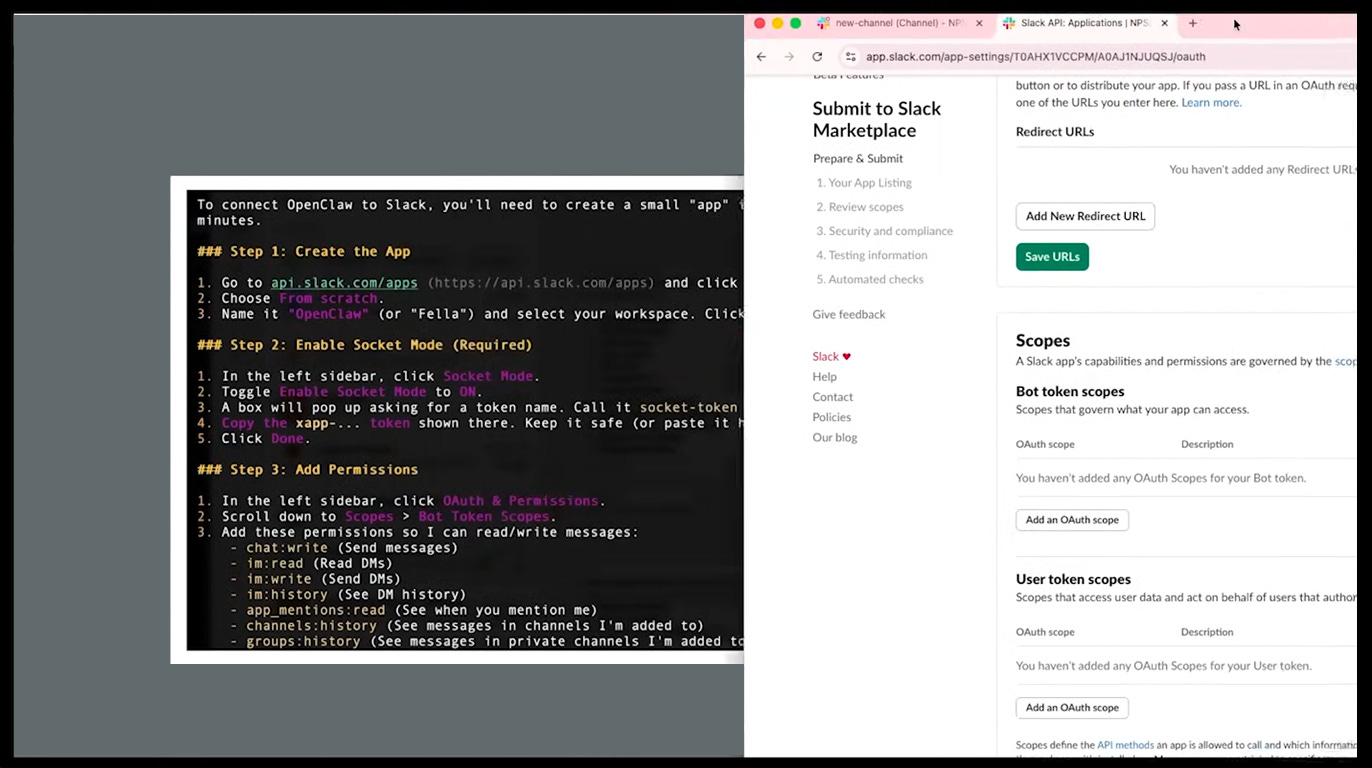
The terminal instructions during onboarding are bare bones. Here is the full walkthrough.
Step 1 - Create a Slack app
Go to api.slack.com/apps
Click Create an App
Choose From Scratch
Name it OpenClaw
Select your workspace
Click Create App
Step 2 - Enable Socket Mode
Left sidebar: Socket Mode
Toggle on
Token name: secret-token
Hit Generate
Copy and save the token
Step 3 - Add bot token scopes
Go to OAuth & Permissions. Scroll to Bot Token Scopes. Add:
chat:write
channels:history
channels:read
groups:history
groups:read
im:history
im:read
users:read
Each scope controls what your bot can see and do. Skip any your org restricts, but all matter for the use cases below.
Step 4 - Install to your workspace
Scroll to the top. Click Install to Workspace. Hit Allow. Copy the Bot User OAuth Token (starts with xoxb).
Step 5 - Paste tokens into OpenClaw
Back in your terminal, the wizard wants two things:
Bot Token (the xoxb one)
App Token (the secret-token from Socket Mode)
Paste both. Configure channel access. Allow all channels unless you have restrictions.
Critical rule: every time you change permissions in Slack, click Reinstall to Workspace. Skip this and nothing persists. This is the number one reason people think their setup is broken.
Once tokens are in, go to any Slack channel, invite your OpenClaw bot, mention it with @OpenClaw. It responds. You are running an AI agent inside Slack.
The workspace file system
Before building automations, understand where OpenClaw lives on your machine.
Everything is in a hidden folder at ~/.openclaw. On Mac, click Finder, right-click, Go to Folder, type a period, select .openclaw.
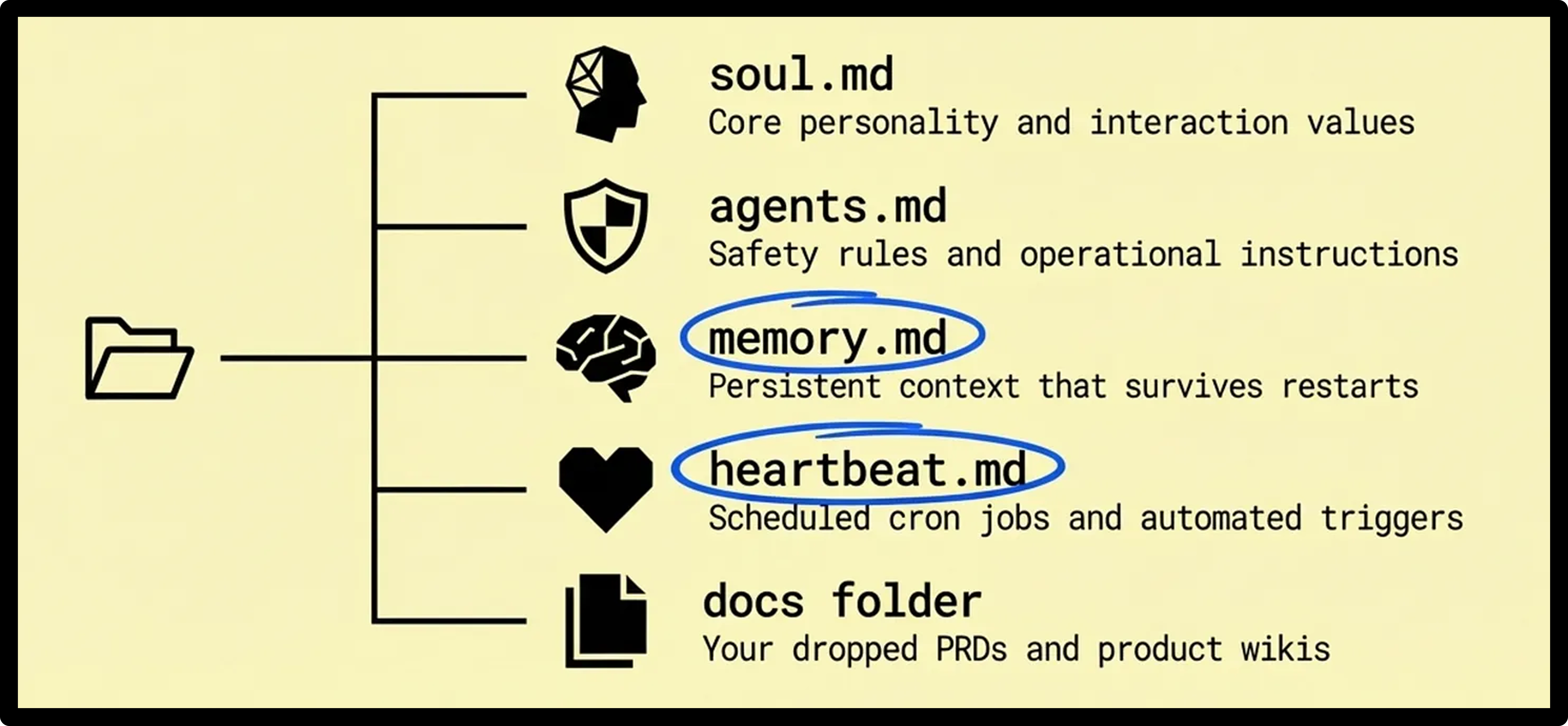
Inside the workspace:
soul.md - Bot’s personality and values
agents.md - Agent identity, safety rules, operational instructions
user.md - Your preferences (direct, no fluff, whatever you set during onboarding)
memory.md - Persistent memory that survives restarts
tools.md - Local configuration notes
heartbeat.md - Your cron jobs (starts empty)
All markdown files. Open in any text editor. Ask an LLM to generate content for them and paste in. Or ask OpenClaw itself to modify them.
There is also a gateway dashboard at 127.0.0.1:18789. Chat with your bot, view cron jobs, change API providers, check gateway status. Whatever you do in the dashboard reflects in the terminal and vice versa. Same brain.
If you want to swap from Gemini to Anthropic, go to Config > Secrets in the dashboard, change the model, save. Or just tell the bot in chat and it reprograms itself.
Terminal is your command center. Gateway dashboard is your control room. Both talk to the same agent.
3. 5 of the Top Use Cases for PMs
Setup done. Now let's put it to work.
The five use cases below are the ones Naman and I spent weeks building and testing on camera. Each one replaces a manual workflow you’re probably doing right now:
A Slack knowledge base that answers your team’s product questions from your own docs
Automated stand-up summaries posted before your first meeting
A competitive intelligence pipeline that runs while you sleep
Voice of customer reports pulled from every source into one place
Smart bug routing that triages by customer tier without you touching it
Plus the full security and deployment guide so you don’t end up WhatsApp-ing your mom a pairing code.
(paid subscribers only)
Listen to this episode with a 7-day free trial
Subscribe to Product Growth to listen to this post and get 7 days of free access to the full post archives.