
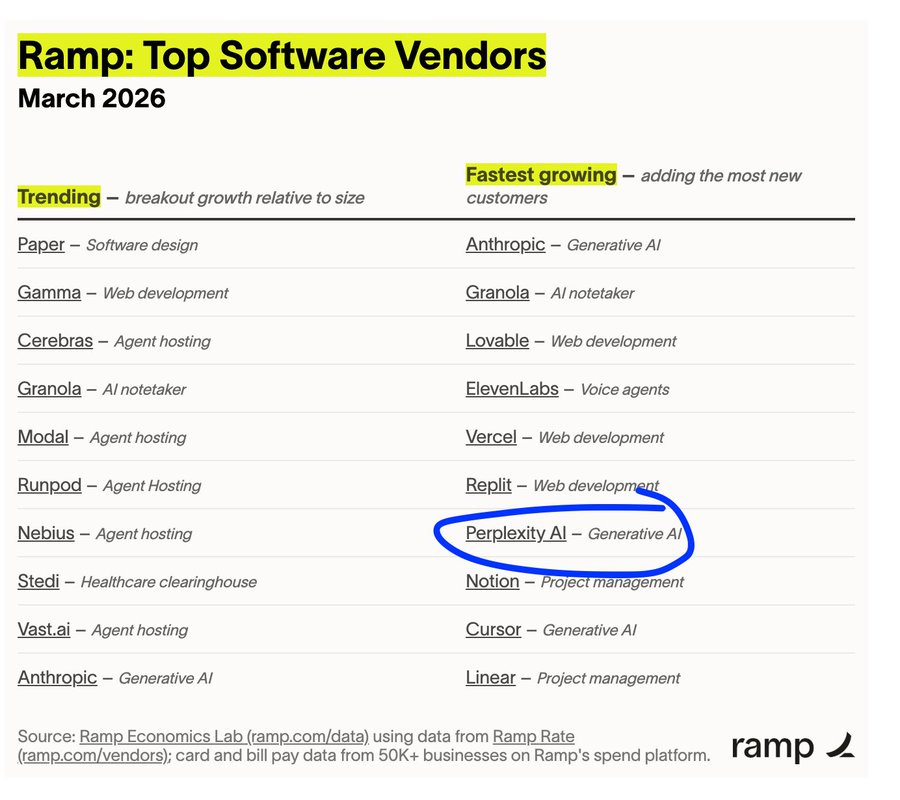
Perplexity is back on Ramp's list of fastest-growing B2B software vendors. The reason isn't search. It's a product called Computer.
If you’ve tried OpenClaw or Agent Zero, you know the pain. Local installs, environment configs, dependency hell. Computer runs entirely in the cloud and routes your prompts across 19+ AI models automatically.
I spent weeks testing it. Here’s the web’s first PM guide.
Today’s Post
What Is Perplexity Computer
How It Works, Remembers, and Runs
Setting Up (Connectors, Skills, Custom Instructions)
How to Use Perplexity Computer
Top 6 Use Cases for PMs
How to Prompt Without Wasting Credits
Honest Comparison and Limitations
1. What Is Perplexity Computer
Perplexity CEO Aravind Srinivas calls it a “general-purpose digital worker.”
How It Works
Computer sits on top of 19+ frontier AI models. Claude Opus 4.6 handles core reasoning. Gemini runs deep research. ChatGPT 5.3 assists with long-context recall. Grok takes lightweight tasks. Nano Banana generates images. Veo 3.1 produces videos.
You write one prompt. Computer picks the best model combo for the job.
Tip: You can manually assign which models handle which parts of your task. Most people skip this and let Computer pick the most expensive option. Learning to control model routing is the fastest way to cut costs.
How It Remembers
Computer maintains context across sessions and connects to your services and files. Over time, it learns your preferences and standard workflows without you re-specifying them. Start a new task when the objective changes. Continue an existing task when you’re iterating on the same deliverable. Continuing is always cheaper.
How It Runs
Most AI tools give you suggestions. Summaries. Plans. Outlines you then have to go build yourself.
Computer delivers the finished thing. Research reports with source citations. Deployed dashboards with shareable links. Cleaned datasets with charts. Launch kits with positioning docs and email drafts.
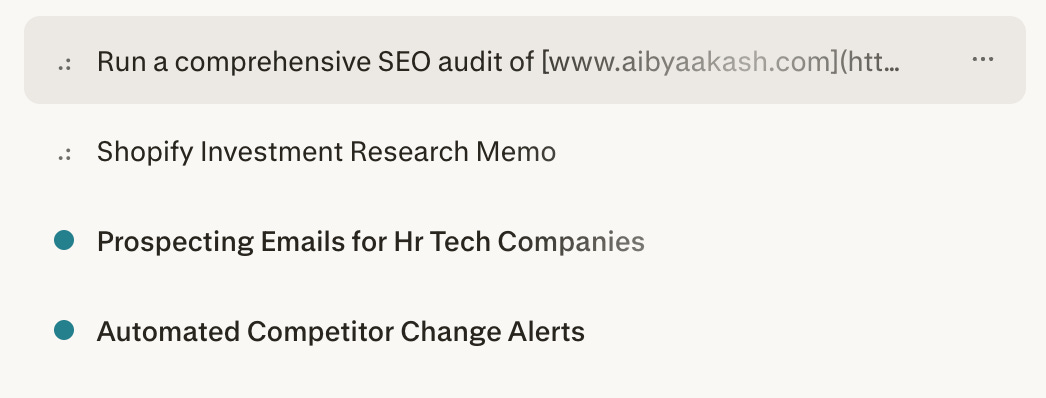
And it runs them in parallel. Start a task. Immediately start another. They execute independently in the cloud. Close your browser. Go to dinner. When you come back, everything is done.
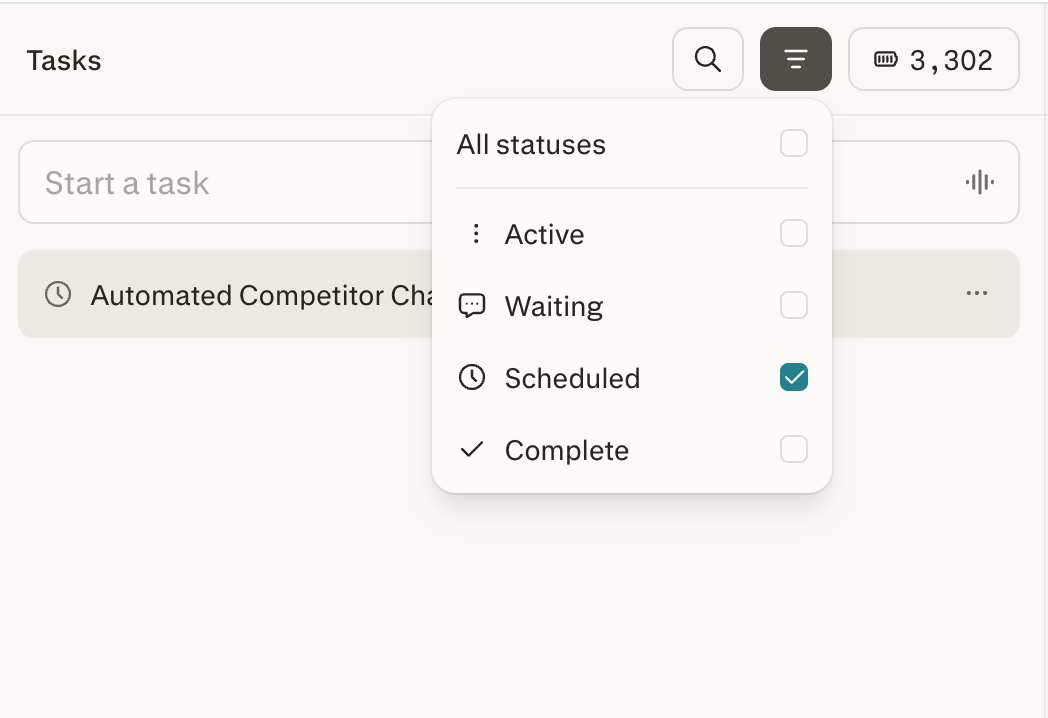
Scheduled tasks work the same way. Your machine doesn’t need to be on. Set it up once. Computer runs it on a recurring schedule whether your laptop is open, closed, or sitting in a drawer.
You can choose which models handle which sub-tasks. You can force the system to check in with you before executing. Most people never touch these controls. I’ll show you exactly how in the prompting section.
Setting Up Perplexity Computer
You need a Perplexity Pro subscription ($20/month), Max ($200/month), or Enterprise Max ($325/seat/month). Pro gets 4,000 credits per month. Max gets 10,000.
Getting started takes 30 seconds. Go to perplexity.ai, log in, click the Computer icon in the left sidebar. You’re in.
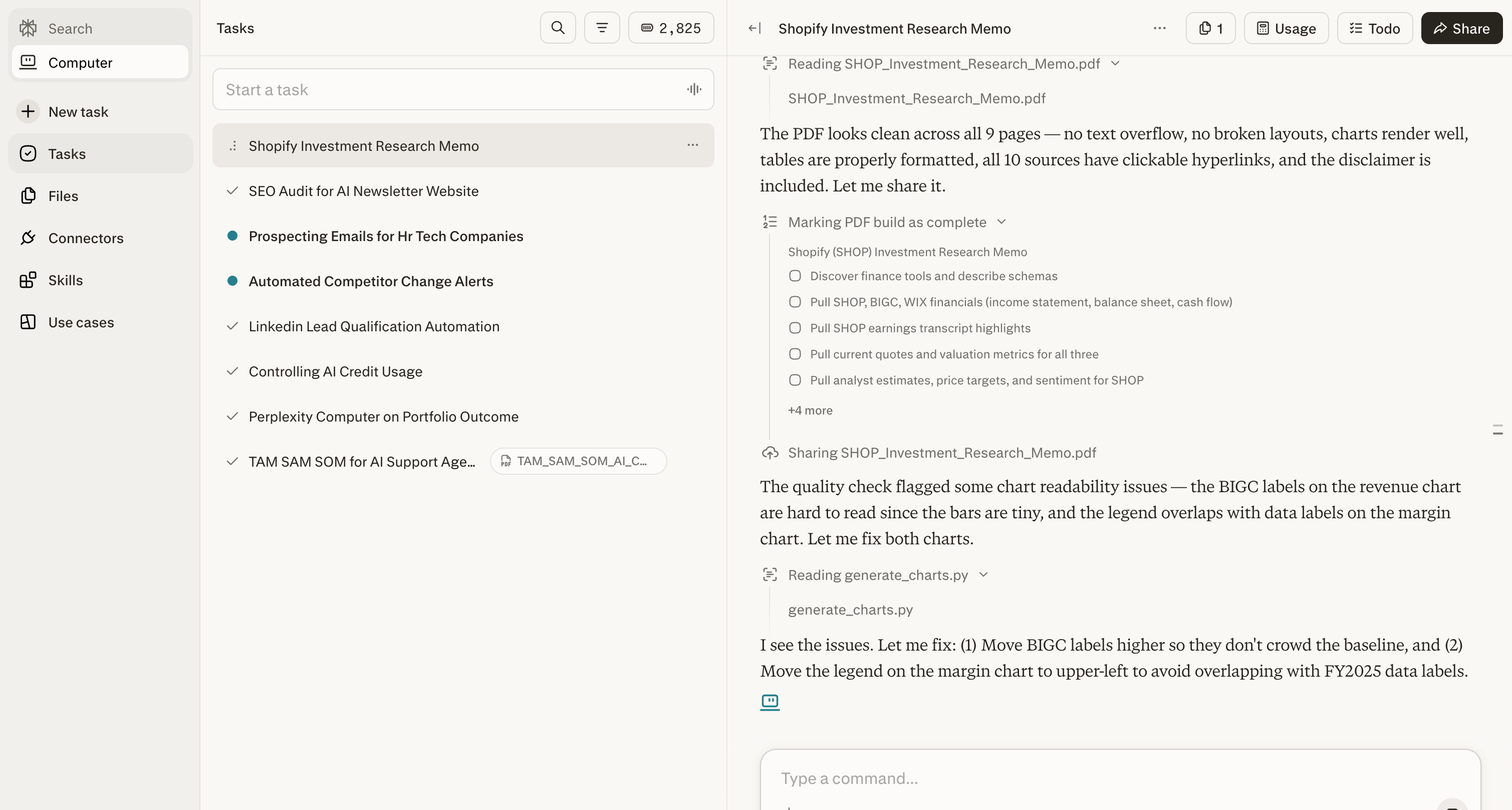
Everything is organized around Tasks. A Task is not a conversation. It’s a job. When you submit a prompt, the orchestrator (powered by Claude Opus 4.6) reads it, breaks the objective into subtasks, assigns each one to the best-suited AI model, runs sub-agents in parallel, and compiles results in the right panel.
Tip: Start a new task when the objective changes. Continue an existing task when you’re iterating on the same deliverable. Continuing is always cheaper because of persistent memory
Then, do three things:
Step 1 - Connect Everything
Connectors let Computer access your actual data and take real actions in your existing software. Not summaries. Real read-and-write access.
Setup takes about a minute per app. Click Connectors in the sidebar, browse the list, click Enable, complete OAuth. Done.
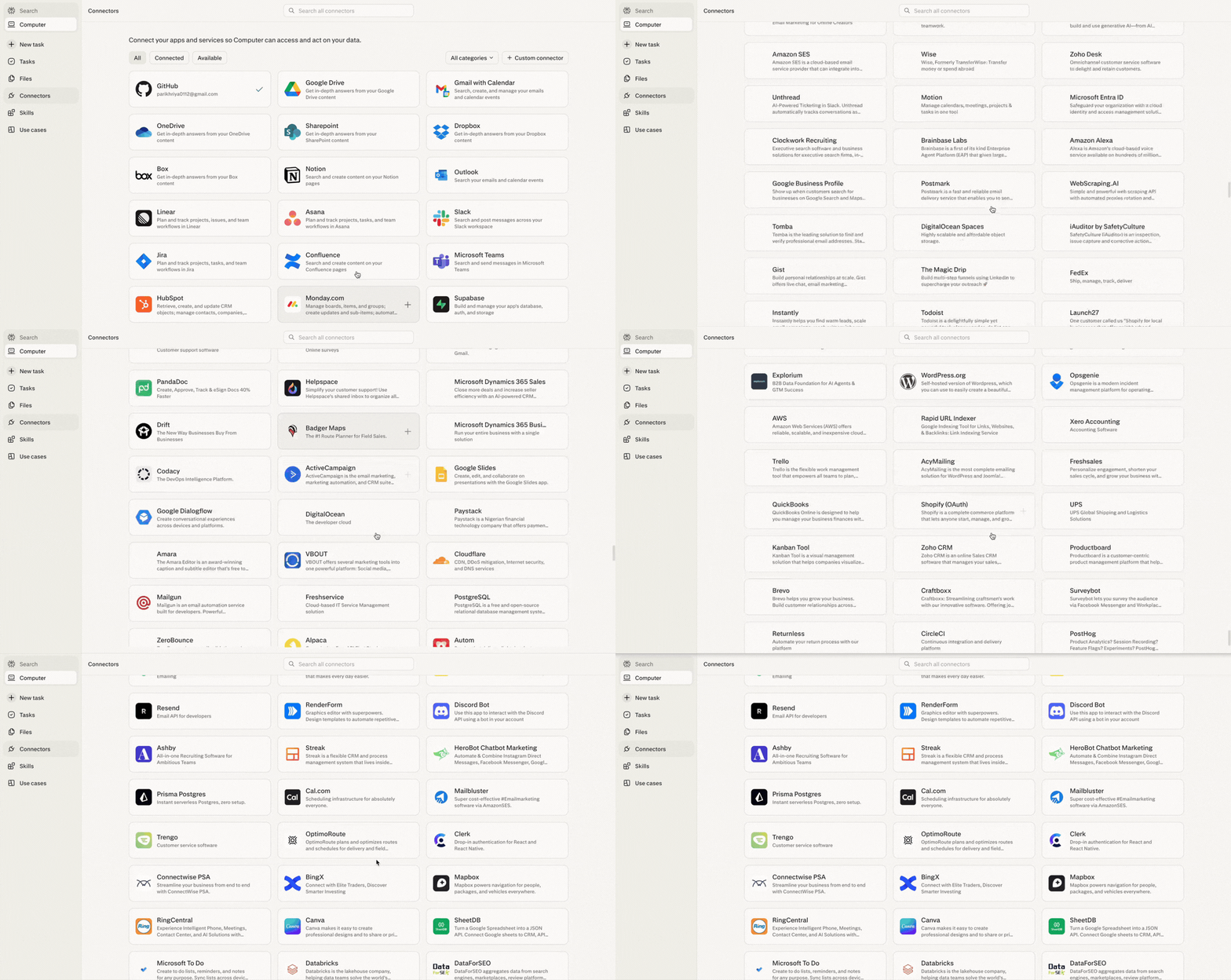
Computer has 400+ built-in integrations, and the interesting ones go way beyond Slack and Google Drive:
Through Plaid, you can link your actual brokerage and Computer builds you a live portfolio dashboard. Daily P&L, position cards, news feed, earnings calendar, price alerts. A personal Bloomberg terminal on a private URL. Full setup and prompt in Section 6.4.
Research access is wild. CB Insights, PitchBook, Statista. Computer bypasses the paywalls. A $5,000 market sizing report? Computer often pulls it.
The Snowflake connector is powerful. Type “What were the top 10 customers by revenue last quarter?” Computer writes the SQL, runs it, hands you charts. Plain English in, data out. Same with Salesforce, HubSpot, Databricks.
GitHub lets Computer write, refactor, and push code to your repos. Gmail, Slack, LinkedIn go deeper than you’d expect. I had it scan my inbox, summarize my newsletters, draft unsubscribe requests, and calculate my SaaS burn rate from receipt emails. Tag Computer in a Slack channel and it runs research without you switching tabs.
For SEO, Ahrefs, Google Search Console, Google Analytics, WordPress, Cloudflare. Full audit, competitor analysis, keyword mapping, content drafting, and live site updates.
And the one that surprised me most. Computer connects to Amazon’s Selling Partner API and Shopify natively.
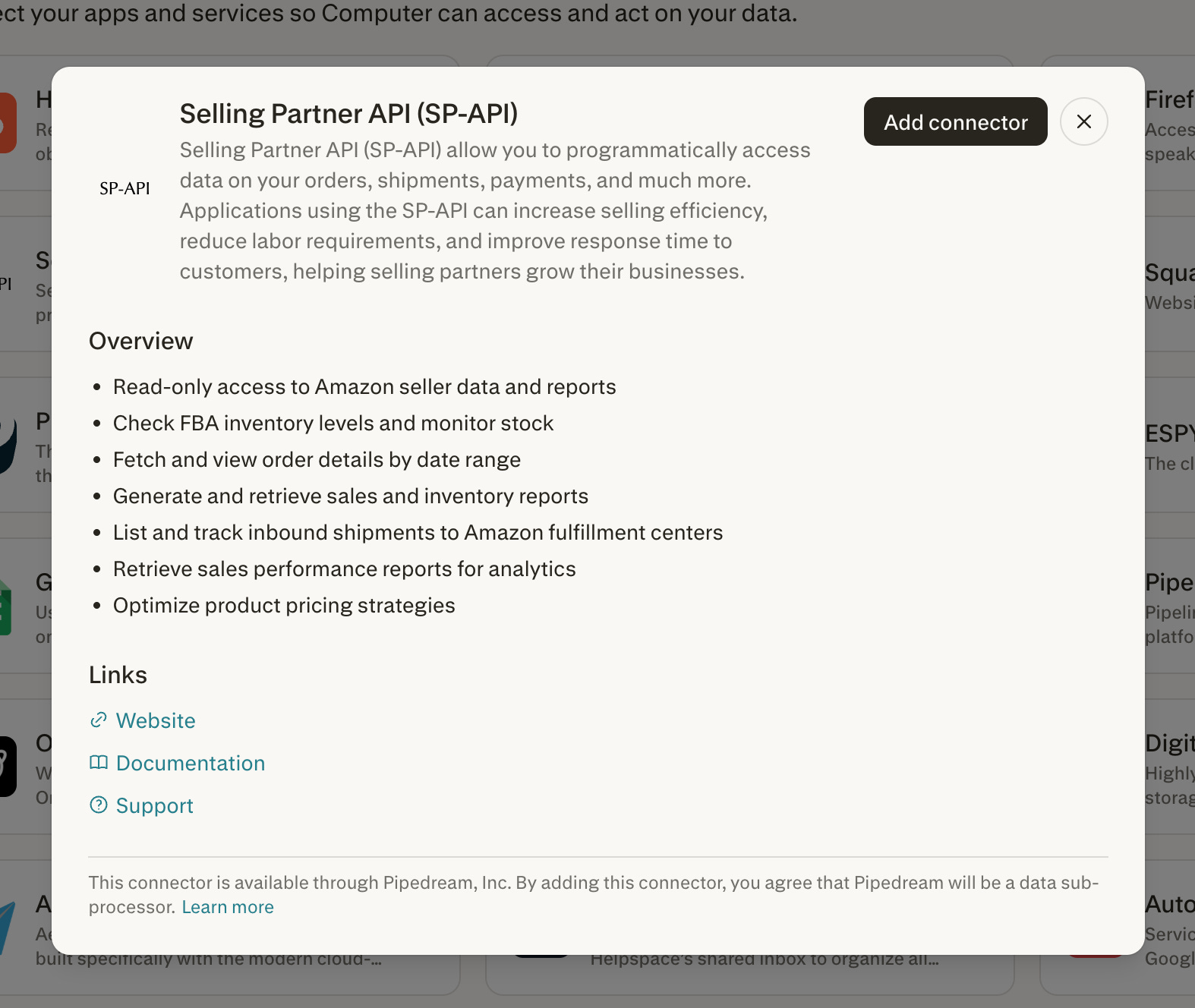
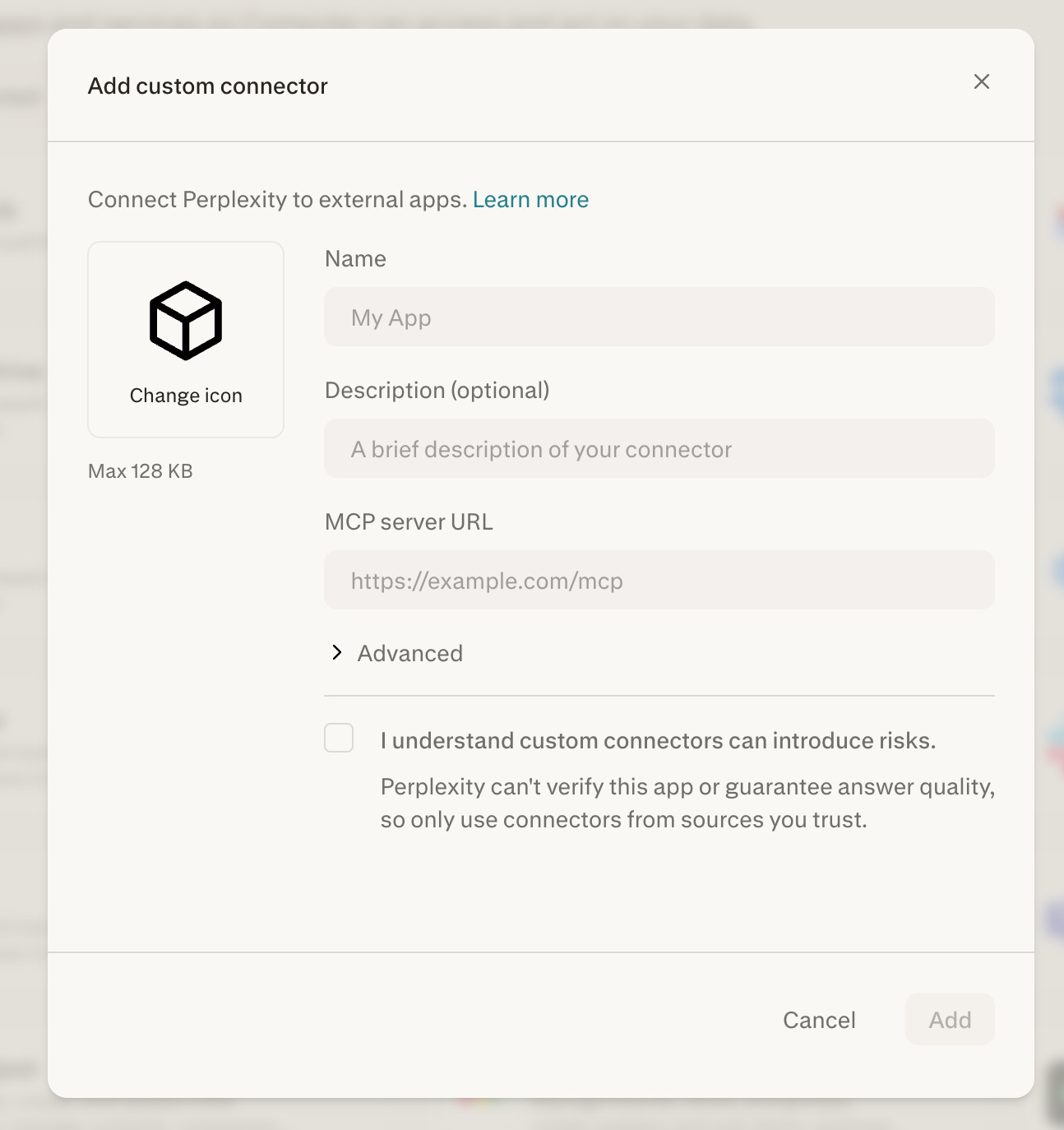
You can also bring your own tools. Provide an MCP (Model Context Protocol) server URL and Computer connects to proprietary CRMs, custom analytics servers, or private APIs. Enterprise admins can share custom connectors across the organization.
Step 2 - Create Skills
A Skill is a saved set of instructions that auto-activates when Computer recognizes a matching task. Same concept as Claude Skills or Cowork plugins.
Without Skills, you’re re-explaining your brand guidelines, formatting preferences, and reporting structure on every task. With Skills, you explain it once.
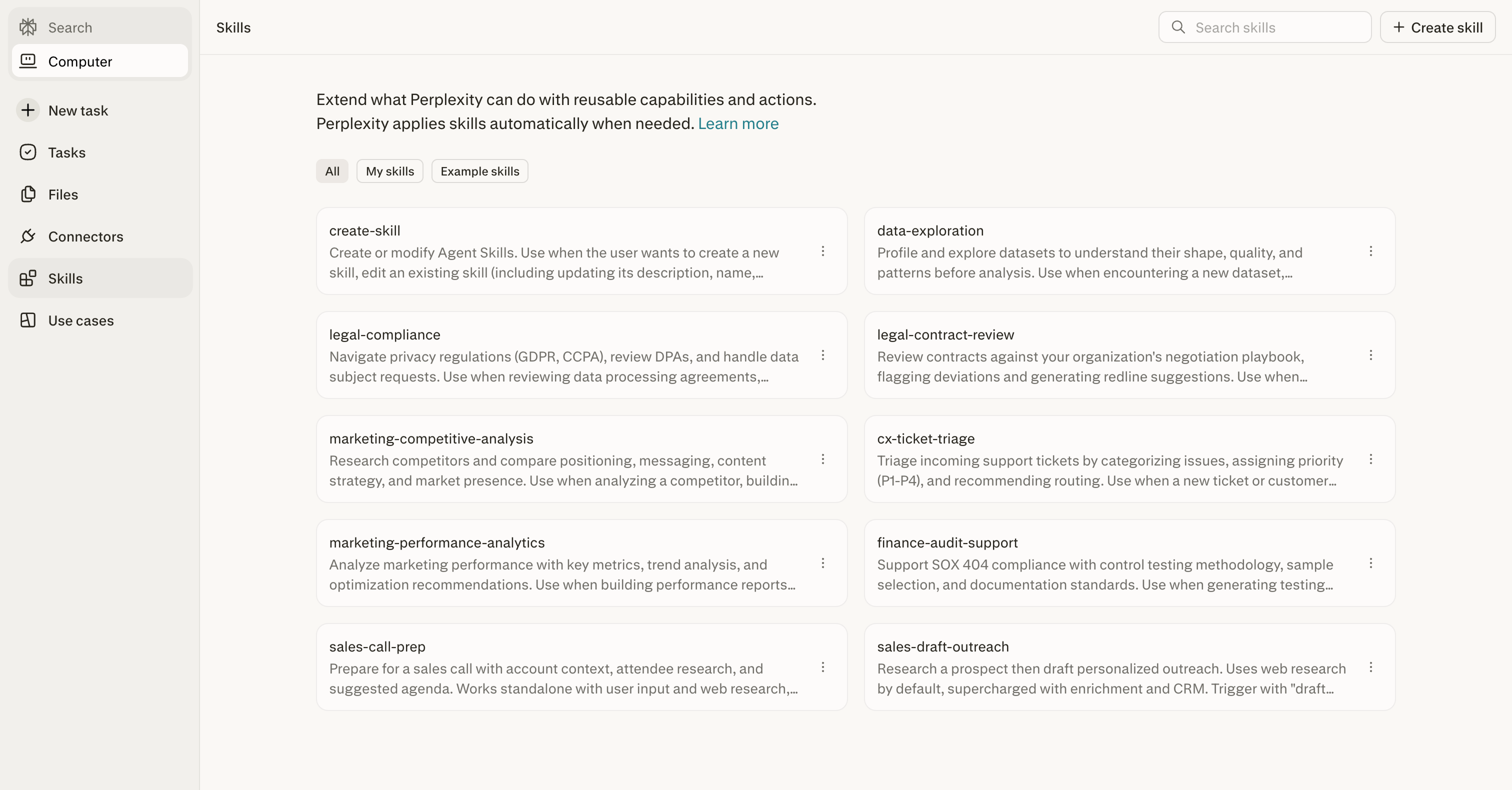
Computer ships with built-in Skills for Slides, Research, Research Report, and Chart. To create a custom one, click Skills in the sidebar, click + Create skill, and upload a .md file. Skills stack. A research Skill can hand off to a report-formatting Skill, which hands off to a slides Skill. One prompt, full pipeline.
Tip: If you’ve explained the same thing to Computer twice, it should be a Skill. Brand guidelines. Formatting rules. Research methodology. Build it once, never repeat yourself.
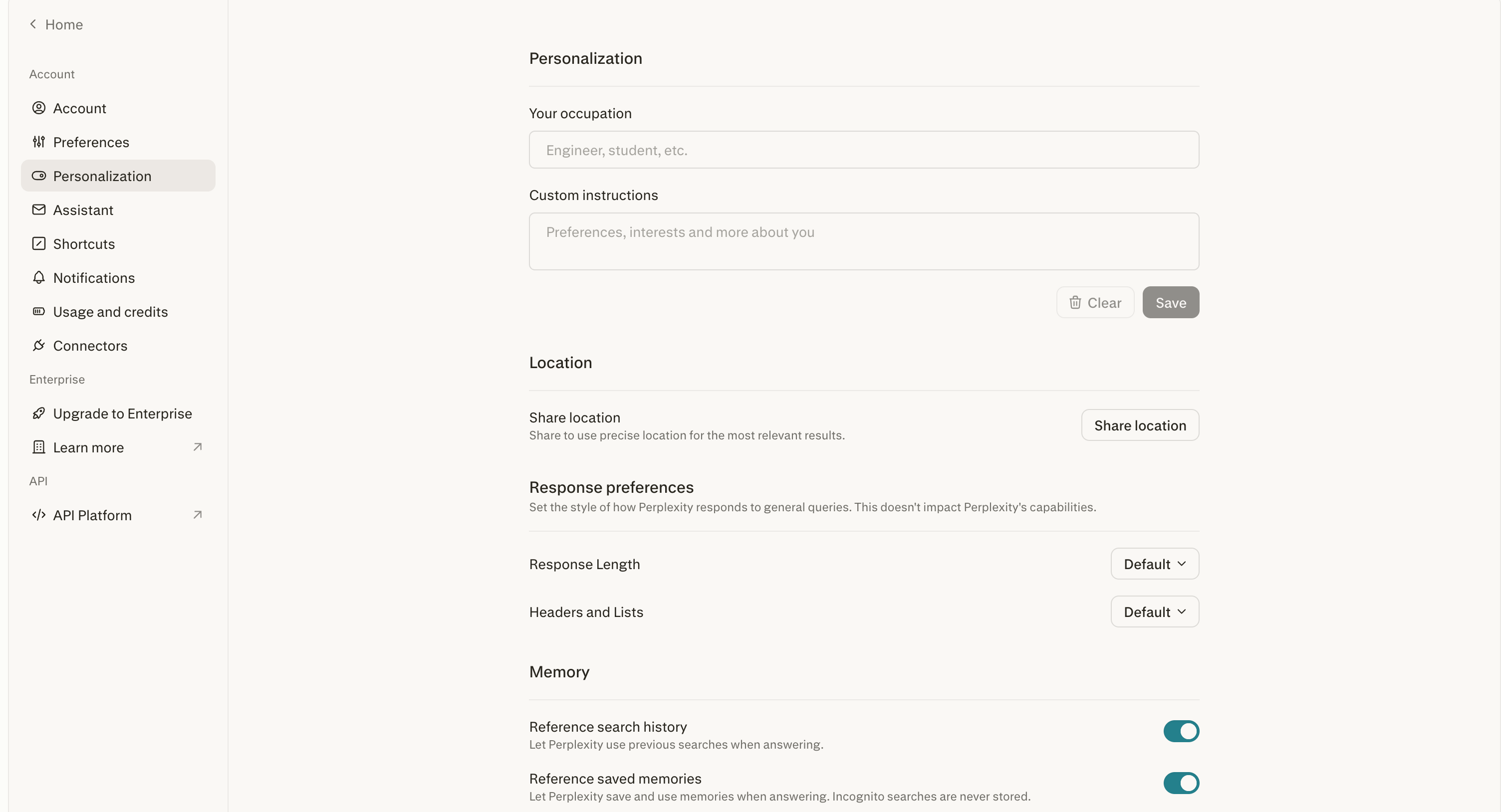
Step 3 - Custom Instructions
Skills activate for specific task types. Custom Instructions apply to ALL tasks, all the time. Keep them under 1,500 characters. The single most effective one I've found:
“Always come back to me and clarify any misunderstandings and challenge my thinking to make sure you’re very clear on the stated outcome, and let’s create a brief short plan before we build anything.”
That one line forces Computer to verify what you want before spending credits. Massive savings.
2. How to Use Perplexity Computer as a PM
I’ve identified 6 particularly powerful use cases you should steal. Here’s everything you need to get them set up: